
- How to access the settings.
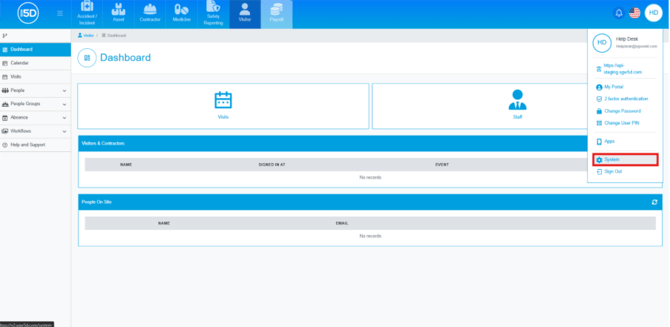
- Click on your initials in the top right corner. Then click ‘System’.
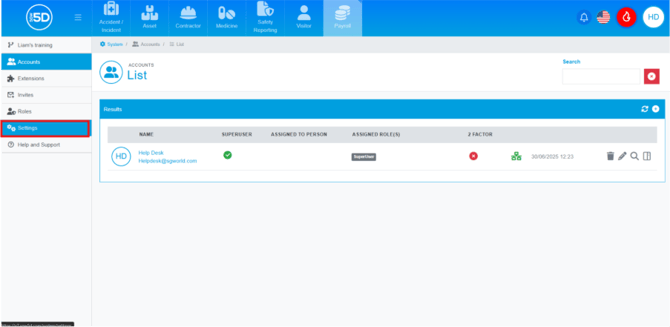
- Using the left-hand navigation panel and click ‘Settings’.
- Click on your initials in the top right corner. Then click ‘System’.
- Minimum Document status.
- Minimum Document Status’ is used solely by the contractor module. This setting determines if a company can be used, dependent on if a company has sent in all their up-to-date files which they are required to provide before work can be completed. These could include things such as liability insurance.
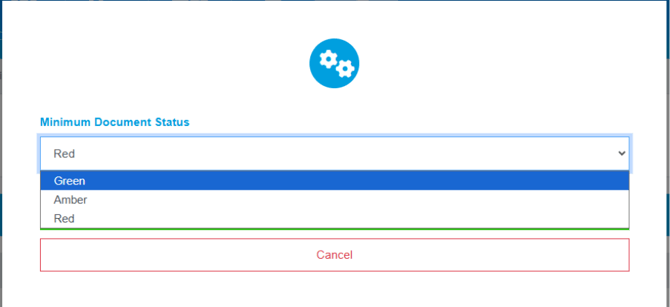
- Green – Is the highest, which means all documentation must be sent in and up to date.
- Amber – All documentation must be sent in, but some are allowed to be expired.
- Red – Doesn’t matter if documentation has expired or sent in.
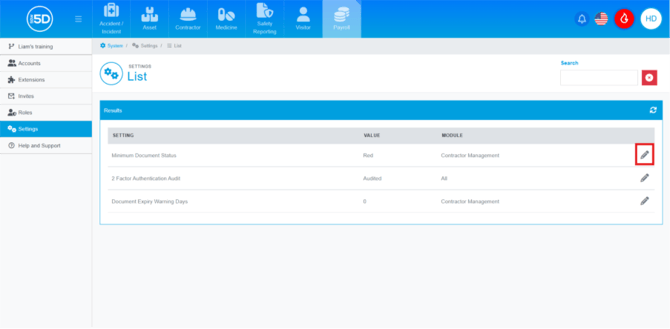
- You can change the document status by clicking the pencil icon for the setting.
- A pop-up page will appear with a drop down. Use the drop-down to select at what level you want to set the minimum too.
- When you have selected your level, click ‘Confirm’ to save the changes.
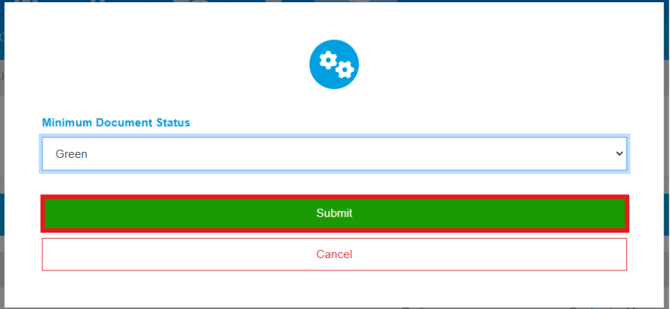
- Minimum Document Status’ is used solely by the contractor module. This setting determines if a company can be used, dependent on if a company has sent in all their up-to-date files which they are required to provide before work can be completed. These could include things such as liability insurance.
- Factor Authentication Audit
- This enables the sending of emails, to those with the 2FA notifications permission as part of their role. When a change occurs, such enabling or disabling 2FA on an account. It will also send out a weekly email on Monday to notify those individuals about who has not set up their 2FA.
- To change the setting, click the pencil icon.
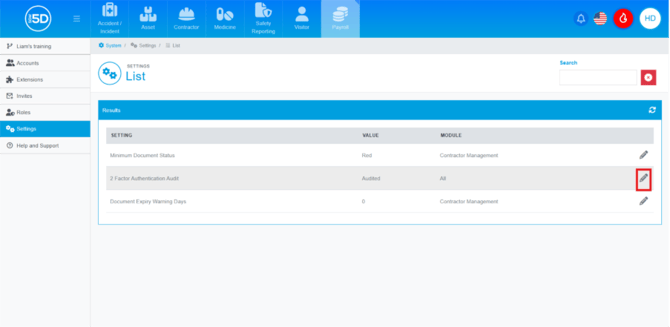
- A pop-up page will appear with a drop-down menu; it defaulted too optional.

- If you want users to start receiving emails change it to audited.

- When done click ‘Submit’.

- Document Expiry warning day
- This allows for documentation automation for the contractor module. If the setting is left at the value 0, it will not perform any documentation automation. When it reaches the set time it will send an email to the contractor company contact, asking them for the updated documents.
- You can change the time by pressing the pencil icon related to the setting.

- This page contains a text box where you can set the number of days that you can set before a document expires. Click 'Submit' when done.

- Record Anonymisation
- The system can anonymise records, and you can customise how long it takes for each record to be anonymised. It breaks this down by record type, allowing you to set the number of years before anonymisation occurs.
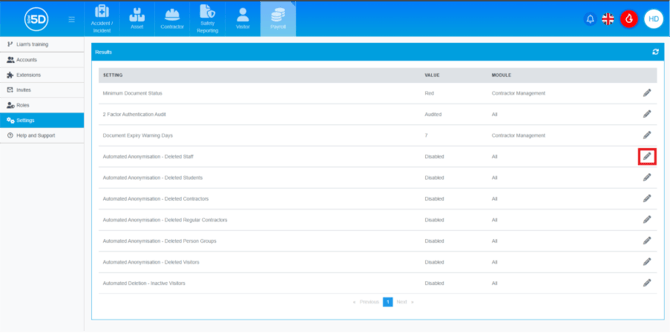
- To change the length of time a record remains active, click the pencil icon next to the setting you want to edit.
- An overlay will appear with a drop-down menu. Open the menu and select how long you want to keep the record before it is anonymised.
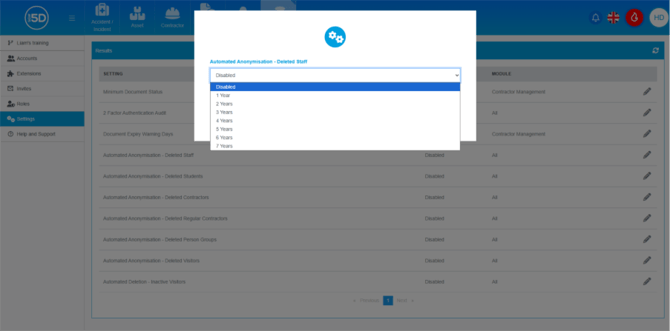
- Click ‘Submit’ when done.
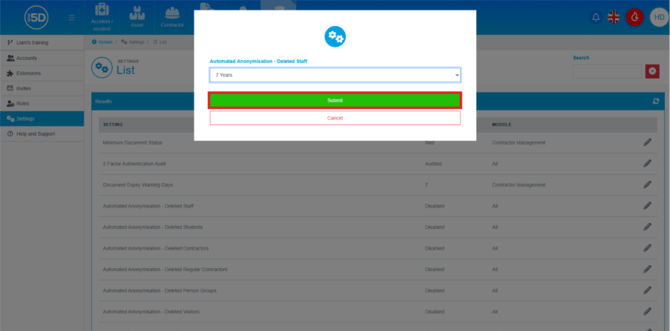
- Automated Anonymisation - Deleted Staff – Anonymisation only occurs when the staff record is deleted. It will be anonymised after the time set in the setting.
- Automated Anonymisation - Deleted Students – Anonymisation only occurs when the student record is deleted. It will be anonymised after the time set in the setting.
- Automated Anonymisation - Deleted Contractors – Anonymisation only occurs when the contractor record is deleted. It will be anonymised after the time set in the setting.
- Automated Anonymisation - Deleted Regular Contractors – Anonymisation only occurs when the regular contractor record is deleted. It will be anonymised after the time set in the setting.
- Automated Anonymisation - Deleted Person Groups – Anonymisation only occurs when the person group record is deleted. It will be anonymised after the time set in the setting.
- Automated Anonymisation - Deleted Visitors - Anonymisation only occurs when the visitor record is deleted. It will be anonymised after the time set in the setting.
- Automated Deletion - Inactive Visitors – This record will be anonymised after the time set by this setting, from their last visit to the site.
- Allergy Information Field
-
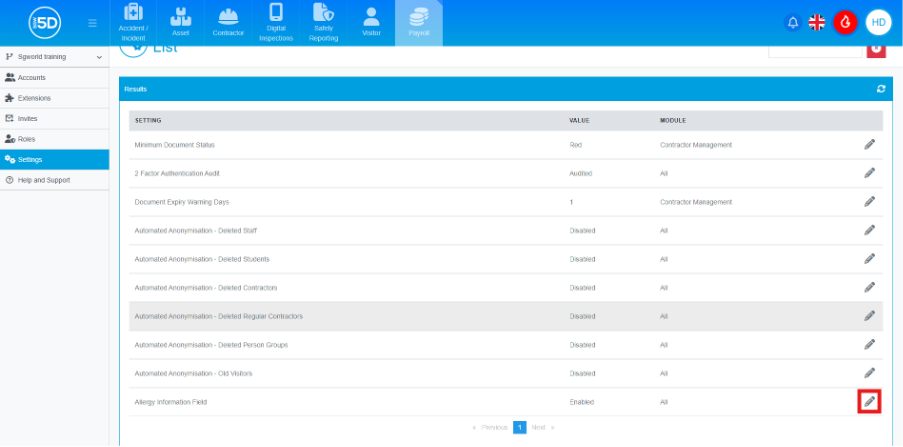
- The Allergy Information Field adds the ability to collect allergy information to various areas around the module. This will include the following:
- Visitors
- Staff
- Contractors
- Regular contractors
- You will be able to collect this information when creating records, prebooking visitors, creating jobs for contractors, or by visitors using the touchscreen.
- If the setting is disabled, the Allergy Information field will not appear anywhere across the system, this includes the touchscreen.
- To enable the feature click on the pencil icon on the row of the setting
- The Allergy Information Field adds the ability to collect allergy information to various areas around the module. This will include the following:
-