-
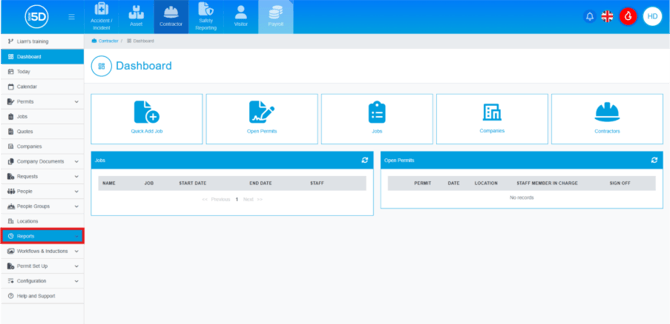
- To access the report, you first need to be in the Contractor module.
- Go to the ‘Reports’ section on the left-hand navigation panel.
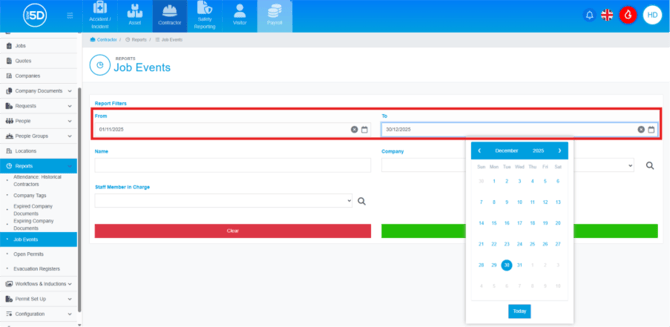
- Then click the report titled ‘Job Events’.

- This will take you to the report interface, where you can start filling out the fields for the results. Begin with the ‘From’ and ‘To’ fields. Clicking on these fields will bring up a calendar, allowing you to select a date.
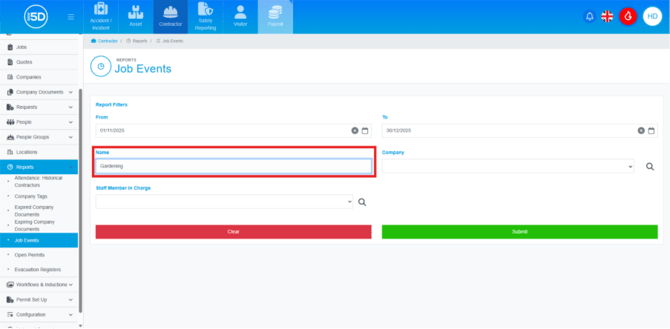
- The ‘Name’ field is for the name of the job.
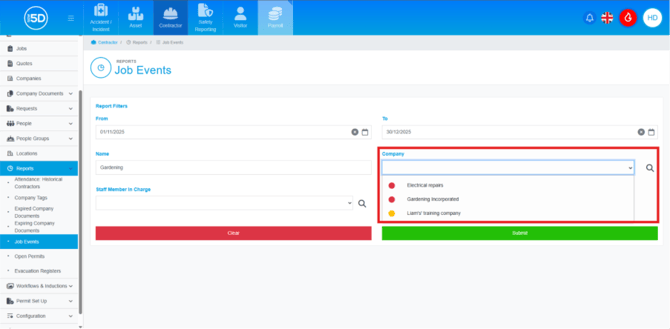
- Next, you can search for a job event by the company it is assigned to. The ‘Company’ field can be used as a drop-down to select a company, or you can click the magnifying glass icon to search for a company by name.
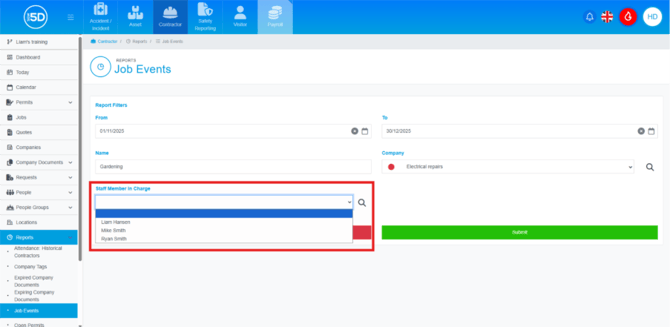
- You can search for job events that are assigned to a ‘Staff Member IN Charge, you can do this by the field to open a drop-down to select a staff member or click the magnifying glass to search for a staff member.
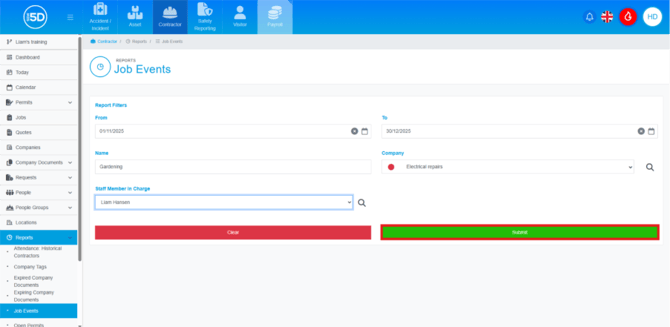
- Click ‘Submit’ to search for the job events.
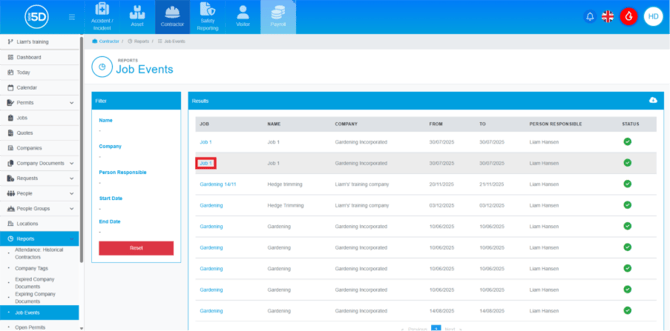
- This will generate a report. You can download the report by clicking the Download button in the top-right corner. This will download a .csv file of the report.

- Alternatively, you can click on the name of the job event. This will take you to the job page.