
-
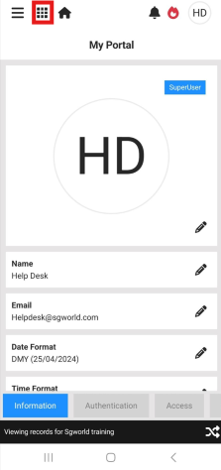
- To start filling in a permit within the app, you must first be in the Contractor module. Tap the tile in the top-left corner of the app screen.
.
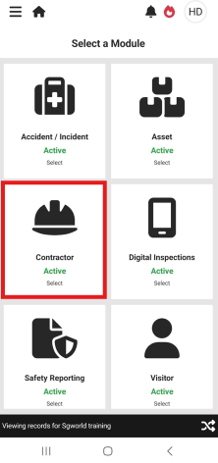
- Locate and tap the Contractor module tile.
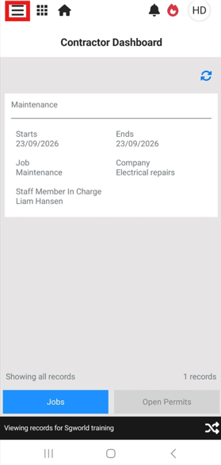
- Open the navigation menu in the top-left corner of the screen.
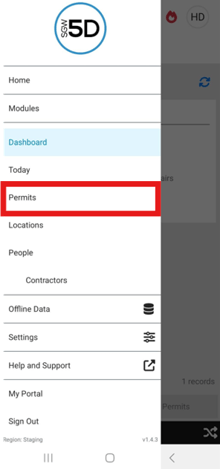
- Scroll down and tap Permits.
- In the top-right corner of the Permits screen, there is a QR code icon. Tap this icon to open the camera.
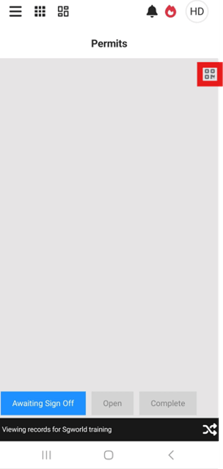
- Scan the QR code on the contractor pass.
- This will open a list of any permits assigned to that pass.
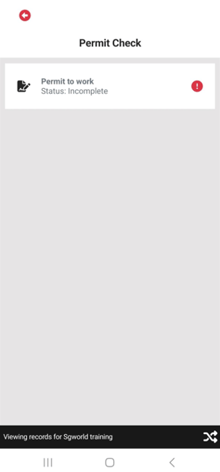
- Tap a permit to begin completing the questions.
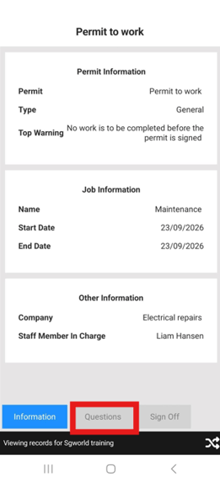
- To navigate through the permit, use the buttons along the bottom of the screen to switch between the questions and the sign-off section of the permit.
- To start filling in a permit within the app, you must first be in the Contractor module. Tap the tile in the top-left corner of the app screen.