
-
- Using the left-hand navigation menu, click ‘Inventory’ and then ‘Holding Area’.
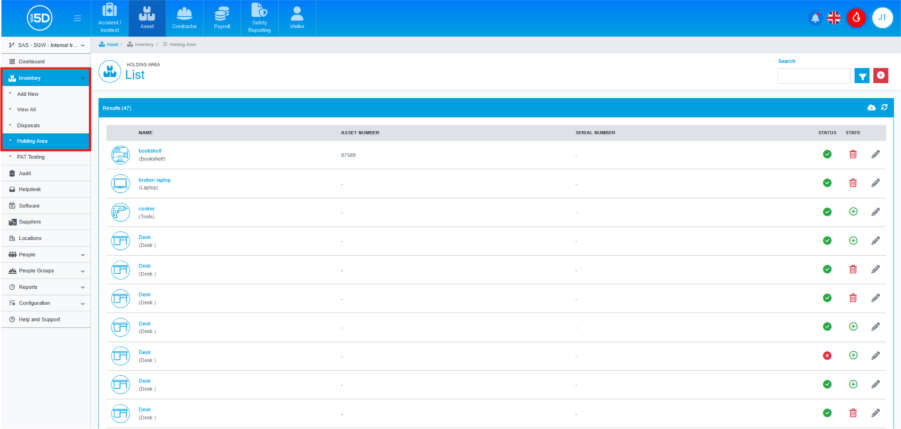
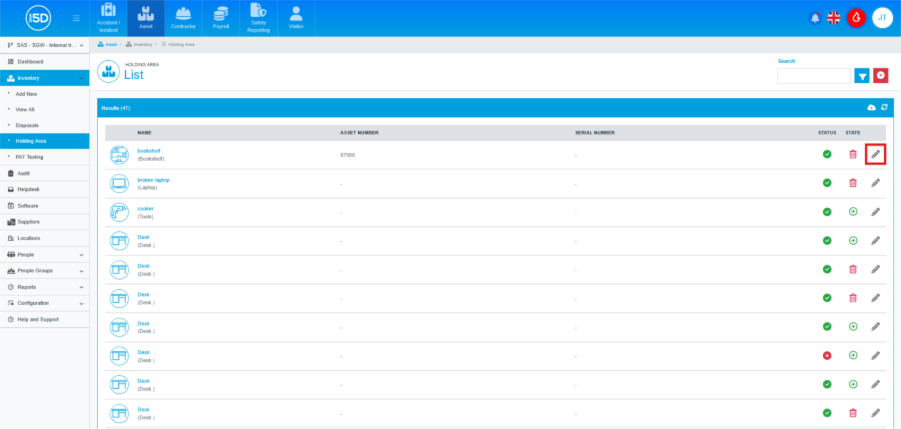
- You will see any items not have not been assigned to a Place or Person here. Click the Edit Pencil icon next to one of the items.
- You will now see a menu. From here you can choose how you want to assign the item, you can assign it to a Person, a Place or both.
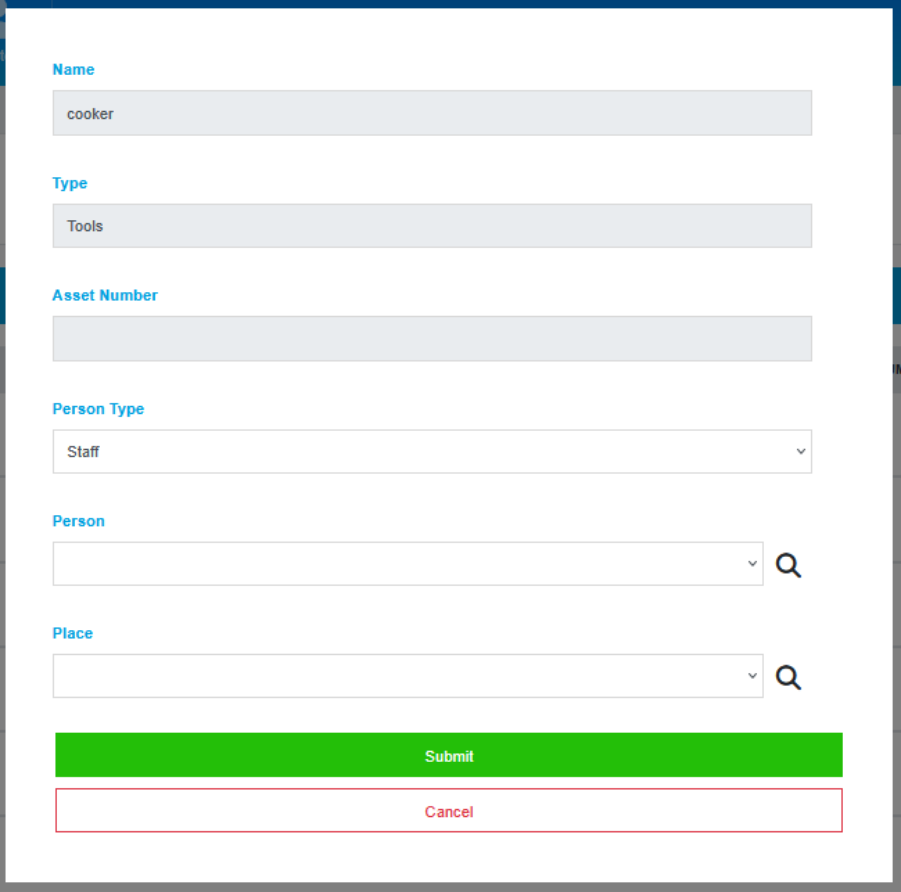
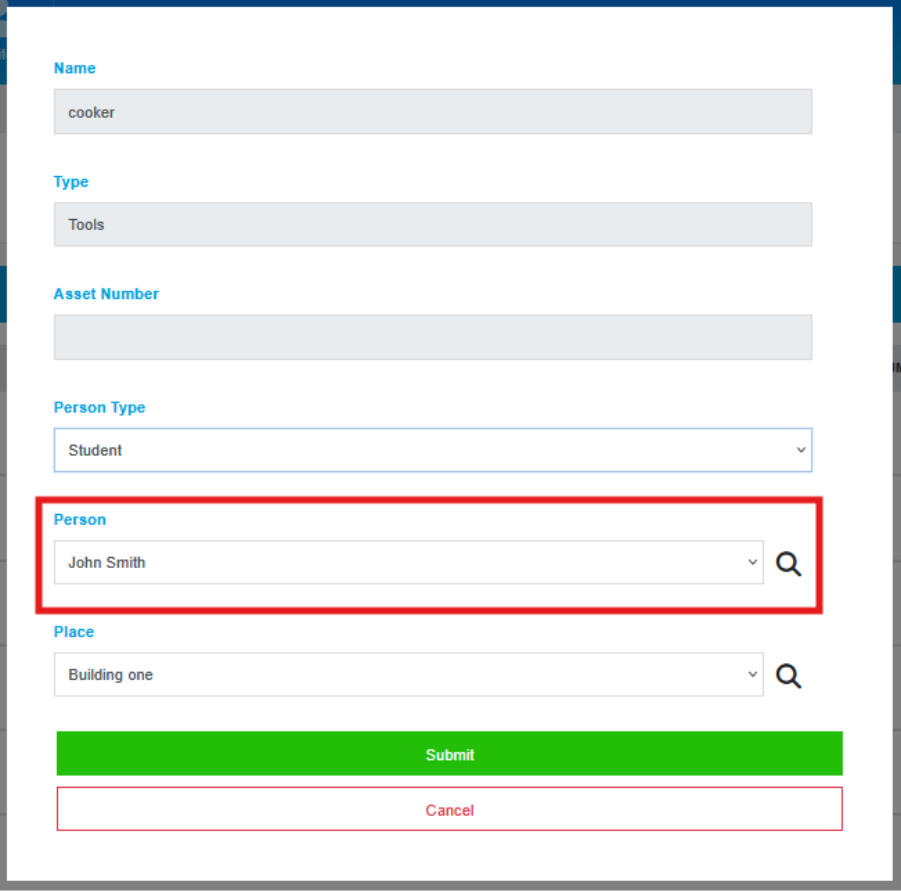
- To assign it to a person, first select the type of person you wish to assign this to using the ‘Person Type’ dropdown menu.
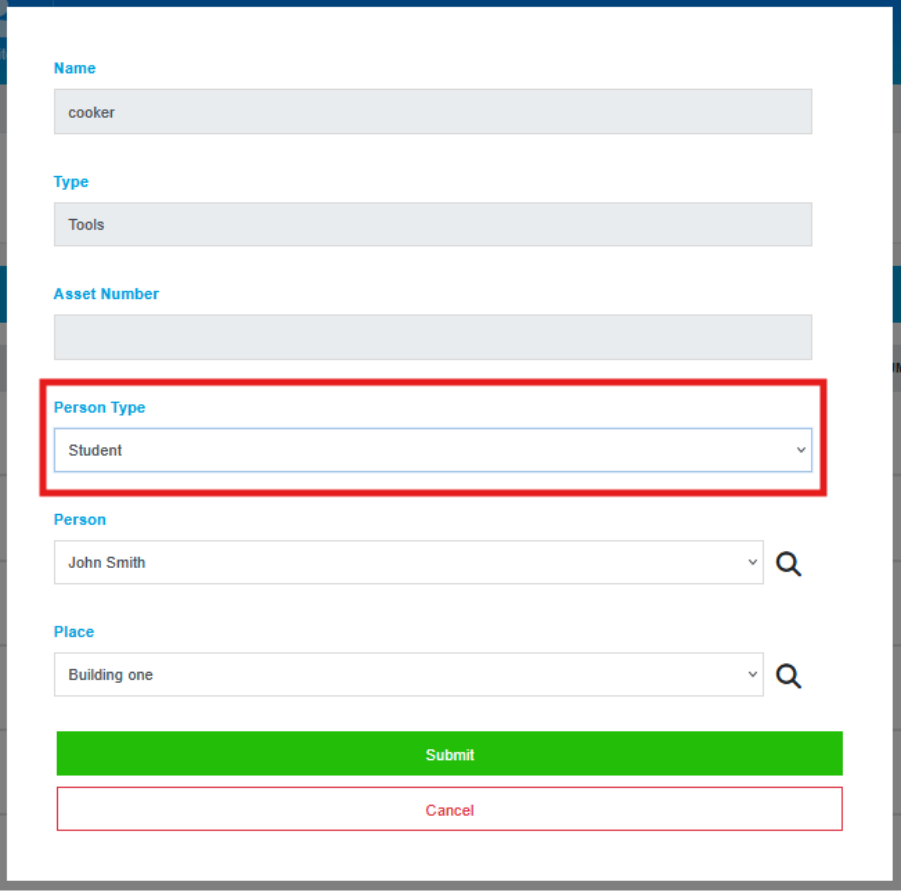
- Next, search for the Person record by either looking through the dropdown list or by clicking the magnifying glass icon to search.
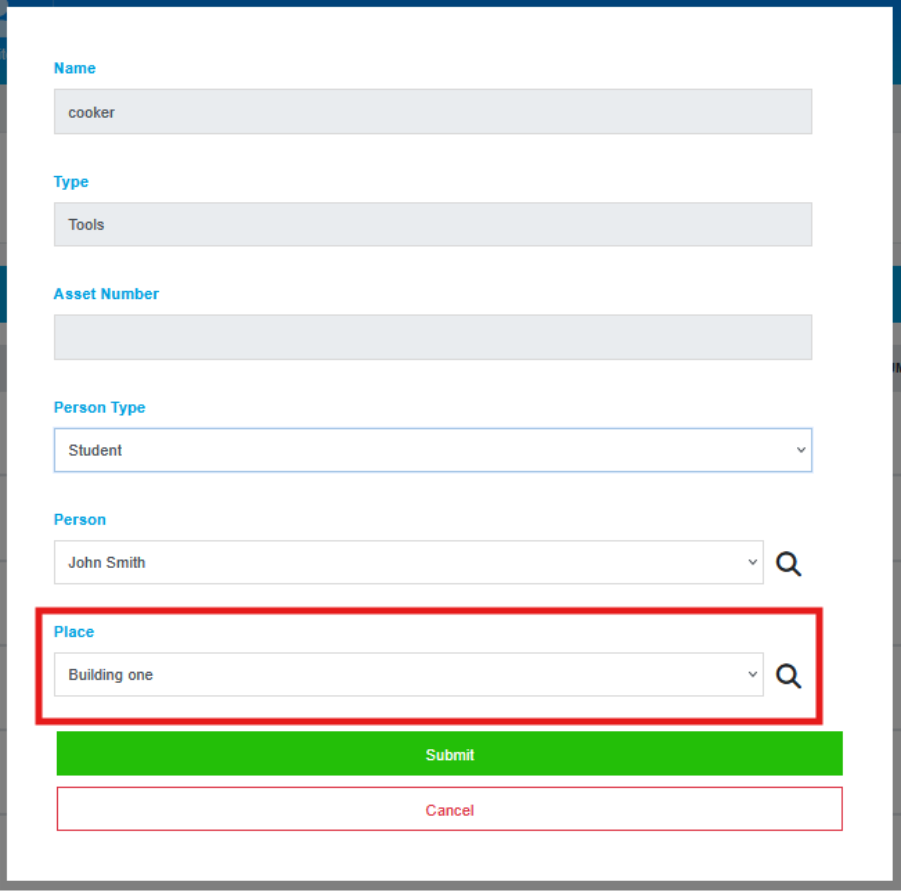
- To assign a Place, search for the Place by either looking through the dropdown list or by clicking the magnifying glass icon to search.
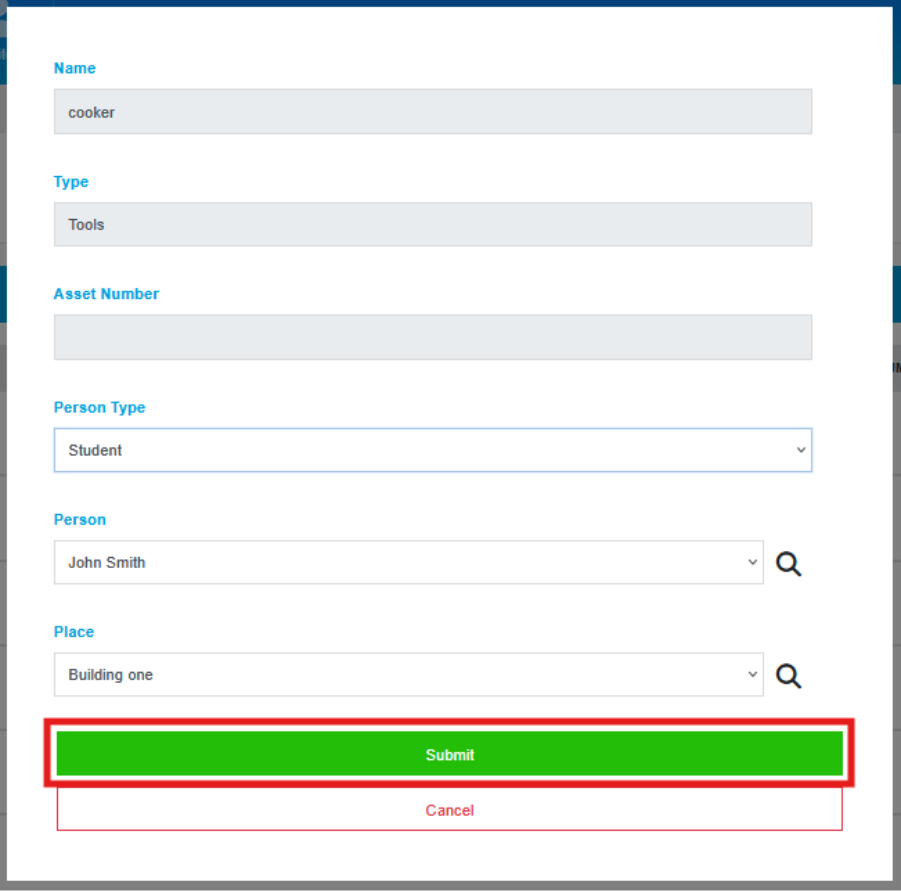
- Once you have assigned the relevant records, click ‘Submit’ and the item will then be assigned and be removed from the Holding Area.
- Using the left-hand navigation menu, click ‘Inventory’ and then ‘Holding Area’.