
-
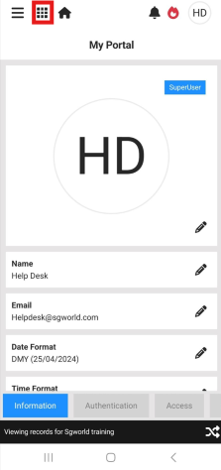
- Start by navigating to the Asset module by tapping the Tiles icon in the top left corner of the screen.
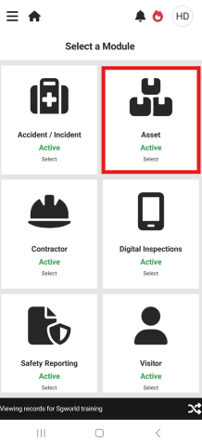
- Tap the Asset tile.
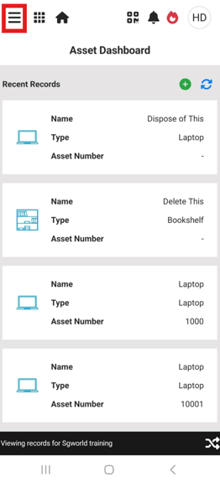
- Once in the Asset module, open the navigation menu by tapping the three-line icon in the top left corner of the screen.
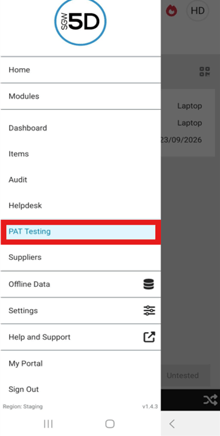
- Locate and tap Pat Testing.
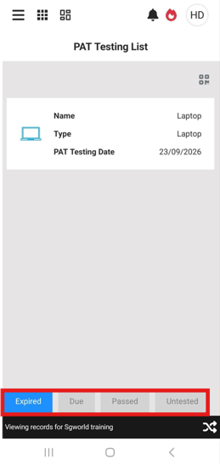
- This will take you to the PAT Testing List. This list can be broken down to all Expired, Due, Passed and Untested items by using the buttons at the bottom of the screen.
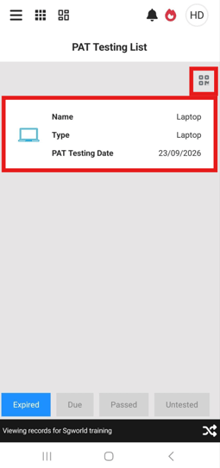
- To update Items PAT test, you can either find and then click on the items record or use the QR code Scanner in the top right and scan any QR codes attached to the item.
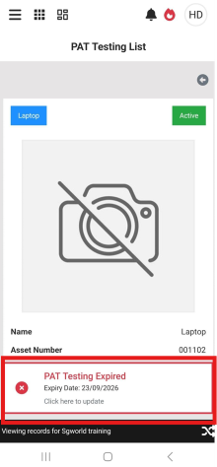
- Both previous options will send you to an item overview page. At the bottom you will see the PAT Testing Expired. Tap that to insert a new date.
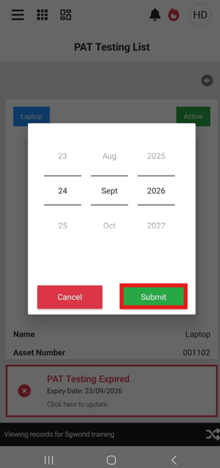
- You can now change the date to the next PAT testing date. Clicking Submit will save the date.
- Start by navigating to the Asset module by tapping the Tiles icon in the top left corner of the screen.