
-
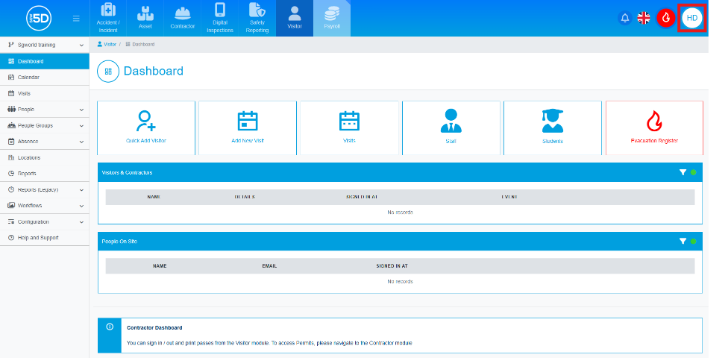
- To start, you will need to navigate to the System area of 5D. This can be done by clicking on your initials or profile picture in the top-right corner of the page.
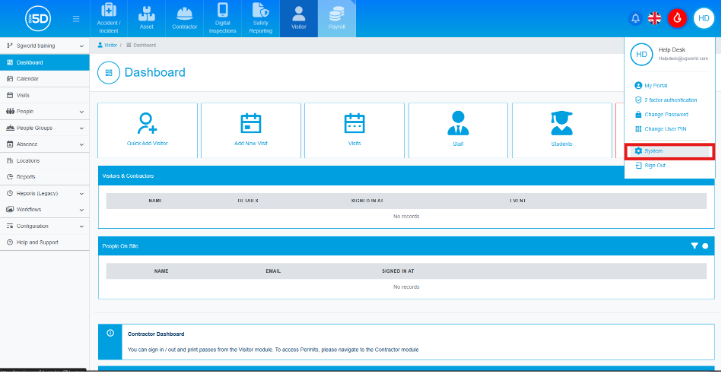
- This will open a small menu. Click System.
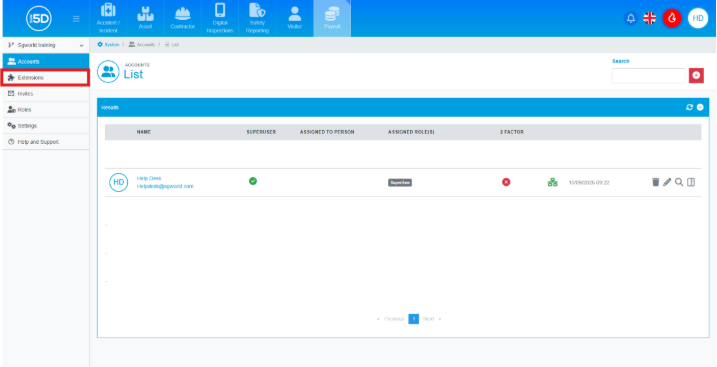
- Then click Extensions using the left-hand navigation panel.
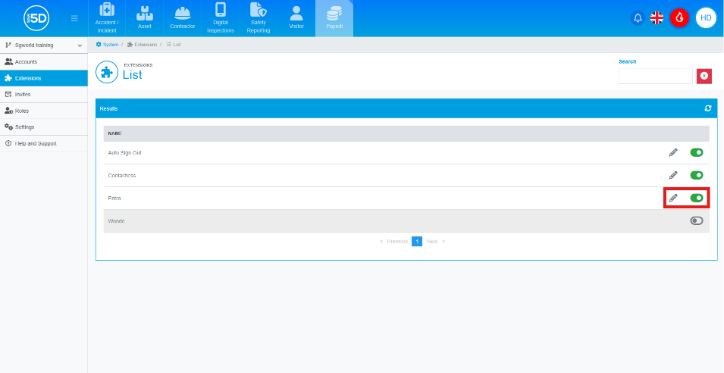
- This will display a list of the four extensions. Locate Entra and use the slider on the left-hand side to enable the extension.
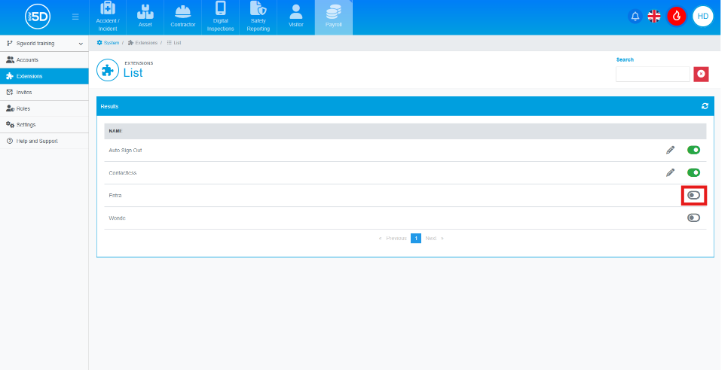
- The slider will turn green, and a pencil icon will appear.
- To configure the extension, please refer to How to Configure the Entra Integration.
- To start, you will need to navigate to the System area of 5D. This can be done by clicking on your initials or profile picture in the top-right corner of the page.