
- How to send a File Request
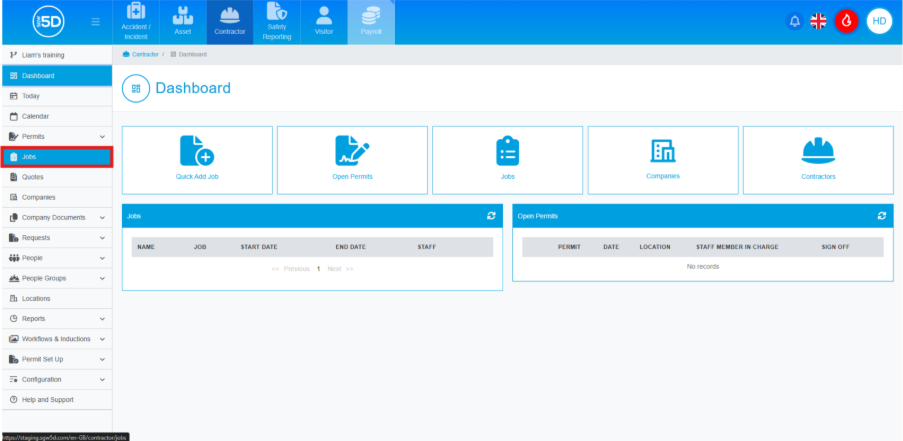
- Although you can send file requests when creating a job event, you can also send them from the job page itself. To do this, click ‘Jobs’ using the left-hand navigation panel.
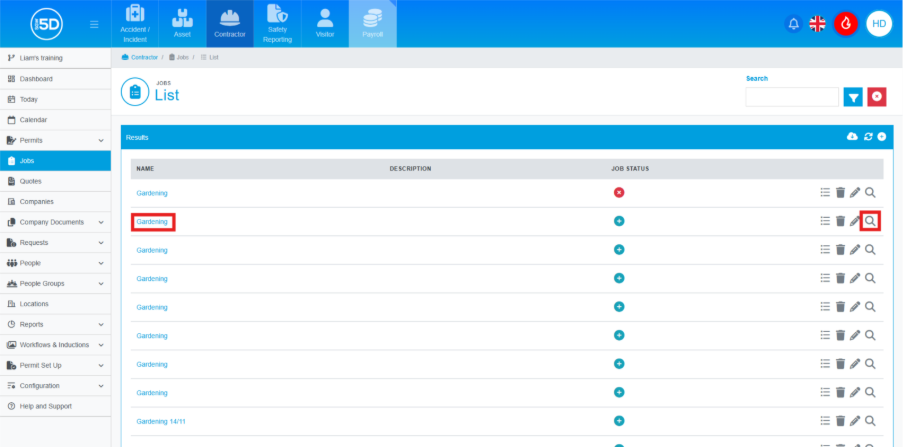
- This will take you to the ‘Jobs’ list, where you can view all future, current and past jobs. Locate the job you want to add the file request to, and either click on the job name or the magnifying glass icon.
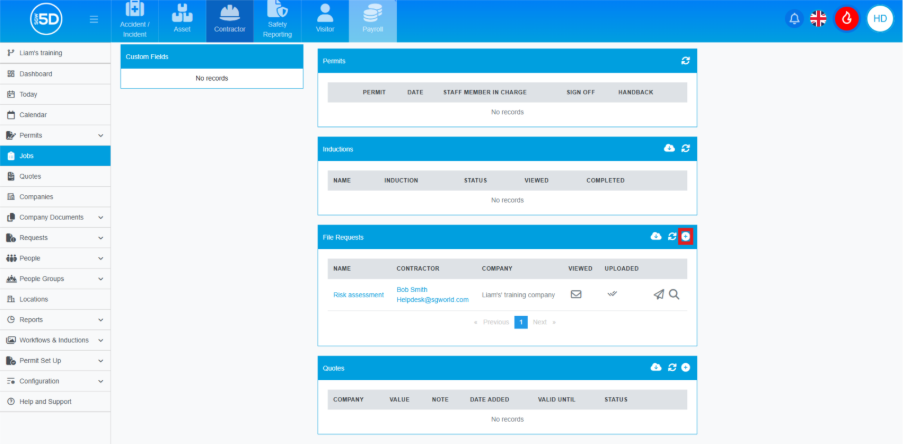
- The Job Overview page provides a summary of everything currently happening on the job, including the status of inductions, file requests and examples. To request a document, scroll down the centre of the page and, under the File Request section, click the plus symbol.
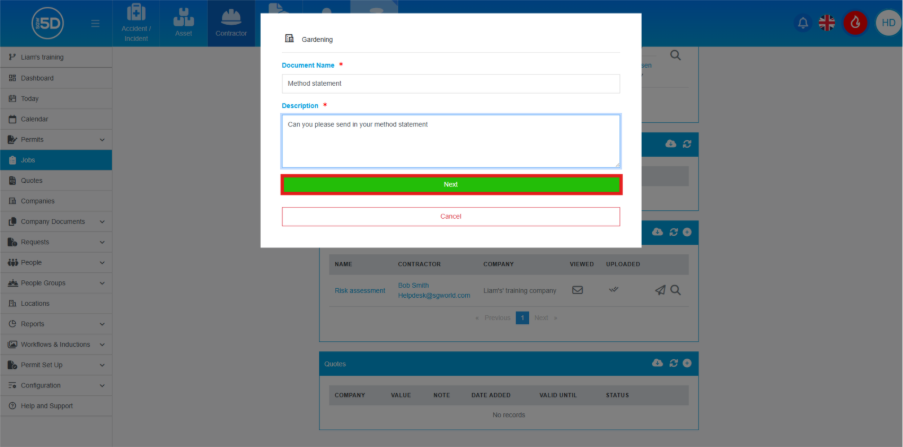
- An overlay will appear. You will need to complete both the ‘Document Name’ and ‘Description’ fields. These are mandatory and must be filled in.
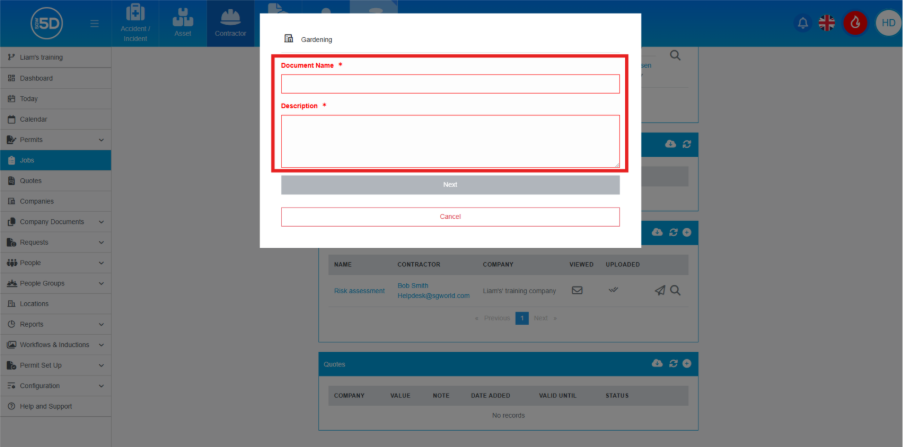
- Click ‘Next’ to move to the next section.
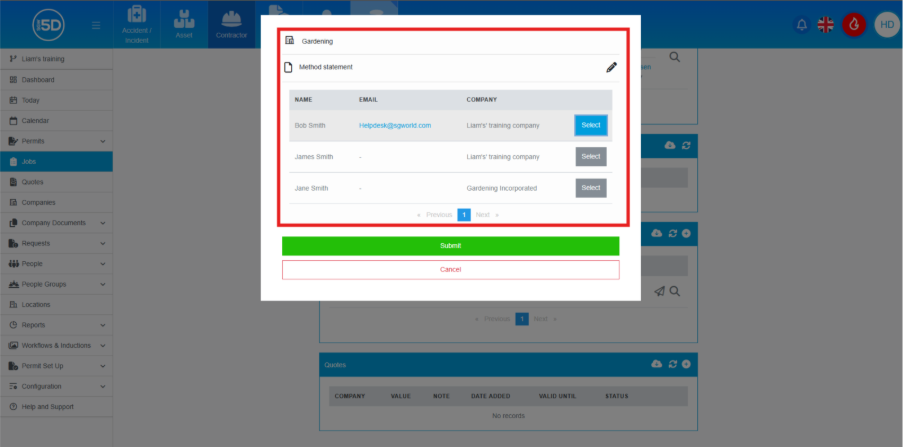
- This page allows you to select which contractor will receive the file request. It will display which contractors have an email address and can receive the request. Click the ‘Select’ button next to the contractor you want to choose. The button will flash blue to confirm selection.
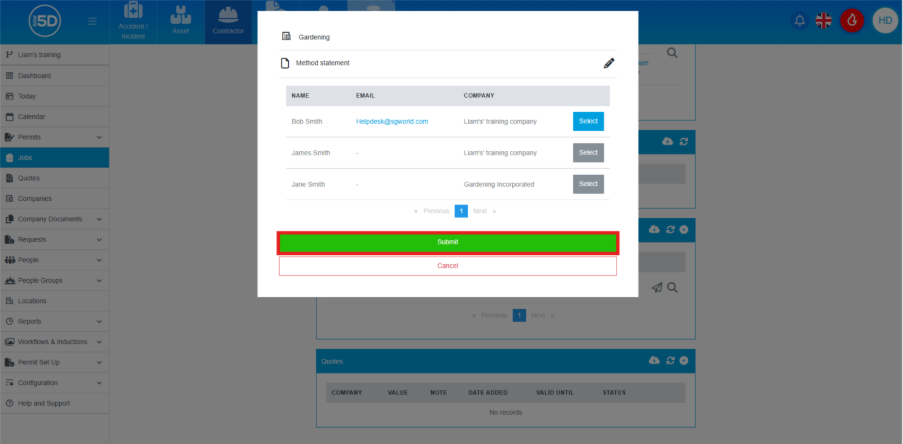
- Click ‘Submit’ to send the email.
- Although you can send file requests when creating a job event, you can also send them from the job page itself. To do this, click ‘Jobs’ using the left-hand navigation panel.