
- How to review a Document
- To review a document sent by a contracted company, click ‘Company Documents’ on the left-hand navigation panel.
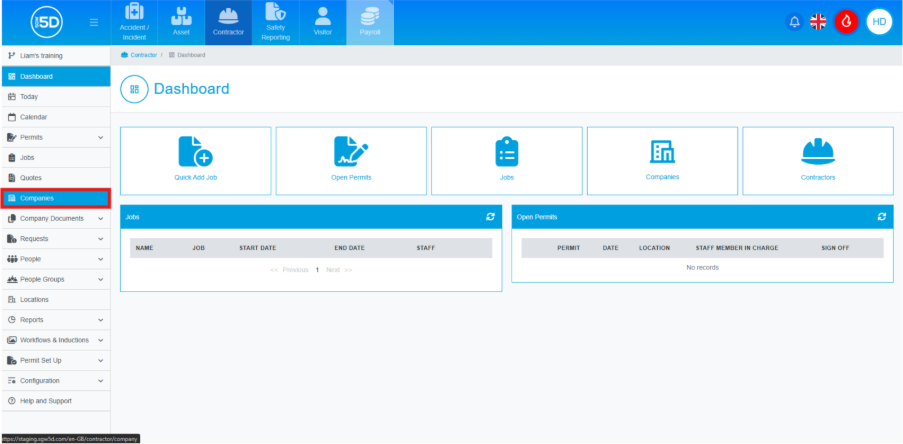
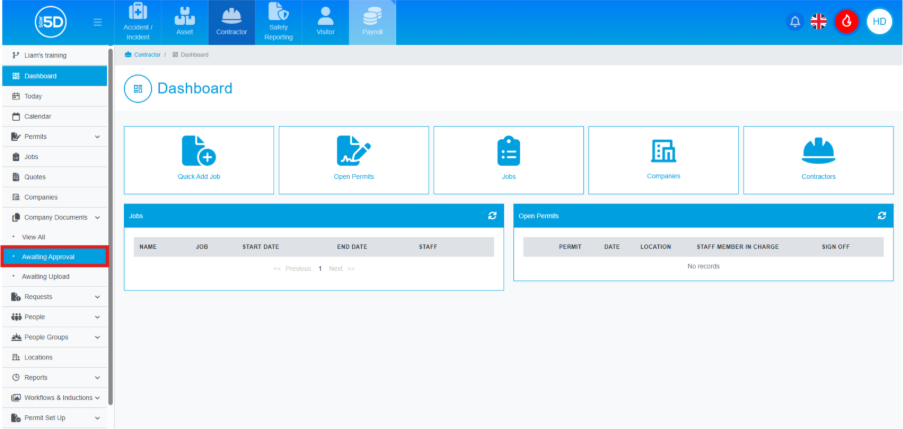
- This will open a drop-down menu. Next, select ‘Awaiting Approval’.
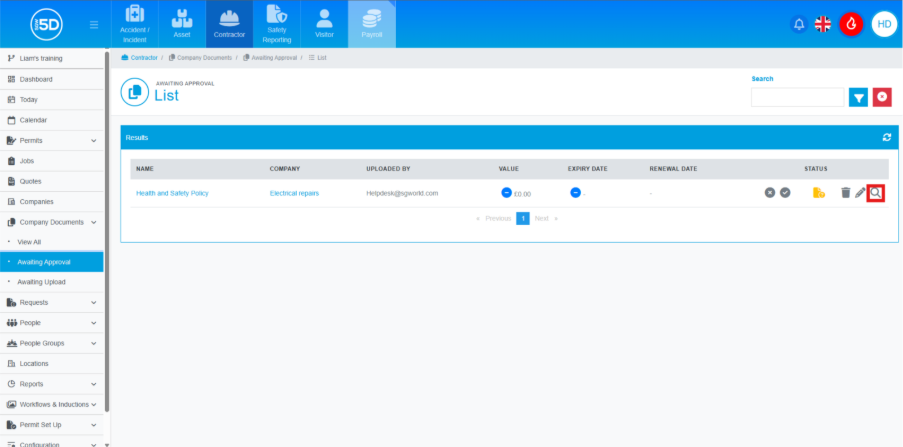
- A list will appear showing any documents uploaded by contractors. You can view a file by clicking the magnifying glass icon.
- This will take you to a ‘View’ page, where you can download the file by clicking the cloud symbol next to it.
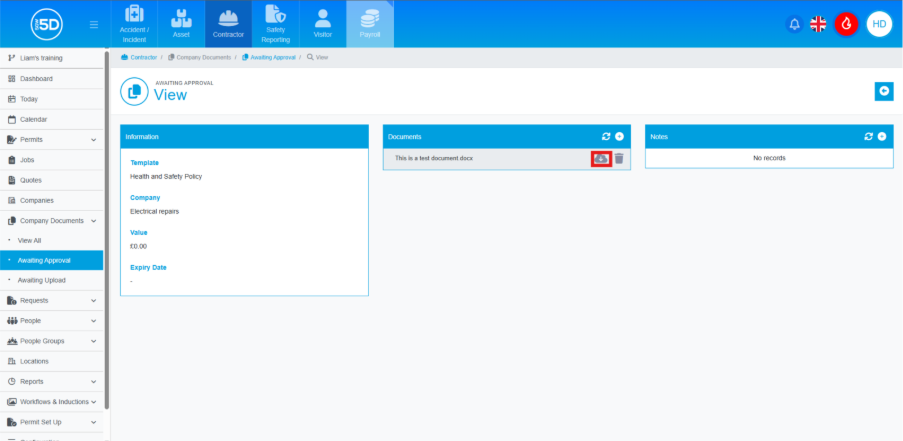
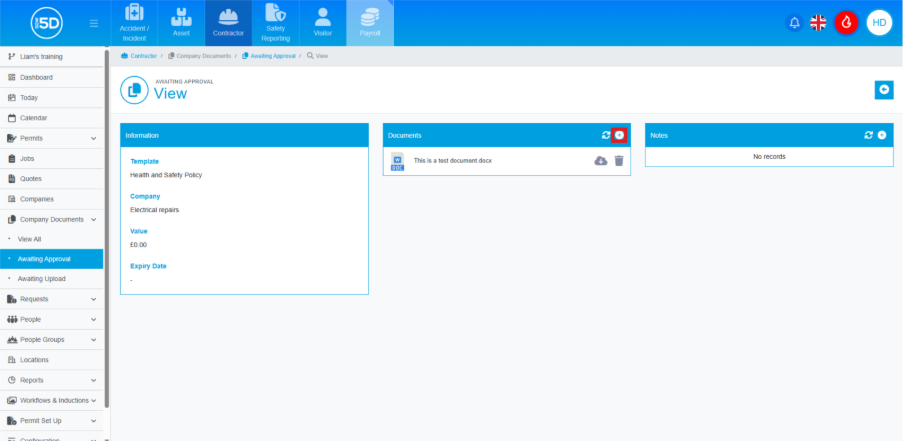
- Here, you can also manually add documents by clicking the plus symbol in the top right corner of the ‘Documents’ box.
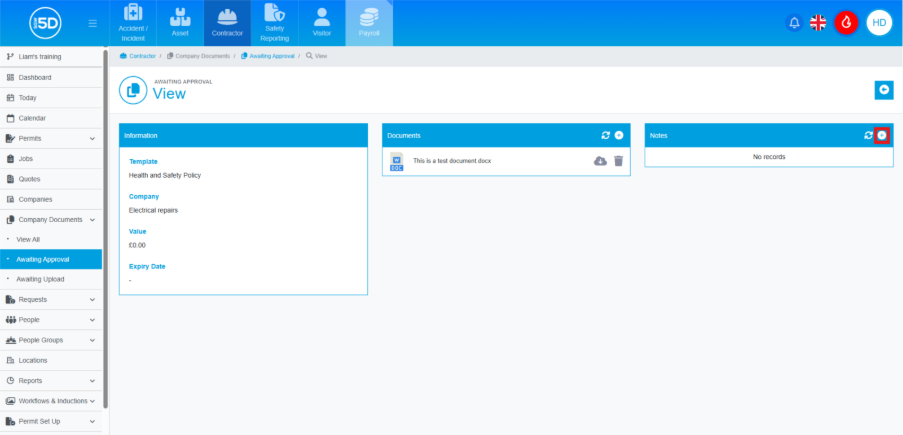
- There is also a section to add any notes about the files.
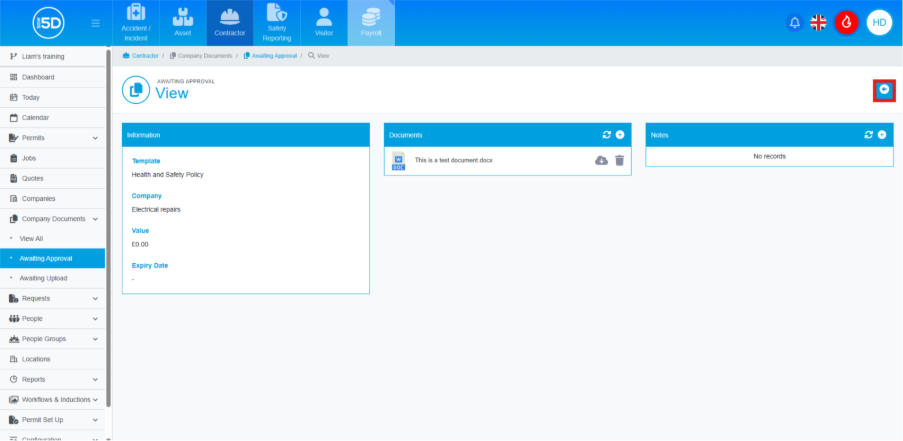
- To approve the document, click the back button.
- From the main page, there is a tick or a cross. Clicking either of these will approve or reject the document.
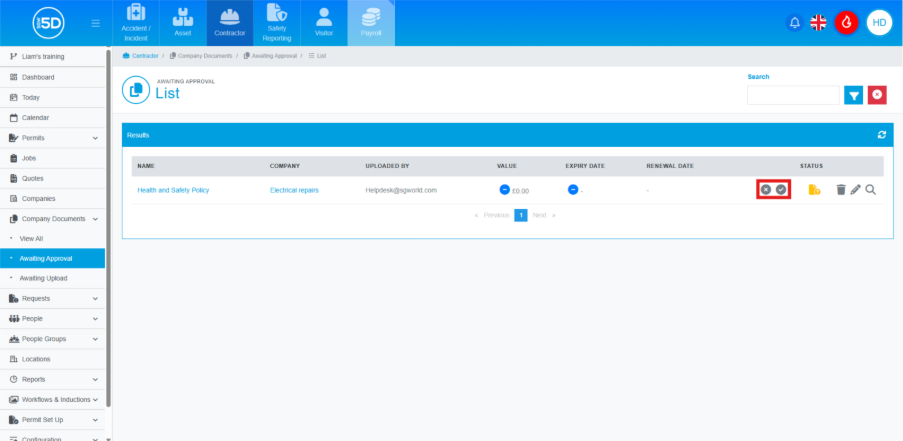
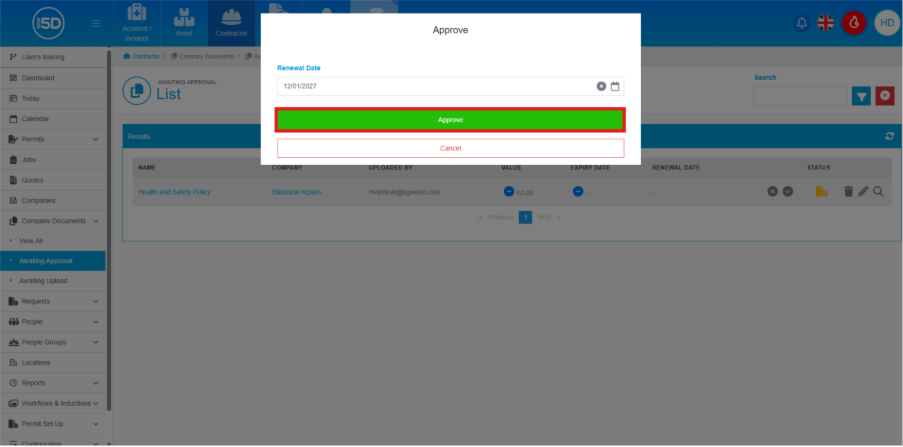
- If you accept the document, you will be asked to enter a renewal date. Clicking the ‘Approve’ button will mark it as completed.
- To review a document sent by a contracted company, click ‘Company Documents’ on the left-hand navigation panel.