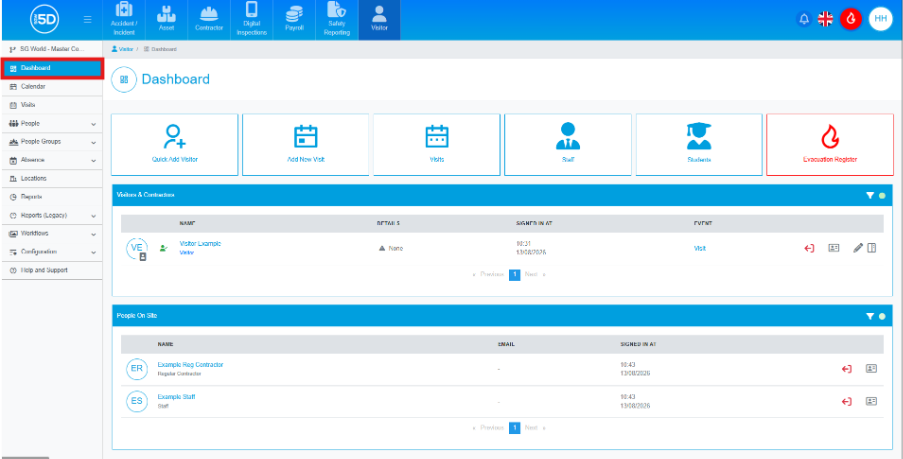
- In the Visitor module, ensure you are on the Dashboard.
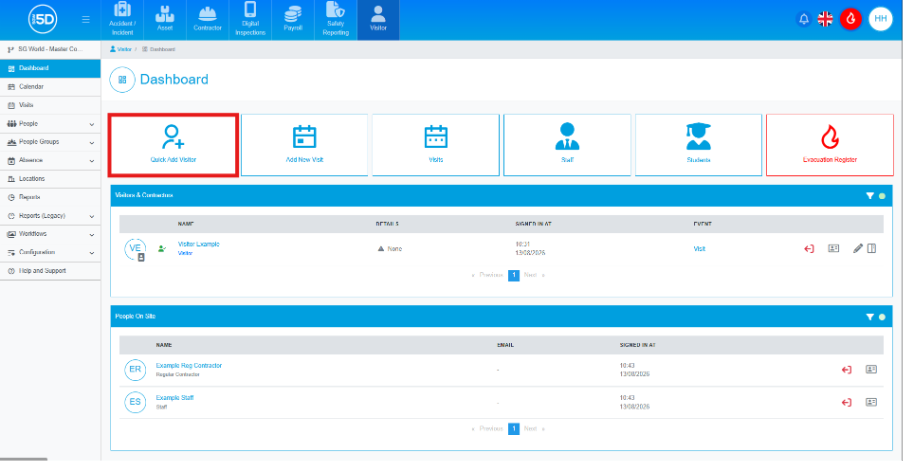
- Click the Quick Add Visitor button at the top of the page.
- An overlay page will appear. You change the name of the event by clicking the pencil icon next to the Name field.
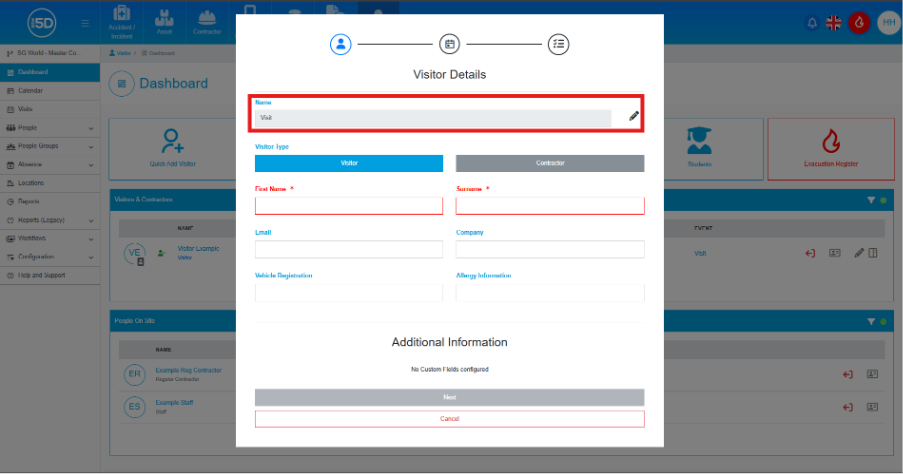
- Next change the person type visiting by selecting Visitor or Contractor.
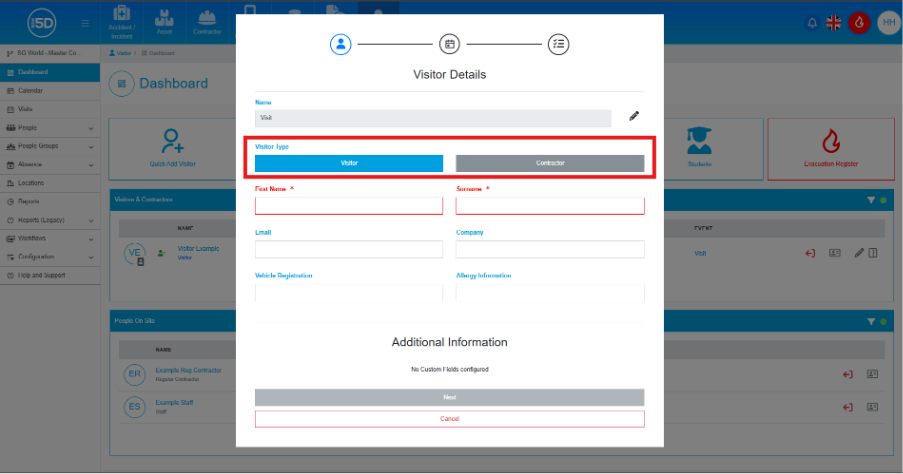
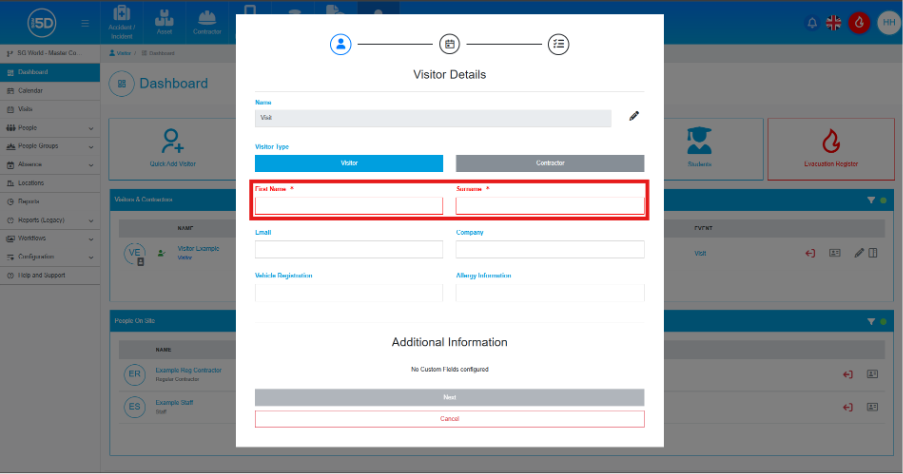
- Enter the visitor’s First Name and Surname.
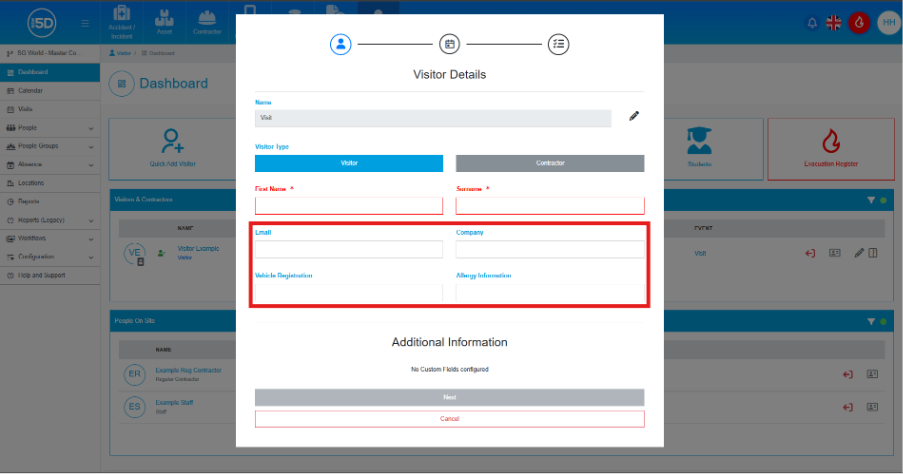
- You may also complete the optional fields: Email, Company, Allergy Information or Vehicle Registration.
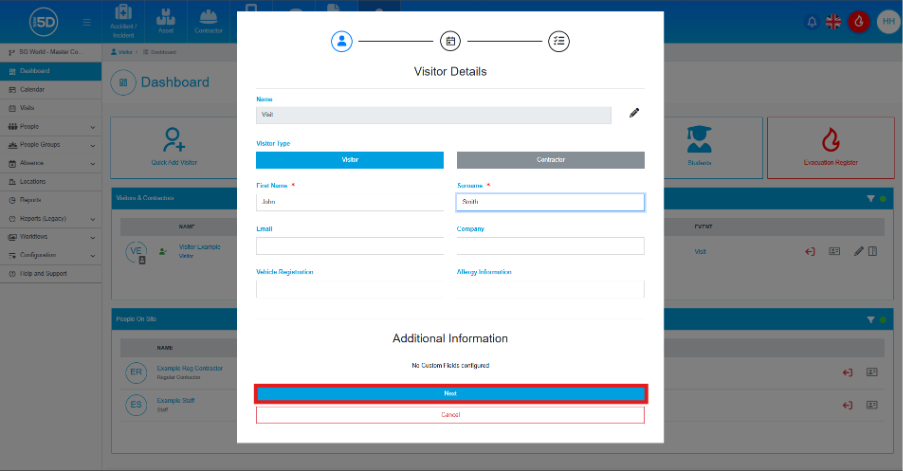
- When you have finished entering the visitor details, click Next.
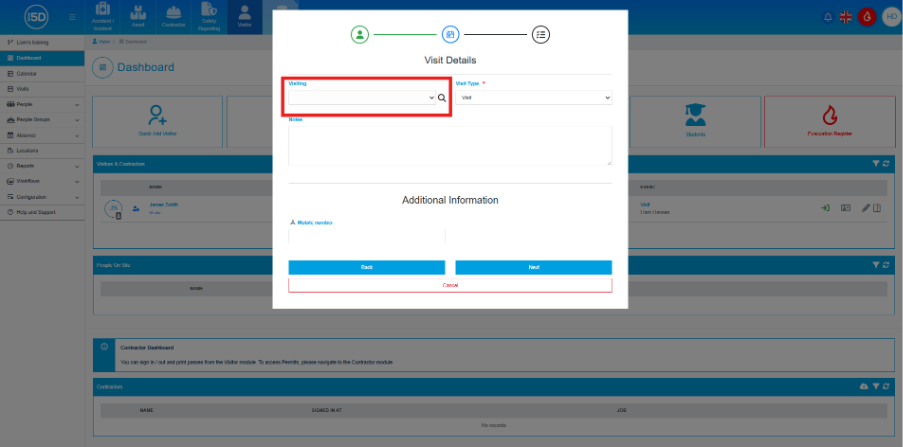
- Select the staff member the visitor is meeting. You can do this by scrolling through the dropdown list or by clicking the magnifying glass icon to search for a staff member. This is done by the Visiting field.
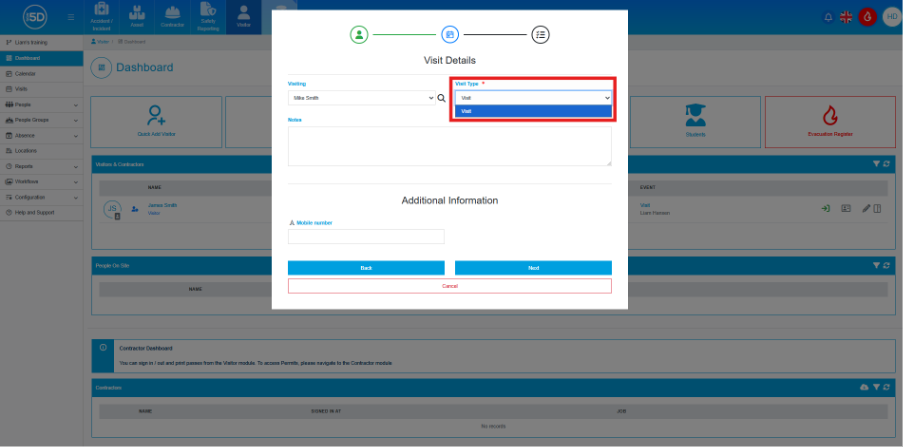
- Choose the Visit Type from the dropdown. This selection determines the pass design and workflow the visitor will see use and see.
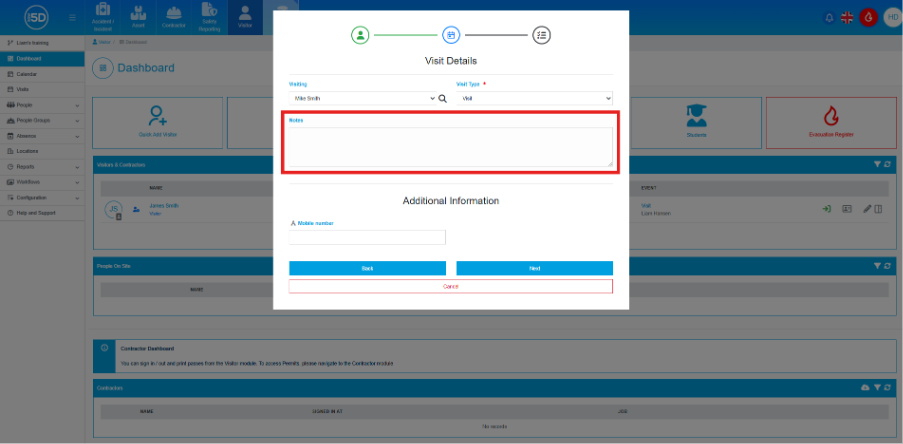
- Optionally, add a Note to the visit. This can include any relevant information.
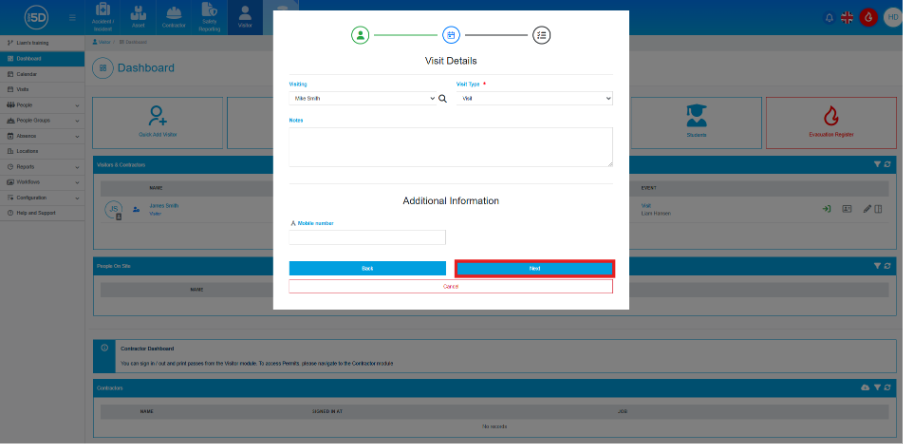
- Click Next to proceed.
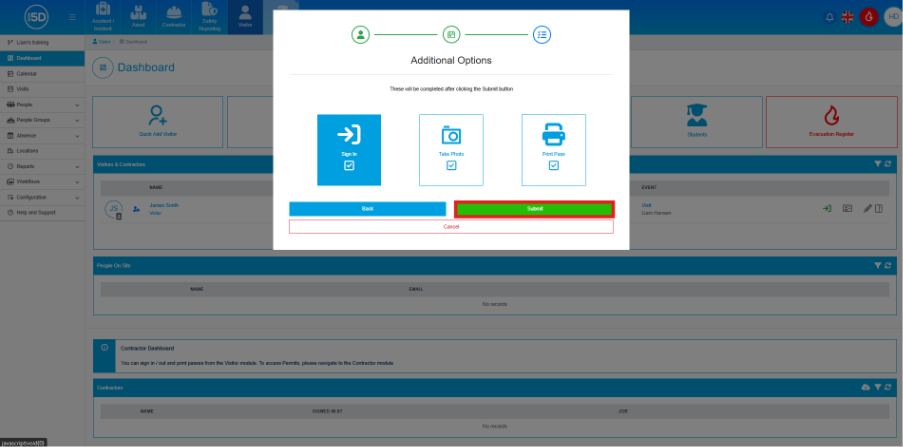
- You will now see a page with three options. Select the desired option by clicking its icon. The selected option will display a tick in the box below the icon:
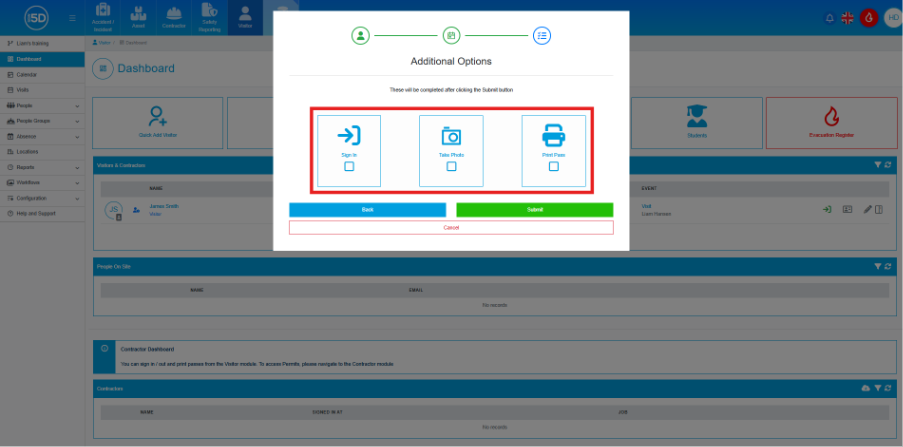
- Sign In – Signs in the visitor.
- Take Photo – If a webcam is connected, you can take a photo of the visitor for their pass.
- Print Pass – Prints a pass for the visitor.
- After choosing the required actions, click Submit to save the visit. N.b. Any visitor signed in via this method will have their pass valid until midnight of the same day.