
-
- To view your current helpdesk tickets, go to ‘Helpdesk’ on the left-hand navigation menu.

- You will now see a list of all active tickets, click on the magnifying glass icon or the blue text under Title to go into the ticket.
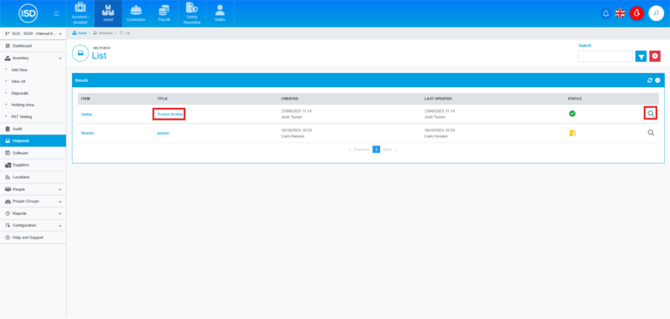
- You will now see the ticket information. The notes section will show you any previous notes left under the ticket. You can add your own note by clicking the Plus button.
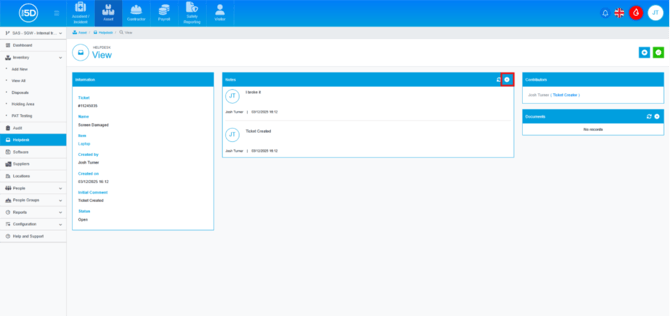
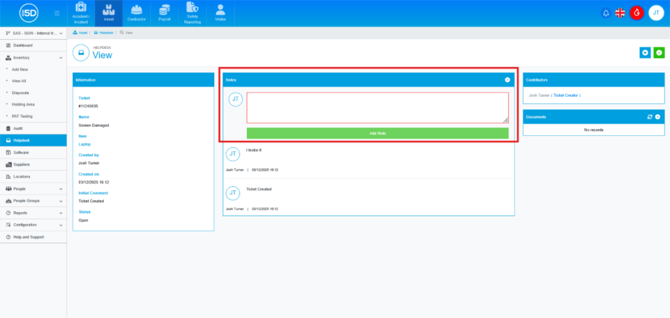
- Enter your note and then click the ‘Add Note’ button to save.
- You can upload documents to the ticket by clicking the plus icon in the Documents section.
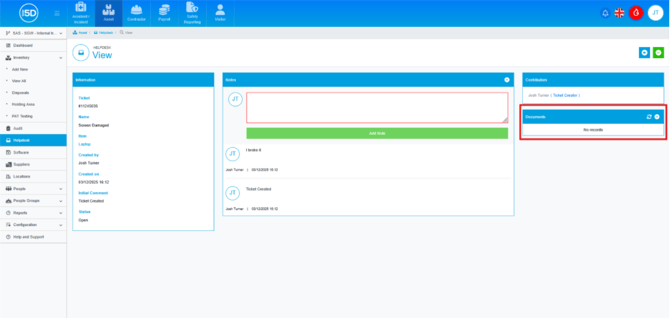
- You can then either drag and drop the file or browse to the file to add it to the ticket.
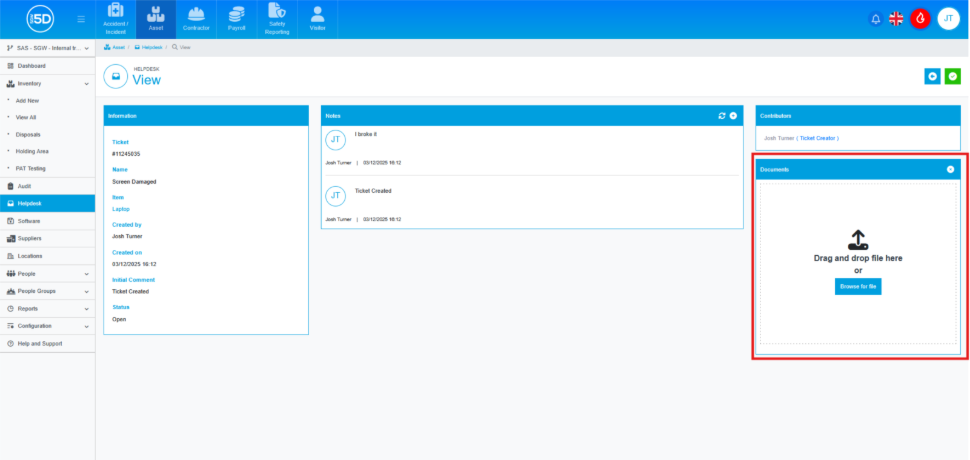
- You can close the ticket by click the green tick button in the top right corner.

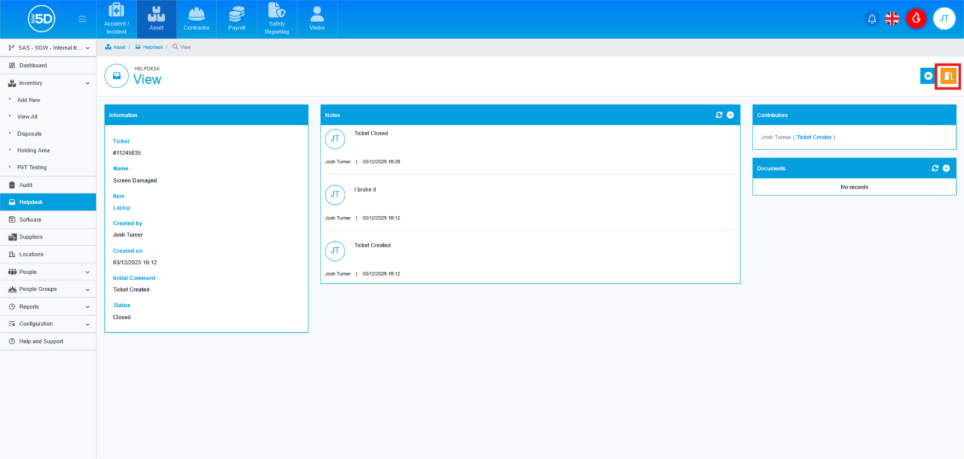
- Once you have closed the ticket you can reopen it by clicking the yellow door icon.
- To view your current helpdesk tickets, go to ‘Helpdesk’ on the left-hand navigation menu.