Skip to content
English
  • There are no suggestions because the search field is empty.

How to enable or disable a Custom Field on the Touchscreen

The guide is to walk the reader through how to activate the custom fields on the touchscreen application.

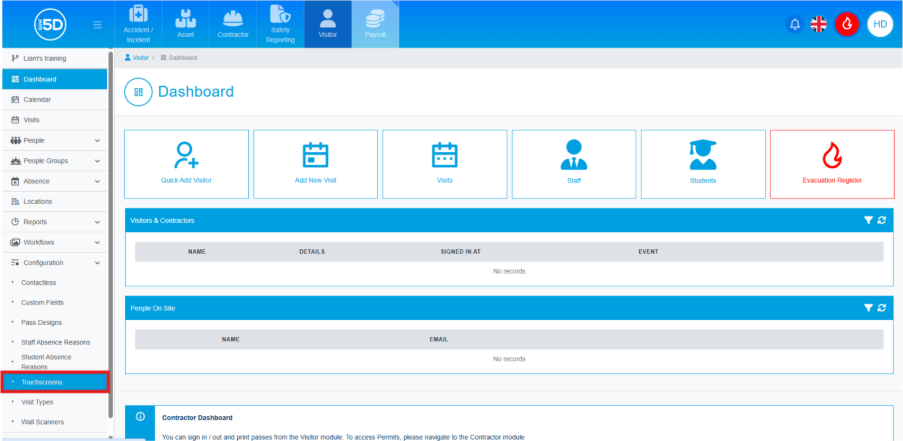
    1. From the Visitor or Contractor module, click ‘Configuration’. 

      A screenshot of a computer

AI-generated content may be incorrect.

    2. Then click ‘Touchscreen’. 

      A screenshot of a computer

AI-generated content may be incorrect.

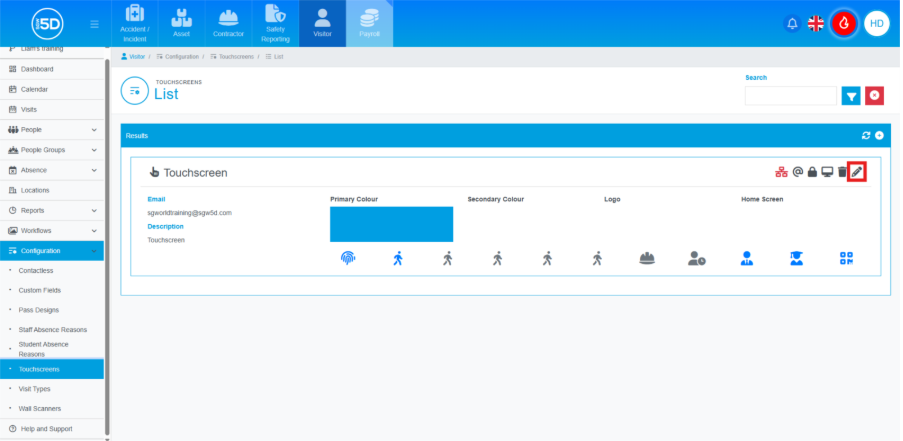
    3. Click the pencil icon for the touchscreen you want to add the custom field to. 
      A screenshot of a computer

AI-generated content may be incorrect.

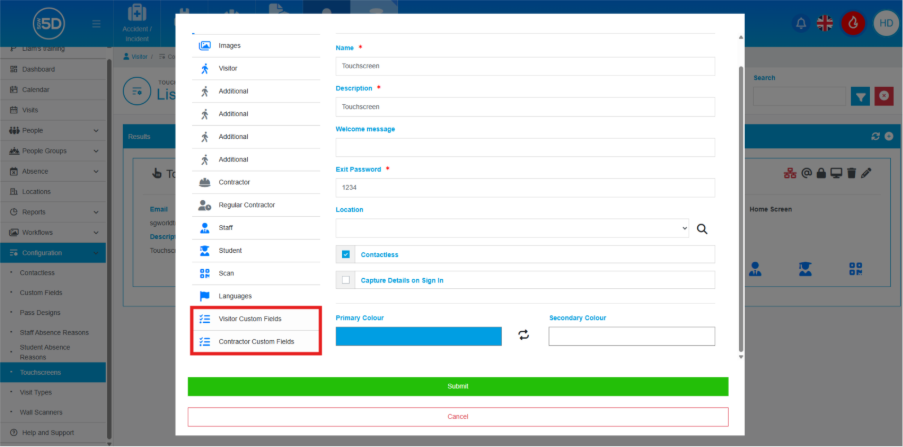
    4. Using the left-hand panel, scroll down and click either ‘Visitor Custom Fields’ or ‘Contractor Custom Fields’. 
      A screenshot of a computer

AI-generated content may be incorrect.

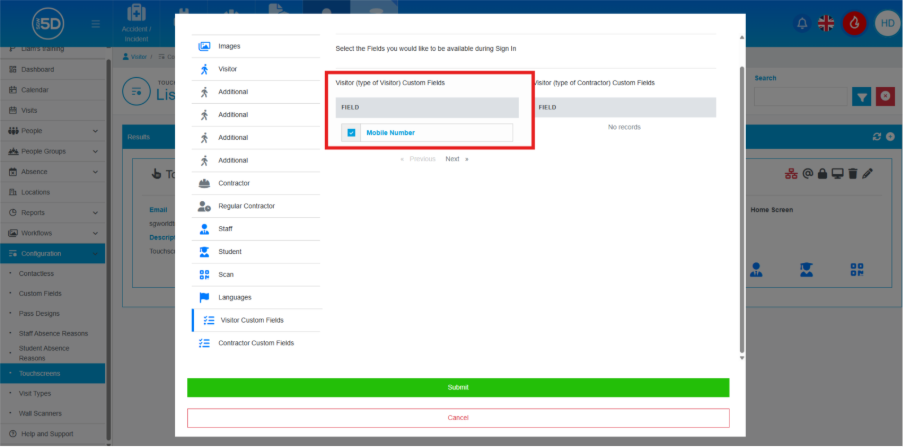
    5. You will see a list of all your custom fields that can be used on the touchscreen. Tick the checkbox for the custom fields you want to appear on the touchscreen application. 
      A screenshot of a computer

AI-generated content may be incorrect.

    6. To save any changes, click the ‘Submit’ button at the bottom of the page. 
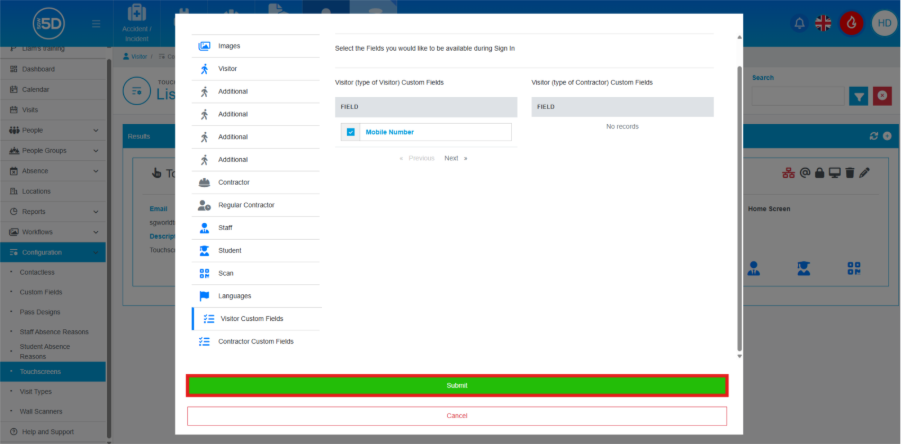
      A screenshot of a computer

AI-generated content may be incorrect.