
- To edit a staff record, you must first have super user permissions.
- From the Visitor module, click People.
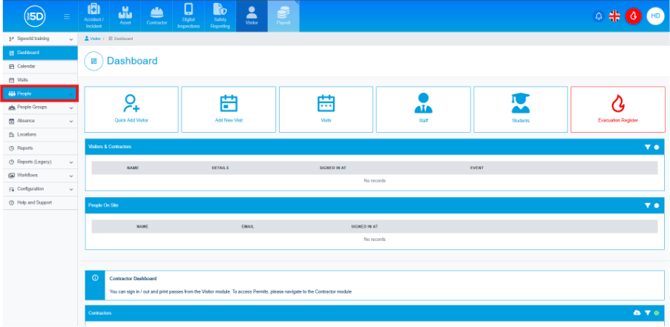
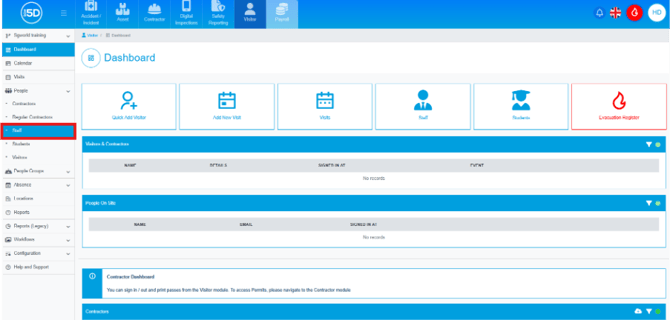
- Then click Staff.
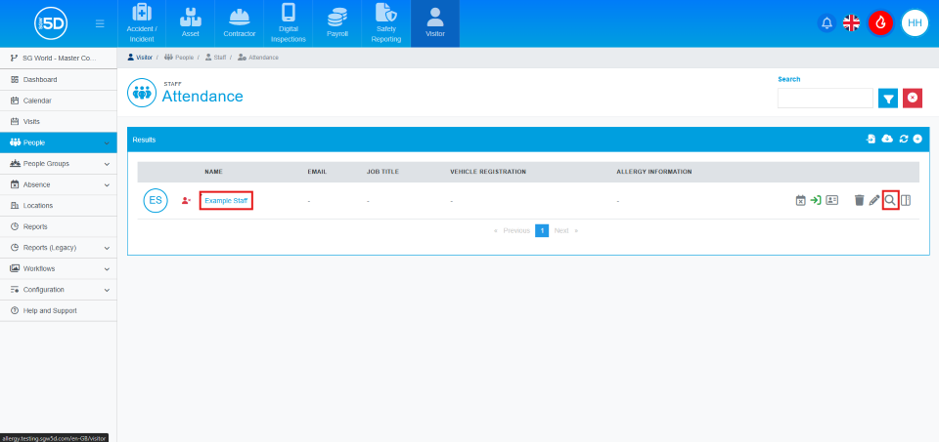
- This will take you to the Staff Attendance page, which displays all staff records currently on the system. To change a staff member’s log, click either the staff member’s name or the magnifying glass icon on their row.
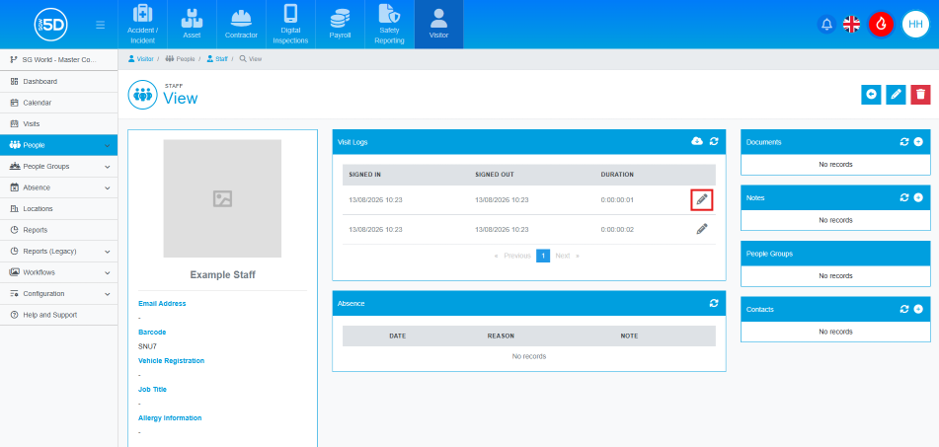
- In the centre of the staff member’s record page, look for the box labelled Visit Logs. Then find the staff record you want to edit and click the pencil icon.
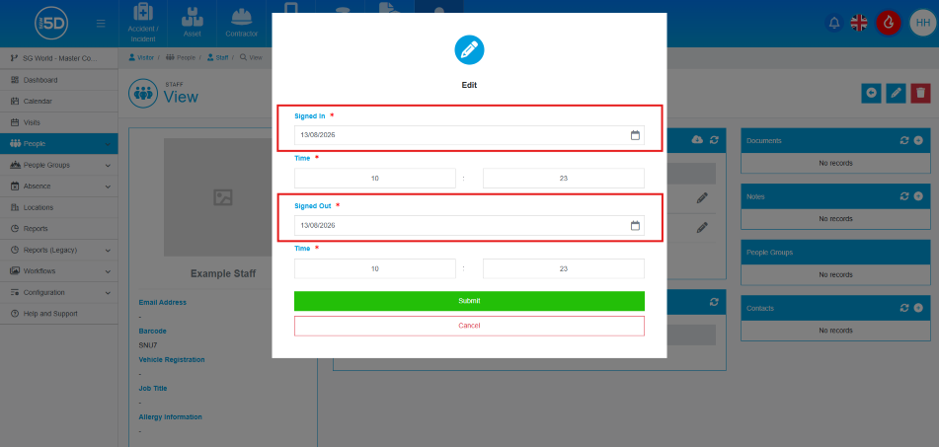
- An overlay will appear, allowing you to change the sign‑in and sign‑out dates by clicking in the text box and selecting from the calendar.
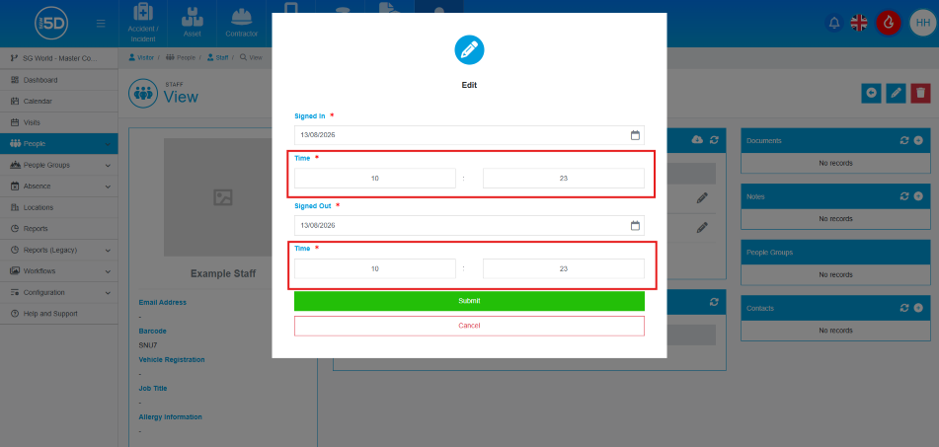
- You can also change the times using the text boxes.
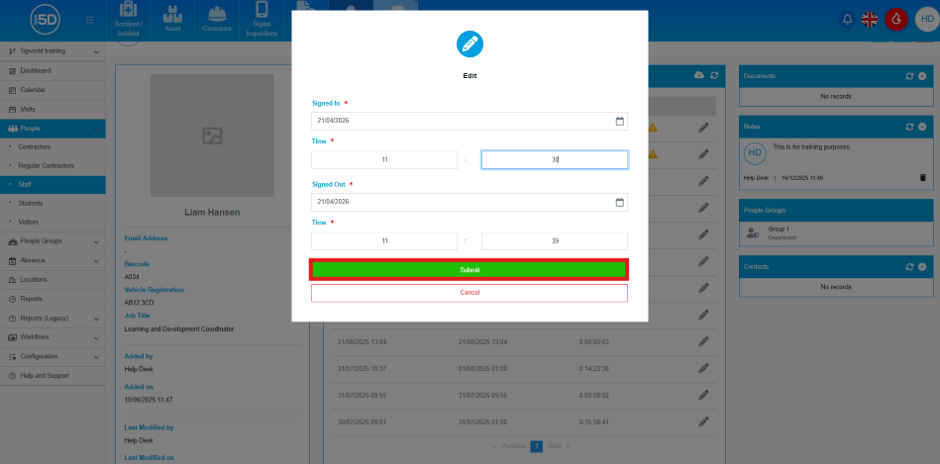
- When finished, click Submit.
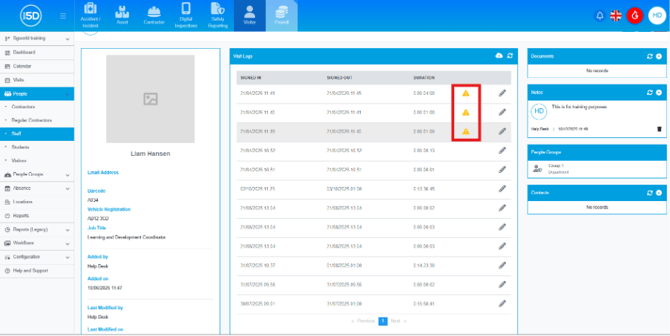
- You will notice a yellow warning triangle on the record, indicating that the entry has been modified.
- If you want to view any changes, you will need to create a report. If you are unsure how to do this, please refer to this guide.