---
title: How to edit a Staff log time
description: Edit staff logs
---
[Skip to content](https://knowledge.sgworld.com/how-to-edit-a-staff-log-time#main-content)
English
Show submenu for translations
[More support](https://knowledge.sgworld.com/kb-tickets/new?hsLang=en) [Customer portal](https://knowledge.sgworld.com/mytickets?hsLang=en)

Open main navigation
Close main navigation
- English
Show submenu for translations
- [More support](https://knowledge.sgworld.com/kb-tickets/new)
- [Customer portal](https://knowledge.sgworld.com/mytickets)
Find your answers here
- There are no suggestions because the search field is empty.
1. [Knowledge Base](https://knowledge.sgworld.com/?hsLang=en)
2. [SGW5D People Guides](https://knowledge.sgworld.com/sgw5d-people-guides?hsLang=en)
3. [Staff](https://knowledge.sgworld.com/sgw5d-people-guides?hsLang=en#staff)
# How to edit a Staff log time
## This guide is to walk the reader through how to change the staff log times.
1. To edit a staff record, you must first have **super user permissions**.
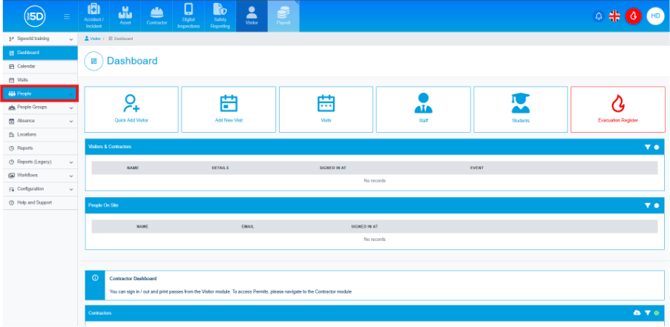
2. From the Visitor module, click **People**.
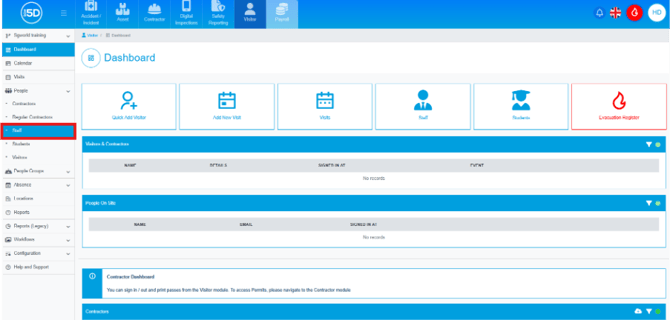
3. Then click **Staff**.
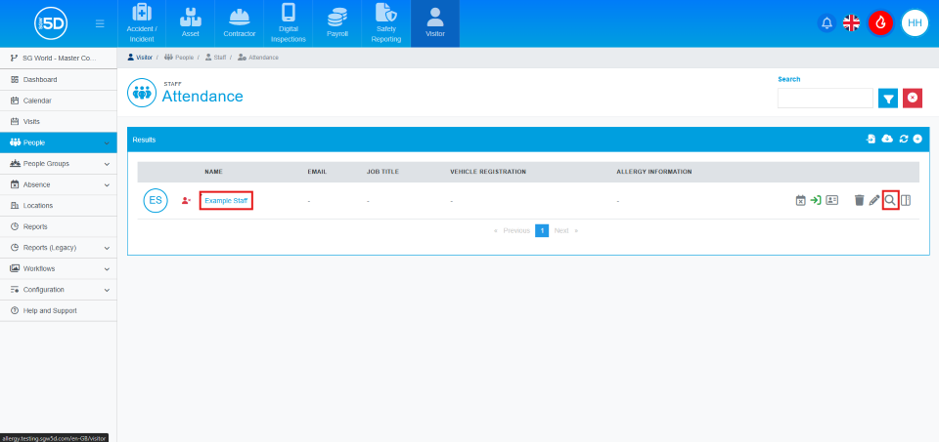
4. This will take you to the **Staff Attendance** page, which displays all staff records currently on the system. To change a staff member’s log, click either the staff member’s name or the magnifying glass icon on their row.
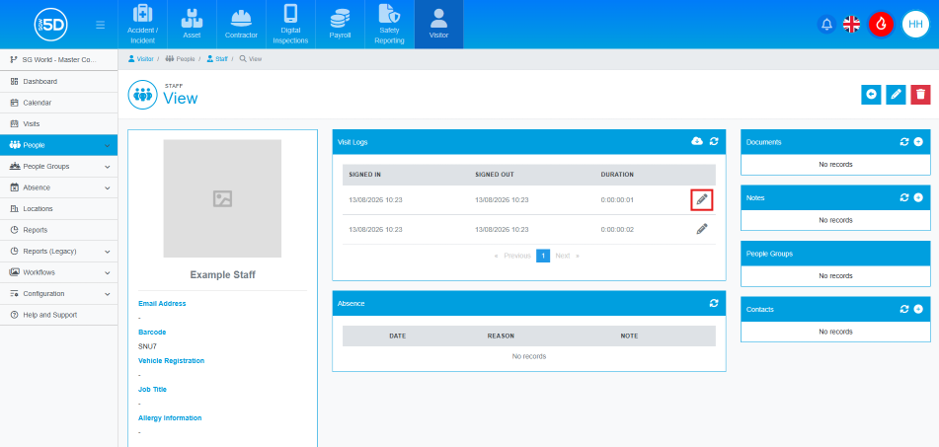
5. In the centre of the staff member’s record page, look for the box labelled **Visit Logs**. Then find the staff record you want to edit and click the pencil icon.
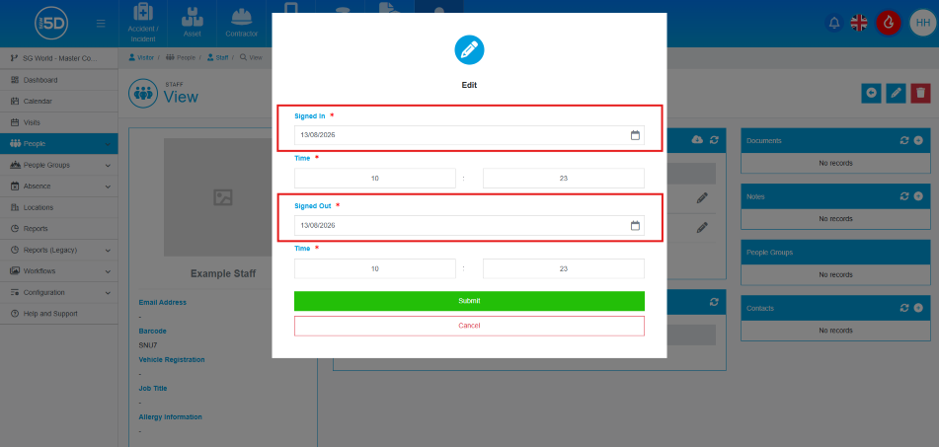
6. An overlay will appear, allowing you to change the sign‑in and sign‑out dates by clicking in the text box and selecting from the calendar.
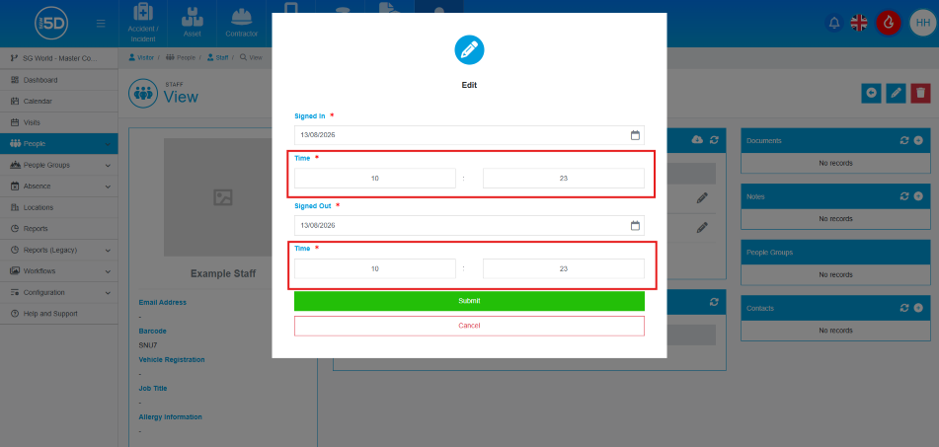
7. You can also change the times using the text boxes.
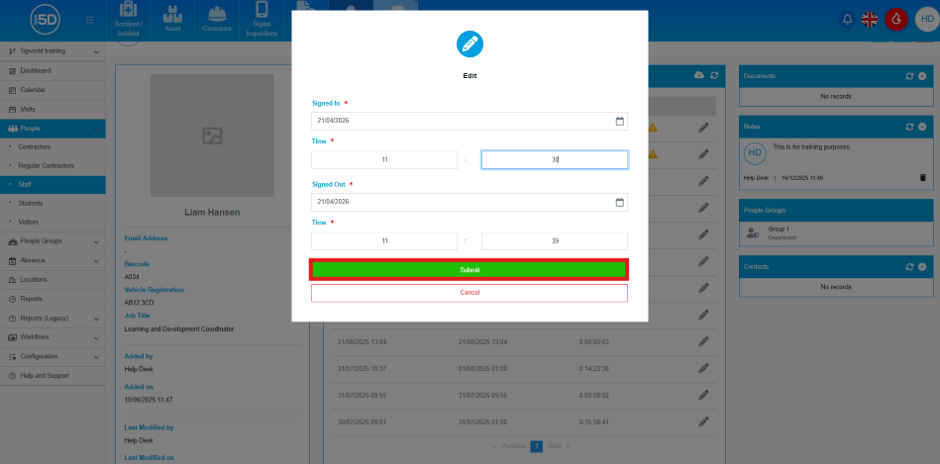
8. When finished, click **Submit**.
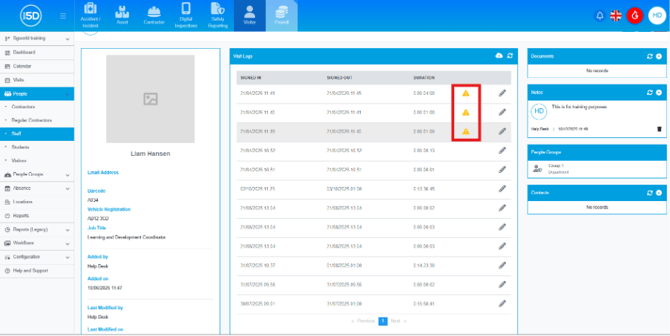
9. You will notice a yellow warning triangle on the record, indicating that the entry has been modified.
10. If you want to view any changes, you will need to create a report. If you are unsure how to do this, please refer to this [guide](https://knowledge.sgworld.com/how-to-create-a-report-visitor-?hsLang=en).
- [Recent Updates](https://knowledge.sgworld.com/recent-updates?hsLang=en#main-content)
- [24/08/2026](https://knowledge.sgworld.com/recent-updates?hsLang=en#24-08-2026)
- [13/07/2026](https://knowledge.sgworld.com/recent-updates?hsLang=en#13-07-2026)
- [30/06/2026](https://knowledge.sgworld.com/recent-updates?hsLang=en#30-06-2026)
- [25/04/2026](https://knowledge.sgworld.com/recent-updates?hsLang=en#25-04-2026)
- [12/03/2026](https://knowledge.sgworld.com/recent-updates?hsLang=en#12-03-2026)
- [05/02/2026](https://knowledge.sgworld.com/recent-updates?hsLang=en#05-02-2026)
- [15/12/2025](https://knowledge.sgworld.com/recent-updates?hsLang=en#15-12-2025)
- [11/12/2025](https://knowledge.sgworld.com/recent-updates?hsLang=en#11-12-2025)
- [10/12/2025](https://knowledge.sgworld.com/recent-updates?hsLang=en#10-12-2025)
- [08/12/2025](https://knowledge.sgworld.com/recent-updates?hsLang=en#08-12-2025)
- [24/11/2025](https://knowledge.sgworld.com/recent-updates?hsLang=en#24-11-2025)
- [SGW5D System Guides](https://knowledge.sgworld.com/sgw5d-system-guides?hsLang=en#main-content)
- [Accounts](https://knowledge.sgworld.com/sgw5d-system-guides?hsLang=en#accounts)
- [System](https://knowledge.sgworld.com/sgw5d-system-guides?hsLang=en#system)
- [Roles](https://knowledge.sgworld.com/sgw5d-system-guides?hsLang=en#roles)
- [SGW5D People Guides](https://knowledge.sgworld.com/sgw5d-people-guides?hsLang=en#main-content)
- [Visitor](https://knowledge.sgworld.com/sgw5d-people-guides?hsLang=en#visitor)
- [Contractor](https://knowledge.sgworld.com/sgw5d-people-guides?hsLang=en#contractor)
- [Regular Contractors](https://knowledge.sgworld.com/sgw5d-people-guides?hsLang=en#regular-contractors)
- [Staff](https://knowledge.sgworld.com/sgw5d-people-guides?hsLang=en#staff)
- [Locations](https://knowledge.sgworld.com/sgw5d-people-guides?hsLang=en#locations)
- [Student](https://knowledge.sgworld.com/sgw5d-people-guides?hsLang=en#student)
- [SGW5D Visitor Guides](https://knowledge.sgworld.com/sgw5d-visitor-guides?hsLang=en#main-content)
- [Absence](https://knowledge.sgworld.com/sgw5d-visitor-guides?hsLang=en#absence)
- [Dashboard](https://knowledge.sgworld.com/sgw5d-visitor-guides?hsLang=en#dashboard)
- [Configuration](https://knowledge.sgworld.com/sgw5d-visitor-guides?hsLang=en#configuration)
- [Reports](https://knowledge.sgworld.com/sgw5d-visitor-guides?hsLang=en#reports)
- [SGW5D Contractor Management Guides](https://knowledge.sgworld.com/sgw5d-contractor-management-guides?hsLang=en#main-content)
- [Job Creation](https://knowledge.sgworld.com/sgw5d-contractor-management-guides?hsLang=en#job-creation)
- [Company Documents](https://knowledge.sgworld.com/sgw5d-contractor-management-guides?hsLang=en#company-documents)
- [Company Types](https://knowledge.sgworld.com/sgw5d-contractor-management-guides?hsLang=en#company-types)
- [Permits](https://knowledge.sgworld.com/sgw5d-contractor-management-guides?hsLang=en#permits)
- [Reports](https://knowledge.sgworld.com/sgw5d-contractor-management-guides?hsLang=en#reports)
- [SGW5D Asset Management Guide](https://knowledge.sgworld.com/sgw5d-asset-management-guide?hsLang=en#main-content)
- [Items](https://knowledge.sgworld.com/sgw5d-asset-management-guide?hsLang=en#items)
- [Audit](https://knowledge.sgworld.com/sgw5d-asset-management-guide?hsLang=en#audit)
- [Helpdesk](https://knowledge.sgworld.com/sgw5d-asset-management-guide?hsLang=en#helpdesk)
- [Configuration](https://knowledge.sgworld.com/sgw5d-asset-management-guide?hsLang=en#configuration)
- [SGW5D Touchscreen Guides](https://knowledge.sgworld.com/sgw5d-touchscreen-guides?hsLang=en#main-content)
- [Create/ Change](https://knowledge.sgworld.com/sgw5d-touchscreen-guides?hsLang=en#create-change)
- [Delete](https://knowledge.sgworld.com/sgw5d-touchscreen-guides?hsLang=en#delete)
- [SGW5D Workflow Guides](https://knowledge.sgworld.com/sgw5d-workflow-guides?hsLang=en#main-content)
- [Stage Creation](https://knowledge.sgworld.com/sgw5d-workflow-guides?hsLang=en#stage-creation)
- [Workflow Creation](https://knowledge.sgworld.com/sgw5d-workflow-guides?hsLang=en#workflow-creation)
- [Induction Creation](https://knowledge.sgworld.com/sgw5d-workflow-guides?hsLang=en#induction-creation)
- [Visit Types](https://knowledge.sgworld.com/sgw5d-workflow-guides?hsLang=en#visit-types)
- [SGW5D People Groups Guides](https://knowledge.sgworld.com/sgw5d-people-groups-guides?hsLang=en#main-content)
- [Evacuation Groups](https://knowledge.sgworld.com/sgw5d-people-groups-guides?hsLang=en#evacuation-groups)
- [Class](https://knowledge.sgworld.com/sgw5d-people-groups-guides?hsLang=en#class)
- [Departments](https://knowledge.sgworld.com/sgw5d-people-groups-guides?hsLang=en#departments)
- [Contact Us](https://knowledge.sgworld.com/contact-us?hsLang=en)
- [App](https://knowledge.sgworld.com/app?hsLang=en#main-content)
- [Contractor](https://knowledge.sgworld.com/app?hsLang=en#contractor)
- [Asset](https://knowledge.sgworld.com/app?hsLang=en#asset)
- [System](https://knowledge.sgworld.com/app?hsLang=en#system)
[](http://sgworld.com)
[mailto:email@email.com](mailto:email@email.com)
Copyright © 2025, SG World
```json
{
"@context" : "https://schema.org",
"@type" : "VideoObject",
"caption" : {
"@type" : "MediaObject",
"contentUrl" : "https://knowledge.sgworld.com/media-transcripts/216690465320/en.vtt",
"inLanguage" : "en",
"name" : "en Captions"
},
"contentUrl" : "https://7964242.fs1.hubspotusercontent-na1.net/hubfs/7964242/video_assets/216690465320/inherited/web_optimized.mp4",
"dateModified" : "2026-07-08T07:34:40.782Z",
"duration" : "PT1M39.033S",
"height" : 1080,
"name" : "How to edit a staff log",
"thumbnailUrl" : "https://7964242.fs1.hubspotusercontent-na1.net/hubfs/7964242/How%20to%20edit%20a%20staff%20log.mp4/medium.jpg",
"uploadDate" : "2026-07-08T07:32:32.881Z",
"width" : 1920
}
```