
-
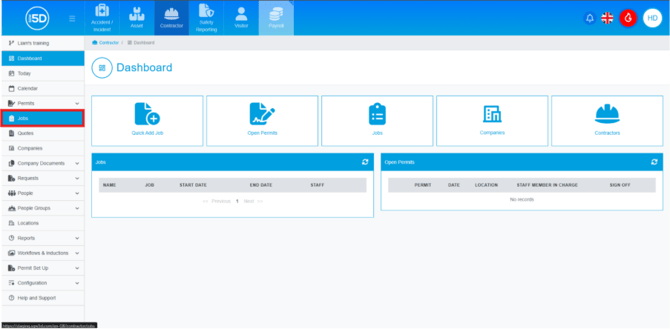
- From the contractor module, use the left-hand navigation panel and click ‘Jobs’.
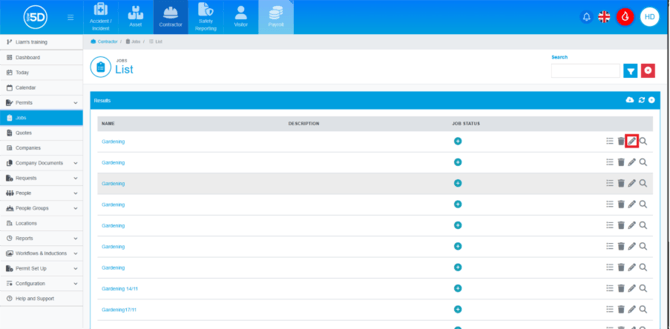
- The ‘Jobs’ section displays a list of your jobs, both completed and new. To edit a job, locate the job you wish to change and click the pencil icon.
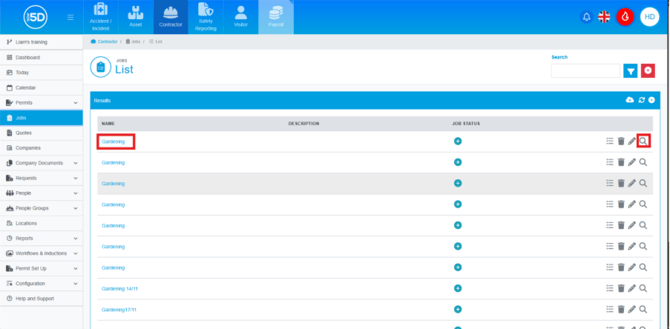
- Alternatively, you can click the job name or the magnifying glass icon to open the job details.
- This will take you to the job overview page. To edit the job, click the pencil icon in the top-right corner.
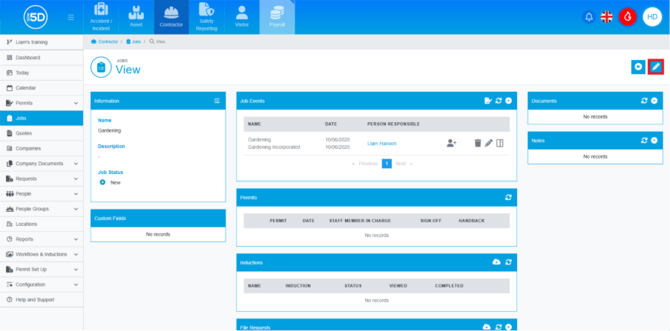
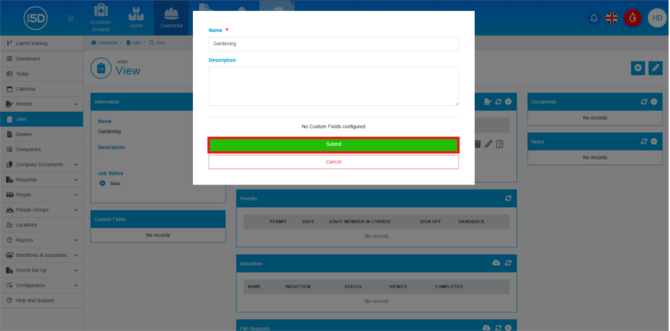
- You can edit the job name and description. Click ‘Submit’ to save any changes.
- From the contractor module, use the left-hand navigation panel and click ‘Jobs’.