
- How to delete an Asset Item
-
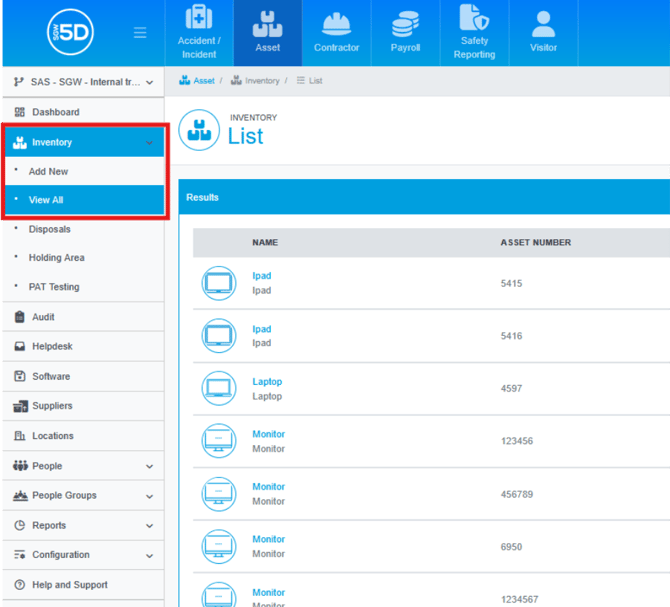
- Using the left-hand navigation menu, click ‘Inventory’ and then ‘View All’.
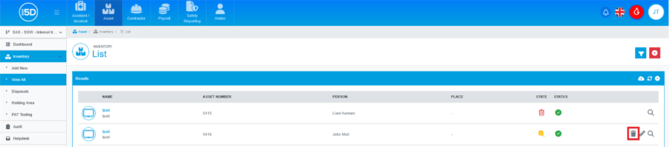
- Find the item you wish to delete, and then click on the Bin icon to the right of the
- You will see a menu asking if you would like to Dispose or Delete, click Delete.
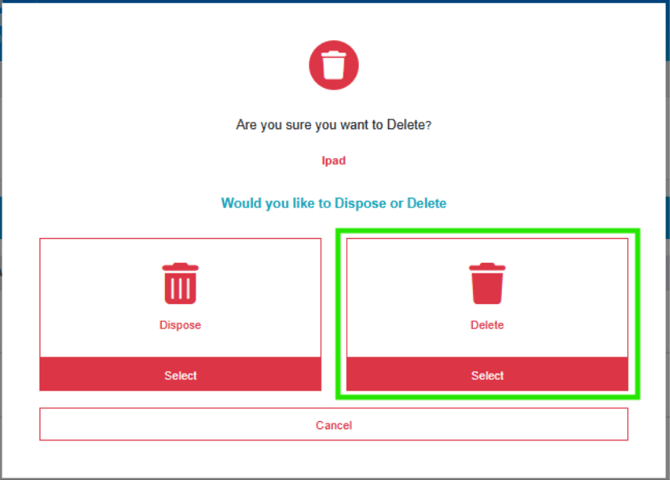
- The item will now be deleted from the system, please note that a deleted item cannot be restored.
- Using the left-hand navigation menu, click ‘Inventory’ and then ‘View All’.
- How to dispose of an item
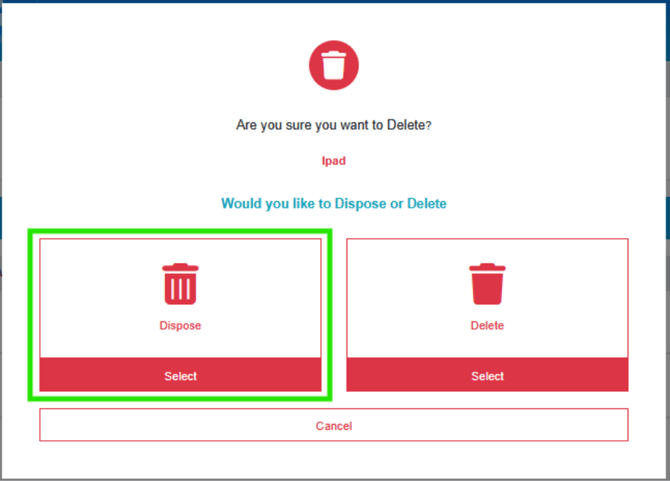
- There are two ways to raise an item for disposal. Go to ‘Inventory’ and then ‘View All.’ From here, search for the item and click the bin icon. You will then have the option to dispose of the item.
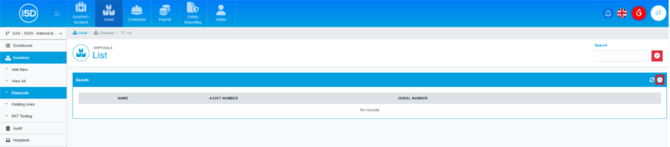
- The second way is to use the left-hand navigation panel to go to ‘Inventory’ and then ‘Disposals.’ From here, click the ‘Add’ button in the top right. Use the search filters to find your item and click the bin icon to start the disposal process.
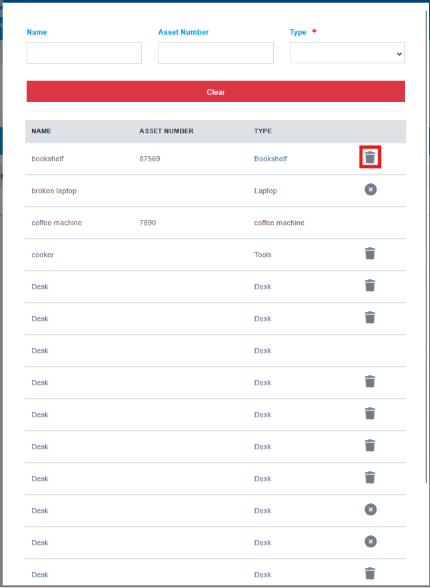
- You will be asked to confirm your choice. Click the green tick to confirm or the red cross to cancel.

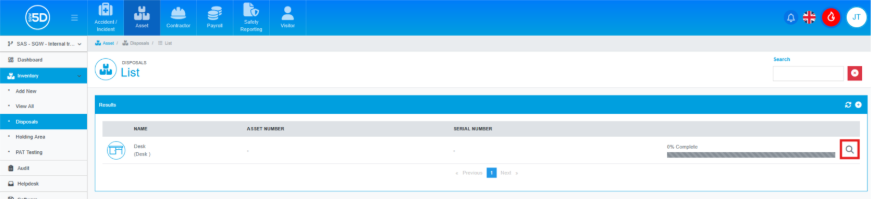
- If the item does not meet the criteria for a disposal workflow, it will automatically be marked as disposed. If it does meet the criteria, approval will be required. To approve, go to ‘Inventory’ and then ‘Disposals.’ Your item should appear here awaiting approval. Click the magnifying glass next to the item.
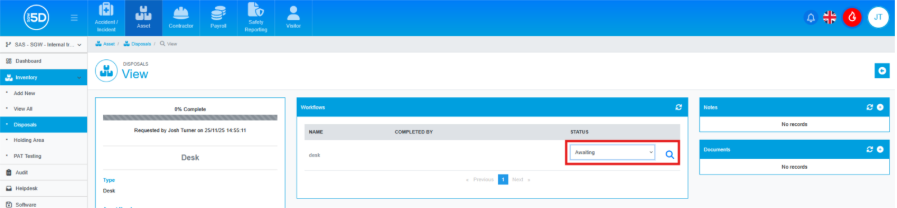
- To complete the disposal, click the drop-down box under the ‘Status’ column and select ‘Signed Off.’ (The ability to sign off an item depends on the permissions set in the disposal workflow.)
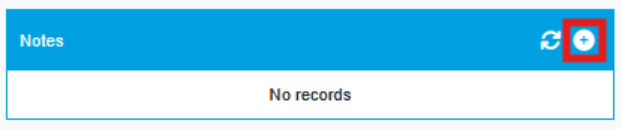
- If you wish, you can add a note to the disposal record by clicking the plus icon in the top right of the Notes box. Enter your note and then click the green ‘Add Note’ button.
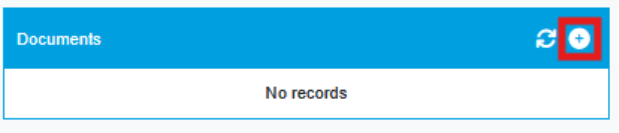
- You can also upload a document to the disposal by clicking the plus icon in the top right of the Documents box. Browse for your document or drag and drop it into the box to upload.
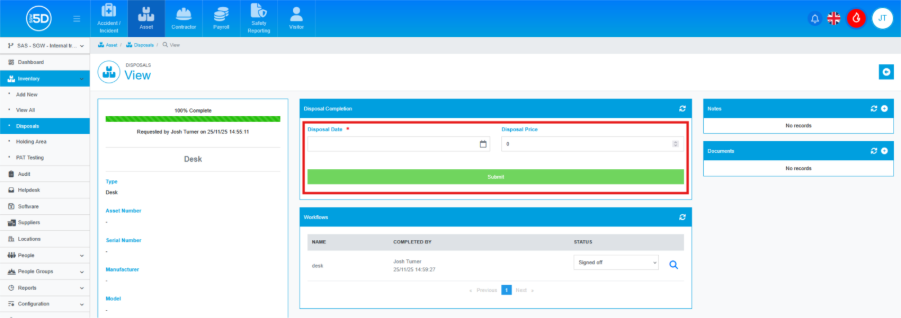
- Finally, you will see a new ‘Disposal Completion’ box where you can enter a disposal date and price. A date is required; the price is optional. Once finished, click ‘Submit’ and your item will be disposed of.
- There are two ways to raise an item for disposal. Go to ‘Inventory’ and then ‘View All.’ From here, search for the item and click the bin icon. You will then have the option to dispose of the item.