
-
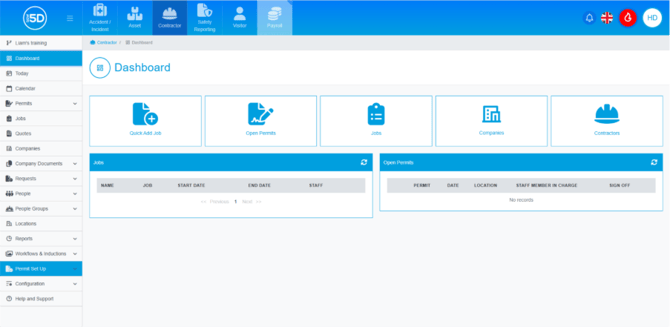
- From anywhere in the Contractor module, use the left-hand navigation panel and click ‘Permit Set up’.
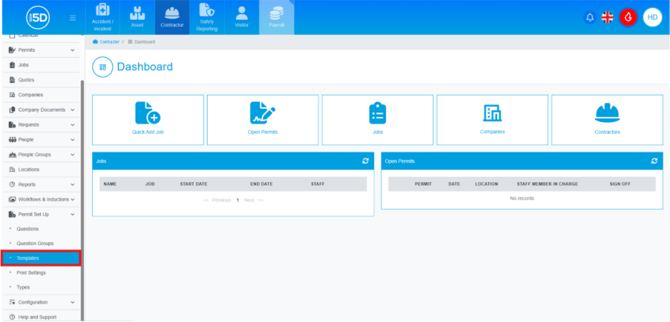
- Then click ‘Templates’.
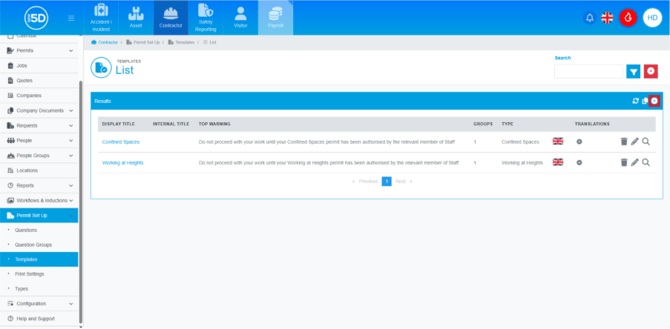
- This will take you to the list of all your current templates. To create a new permit, click the plus symbol in the top right of the blue results bar.
- You can now begin creating the permit. Start with the information box on the left-hand side of the centre page. Give the permit a name using the ‘Display Title’ field.
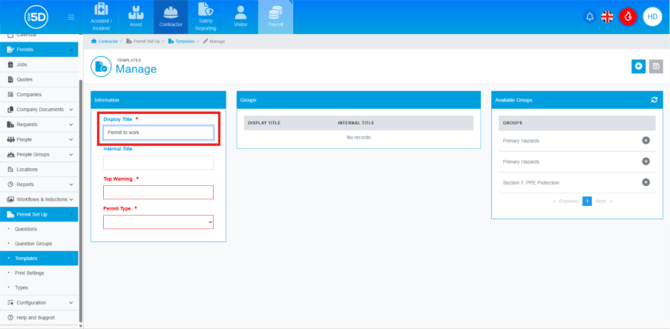
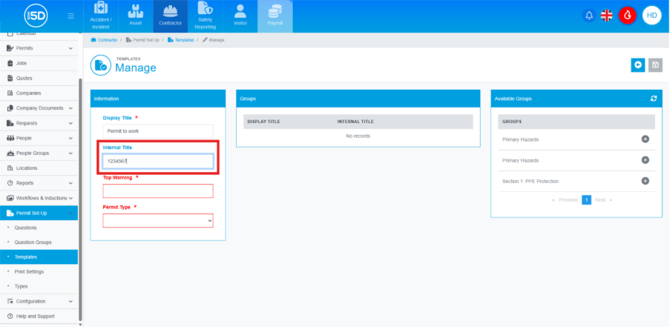
- Below ‘Display Title’, there is the ‘Internal Title’ field. This is a free text field and can be used for any internal reference you choose.
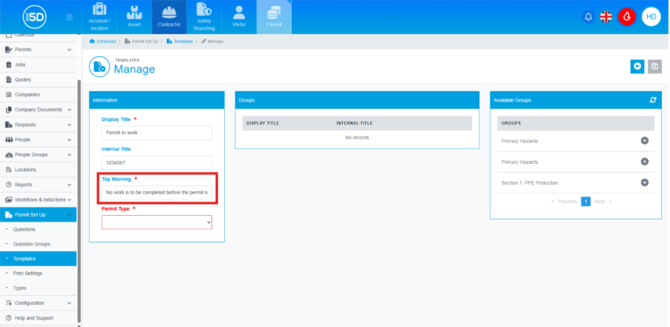
- Next is the ‘Top Warning’ field—another free text box. This message will appear at the top of the permit for contractors.
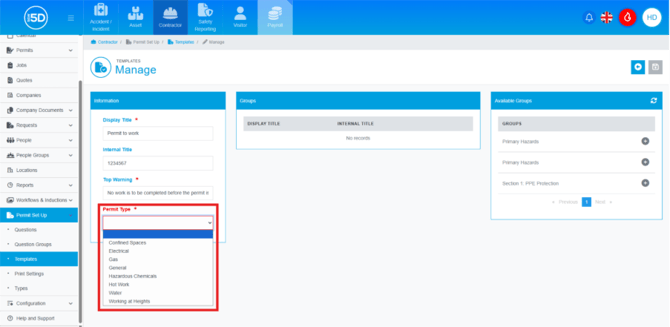
- Below that is the ‘Permit Type’ dropdown, which allows you to select a permit type.
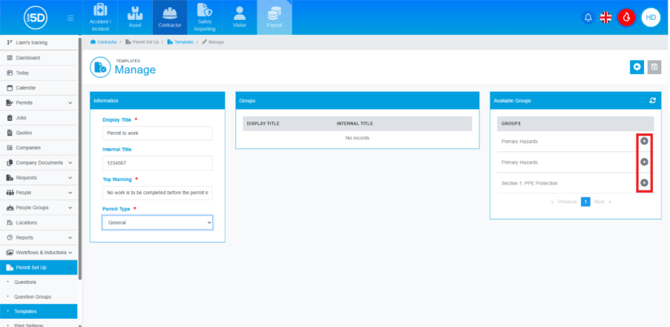
- Now move to the rightmost box labelled ‘Available Groups’. Clicking the plus symbol will add a group to the template.
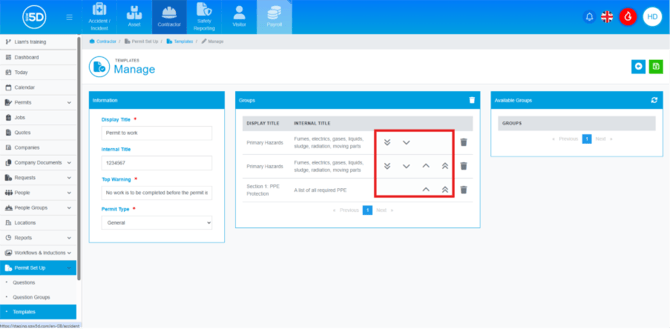
- The centre box labelled ‘Groups’ will now contain the added groups. You can change the order in which they appear using the up and down arrows.
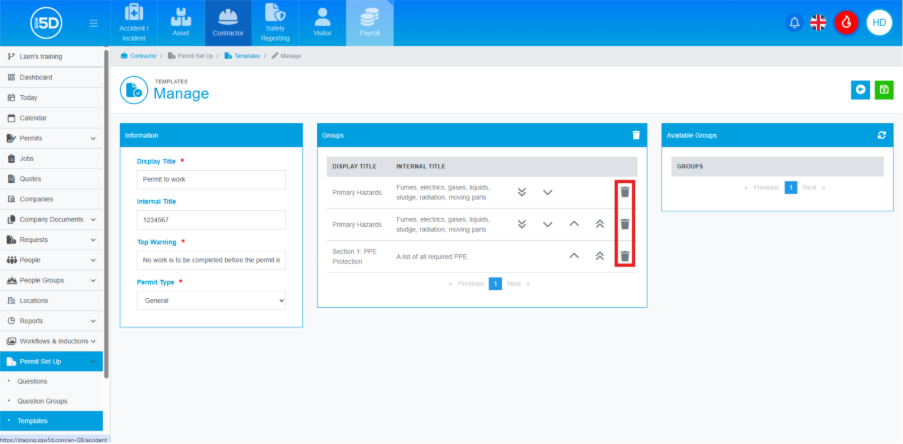
- To remove groups from the template, use the recycle bin icon.
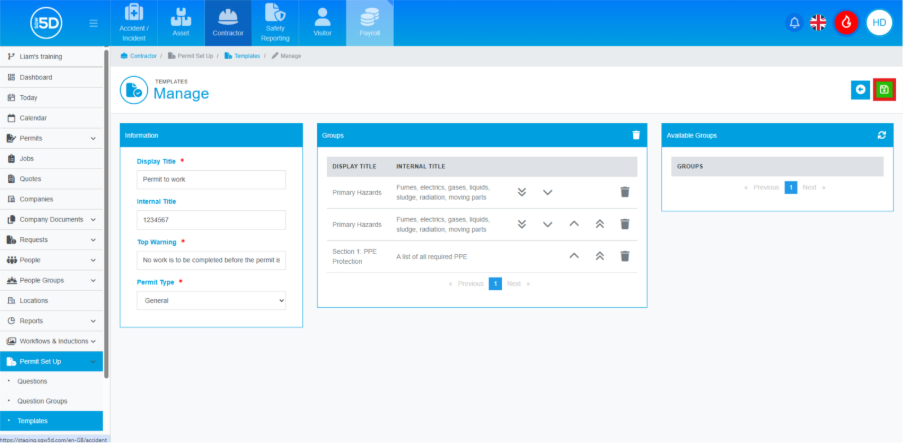
- When finished, click the green save icon in the top right to save the template.
- From anywhere in the Contractor module, use the left-hand navigation panel and click ‘Permit Set up’.