
- How to create a Job
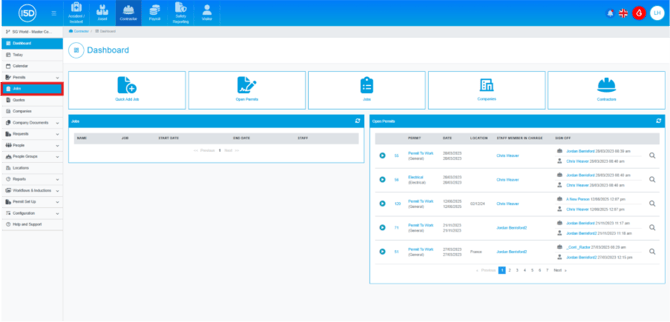
- To create a job, navigate to the Contractor module and use the left-hand navigation panel to click ‘Jobs’.
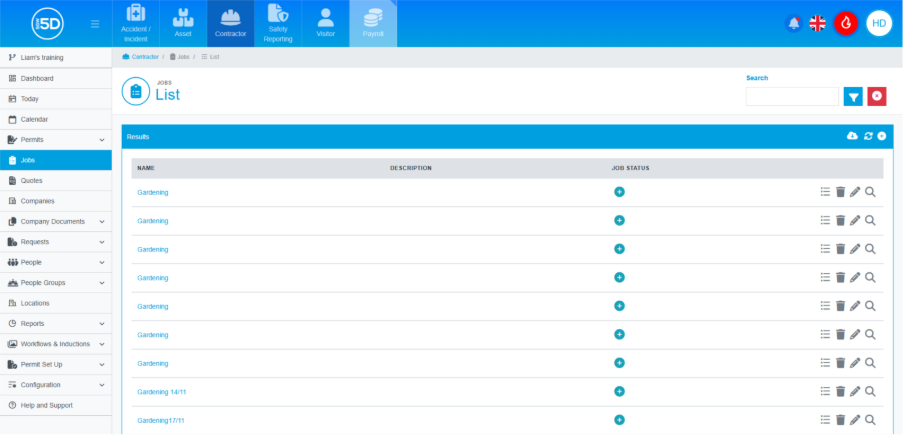
- This will display a list of all your existing jobs. To create a new job, click the plus symbol in the top-right corner of the results box.
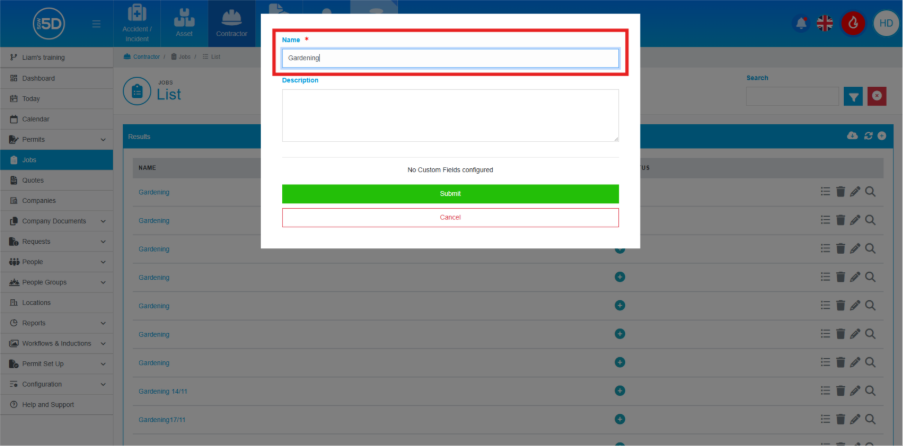
- An overlay will appear where you can enter a Job Name and Description. N.b. Include a unique identifier, such as the date, at the end of the job name. It will be easier the job later.
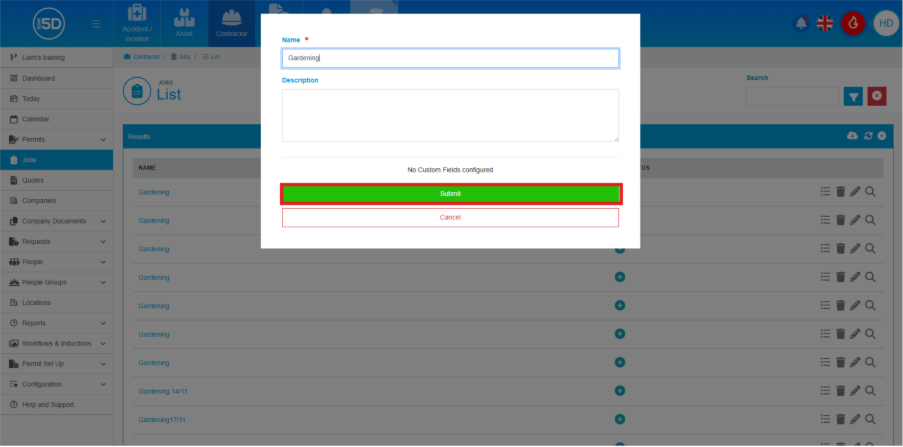
- Click ‘Submit’ to save the job.
- You will then be taken to the job overview page, where you can add ‘Job Events’, ‘Quotes’, ‘Inductions’, and ‘File Requests’.
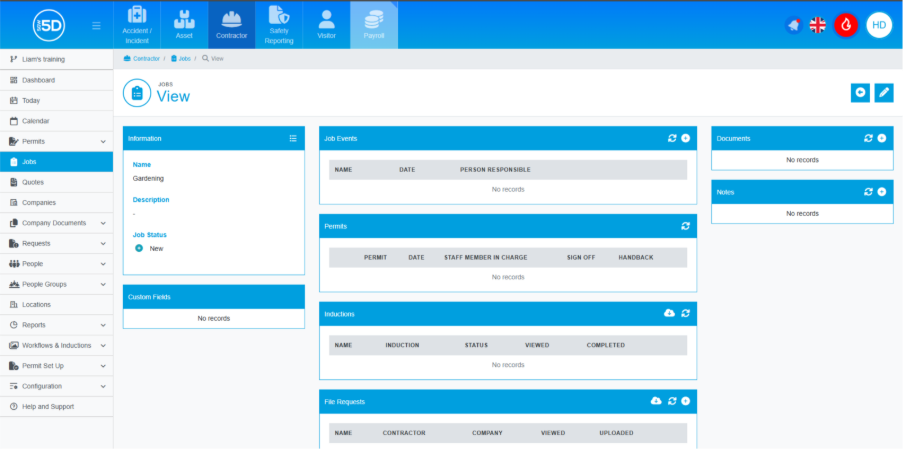
- To create a job, navigate to the Contractor module and use the left-hand navigation panel to click ‘Jobs’.