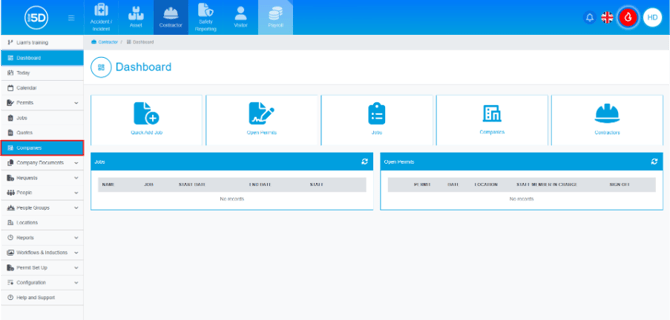
- Using the left-hand navigation panel, click ‘Companies’.
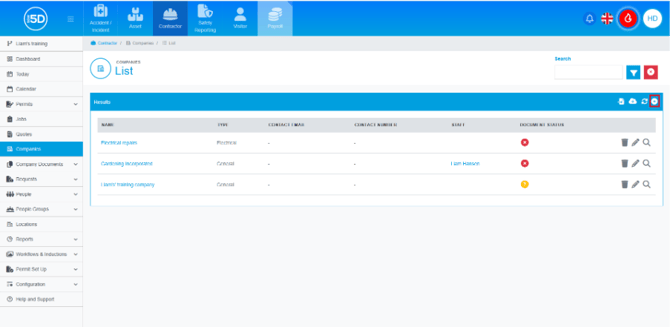
- This will take you to a list of all your current contractor companies. This page provides an overview of each company including the name, company type, and document status. To create a new company, click the plus symbol in the top right corner.
- You’ll be taken to a new page where you can begin entering the details of the new company. Start by entering the company name in the ‘Name’ field.
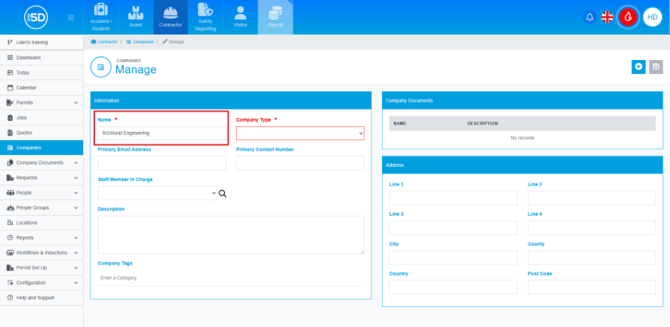
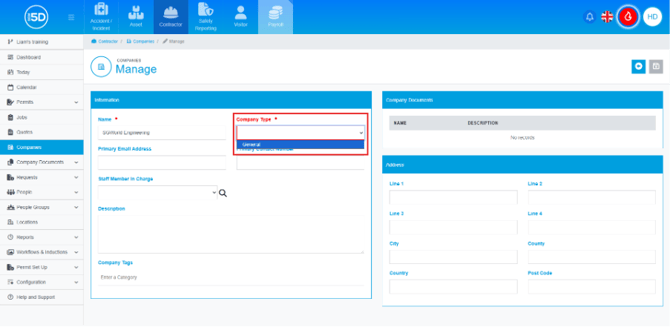
- Next, add a company type using the ‘Company Type’ field. This determines what documentation is required for that contractor company.
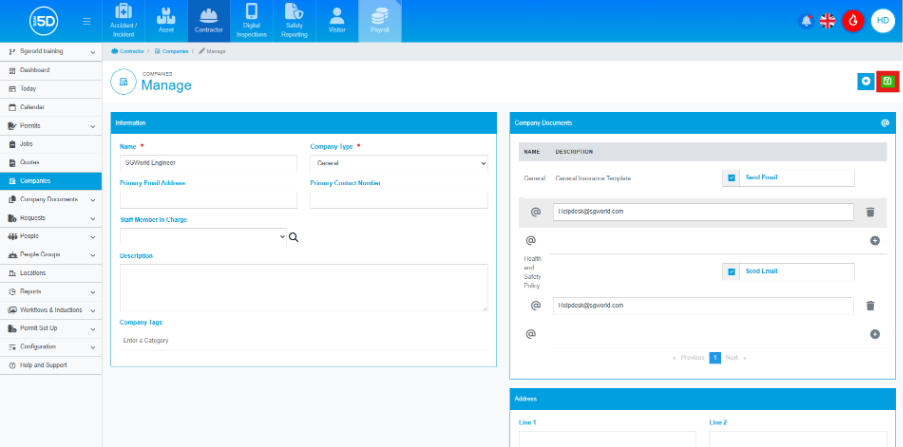
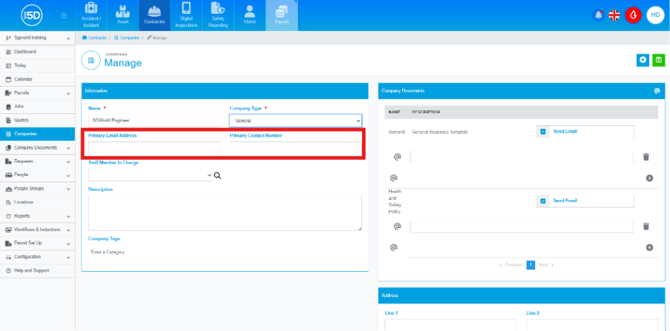
- The ‘Primary Email Address’ and ‘Primary Phone Number’ fields are used to store contact details for the company. These do not serve any other purpose within the module.
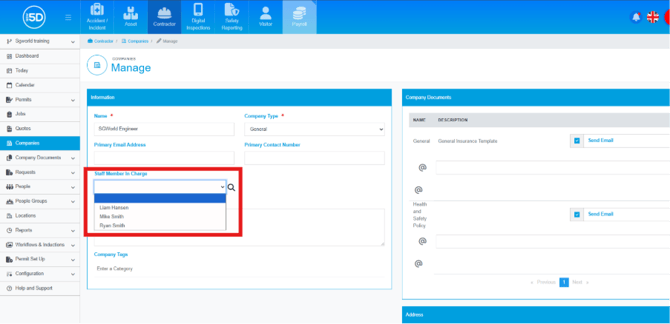
- You can assign a ‘Staff Member’ in charge. Clicking this field will display a list of all staff members. If you add a staff member with an email address, they will be notified of any changes, such as documents expiring or being uploaded to 5D.
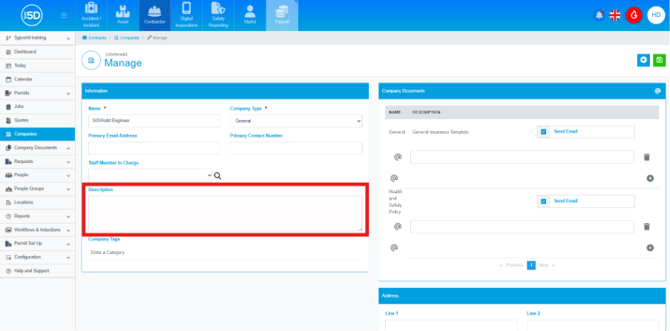
- You may also add a description of the company, although this is optional.
- Company tags can be added. See this guide on how to create them.
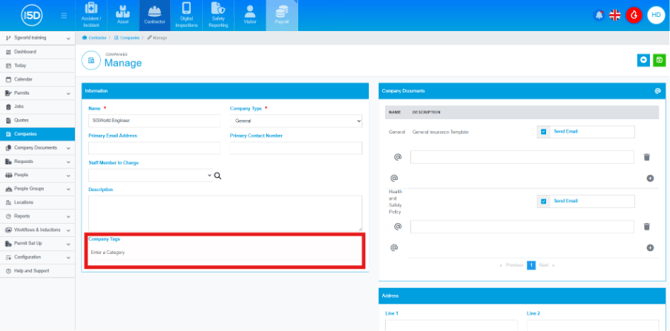
- To the right of the information box, you’ll find ‘Company Documents’. Here, you can set up an email to be sent to contractor contacts requesting the documentation specified in the Company Documents section. You can leave this blank and this in later.
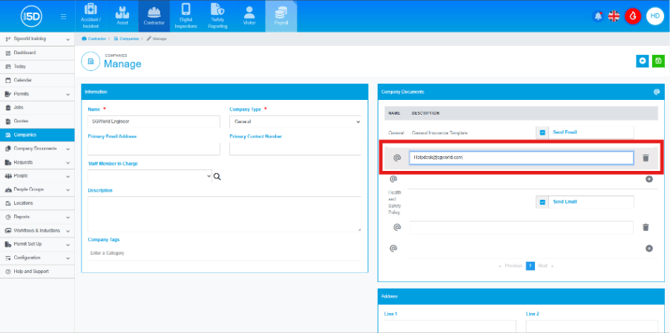
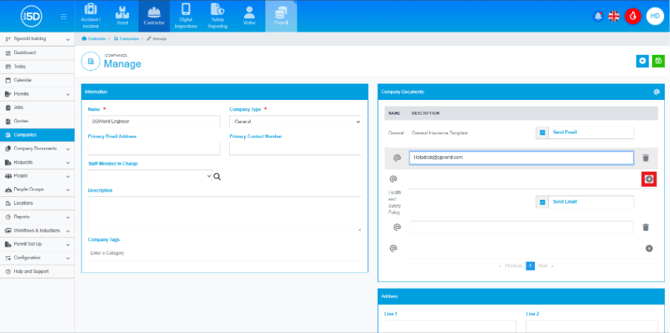
- You can add multiple contacts for a document, request by clicking the plus symbol under the email address field and entering additional email addresses.
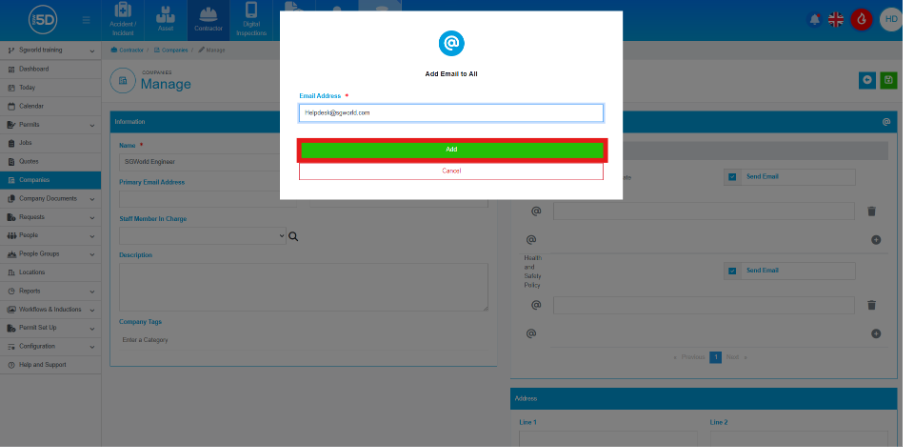
- You can mass change the emails for all document types by clicking the ‘@’ in the top right of the ‘Company Documents’ box.
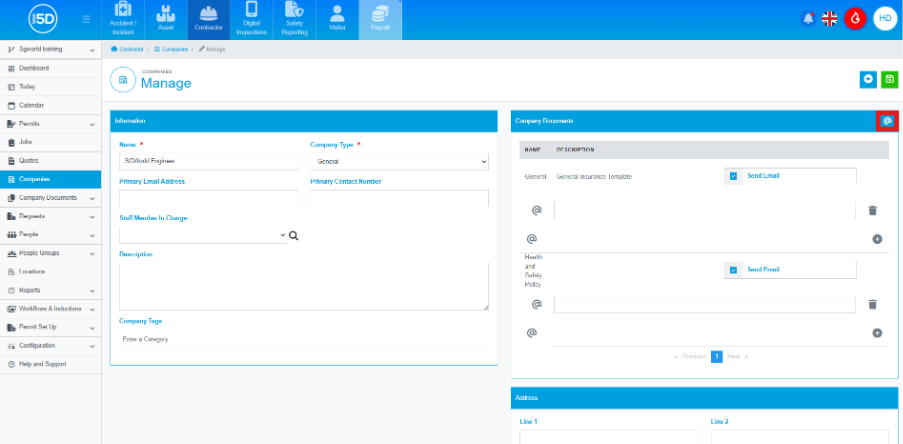
- An overlay will appear on the screen, if an email address is inputted into the text box and then ‘Add’ is clicked, this will add the email address to all document types.
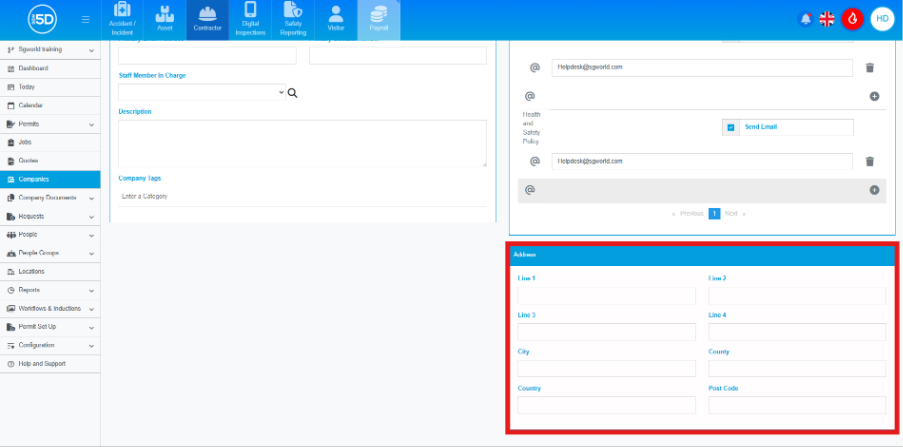
- Below the ‘Company Documents’ box, you’ll find the ‘Address’ section. Here, you can enter the contractor company’s address. These field is not mandatory.
- When you are done click the green save icon in the top right corner of the screen.