
-
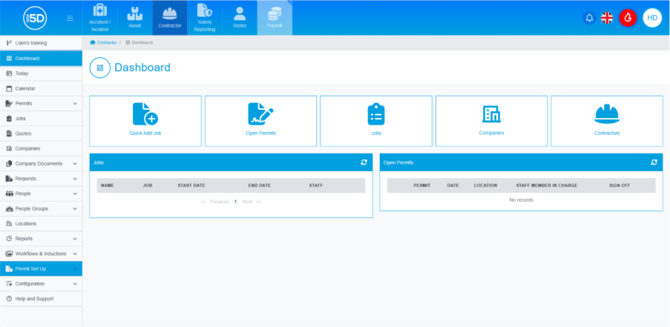
- From anywhere in the Contractor module, use the left-hand navigation panel and click ‘Permit Set up’.
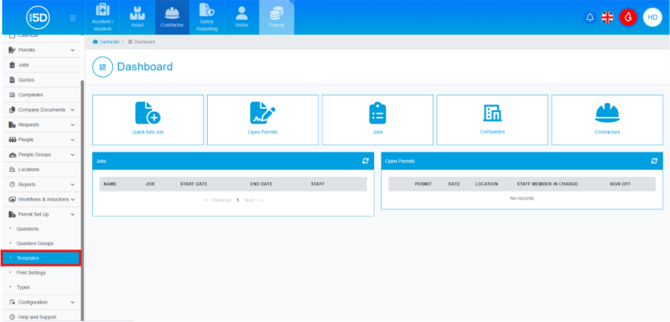
- Then click ‘Templates’.
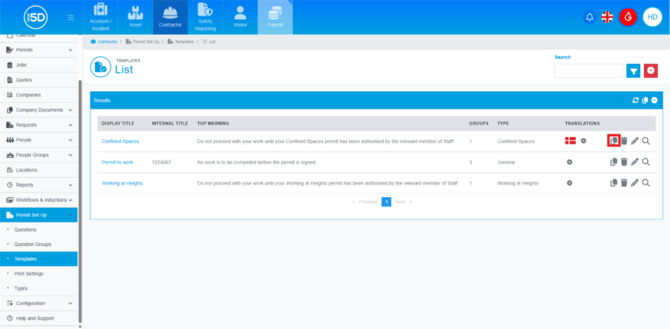
- This will take you to the list of all your current templates. To clone a permit template, click the Clone button, represented by two overlapping pages.
- This will allow you to start editing the cloned template. Begin with the ‘Information’ box, where you can update fields such as ‘Display Title’, ‘Internal Title’, ‘Top Warning’, and ‘Permit Type’.
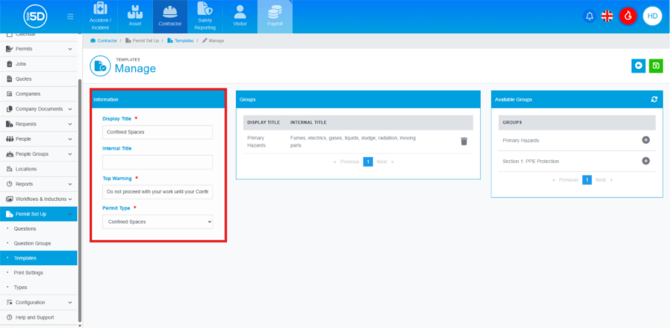
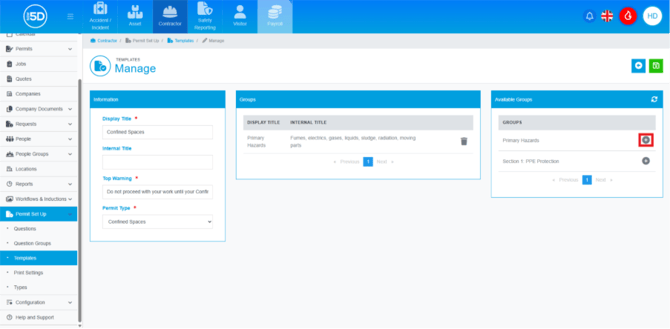
- You can add new groups by clicking the plus symbol next to the group in the ‘Available Groups’ box.
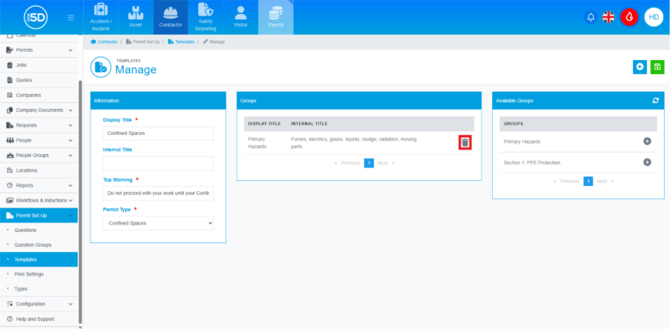
- You can remove groups by clicking the recycle bin icon in the ‘Groups’ box in the centre of the page. To save any changes to the new template, click the green Save icon in the top right.
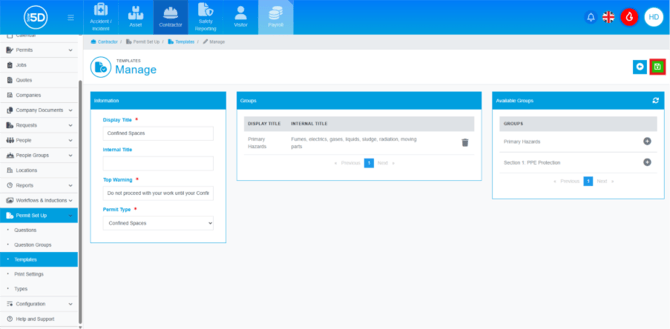
- To save any changes to the new template, click the green Save icon in the top right.
- From anywhere in the Contractor module, use the left-hand navigation panel and click ‘Permit Set up’.