
This guide can be used to create a custom field across any module, the only thing to keep in mind is some of the areas may change where you can put a custom field against. Some modules do not have custom fields.
-
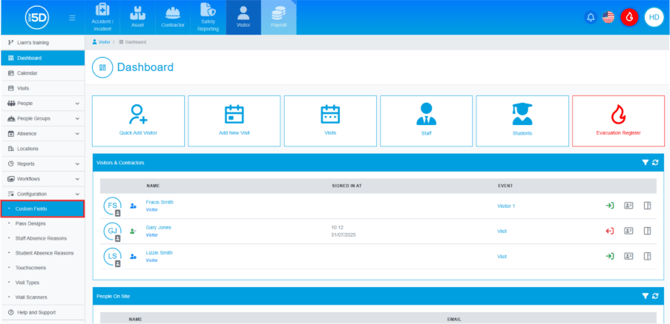
- To create a custom field, click on ‘Configuration’.

- Then click on ‘Custom Fields’
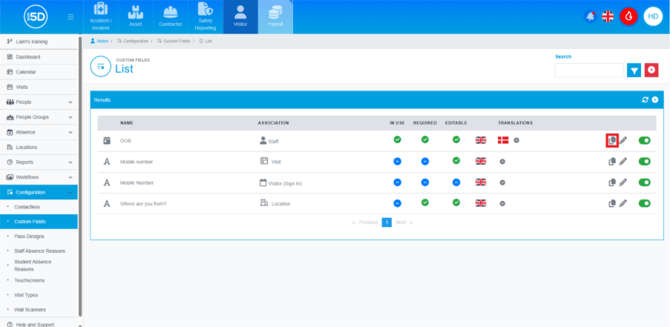
- You can clone a custom field by clicking the clone button, which is indicated by two overlapping pages.
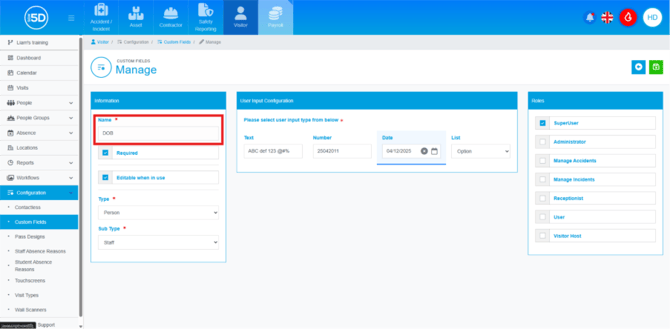
- This will take you to a page where you can start editing the cloned custom field, beginning with the ‘Information’ box on the left-hand side. You can start by changing the name of the custom field.
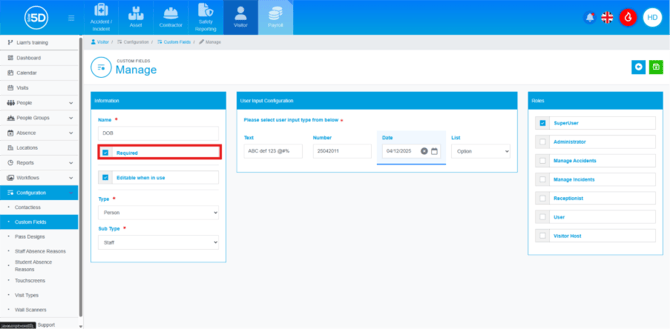
- Having ‘Required’ ticked means that this custom field must be filled in before continuing.
- ‘Editable when in use’, when ticked, allows you to make changes to the custom field after it has been saved. If this has not been ticked when saved, you will not be able to change any aspect of the custom field.
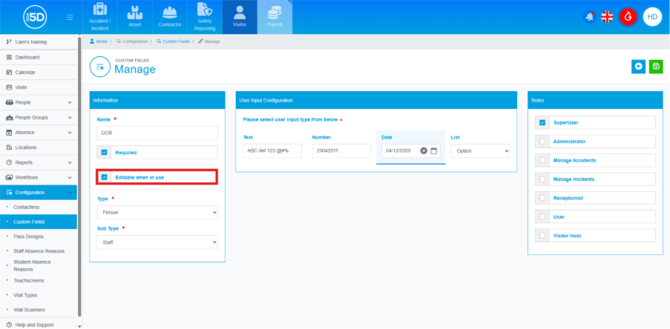
- When a custom field has been cloned, you are able to change the ‘Type’ and ‘Subtype.’
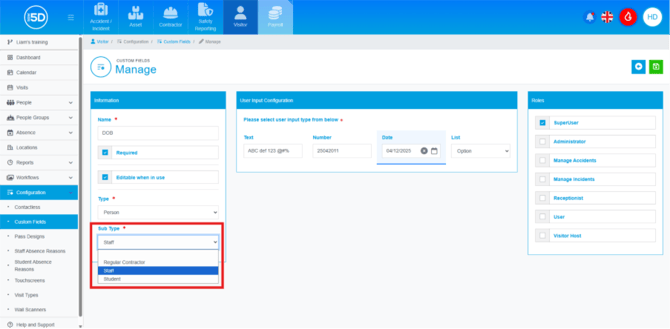
- Moving to the centre box, ‘User Input Configuration’, this allows you to change how the custom field is answered.

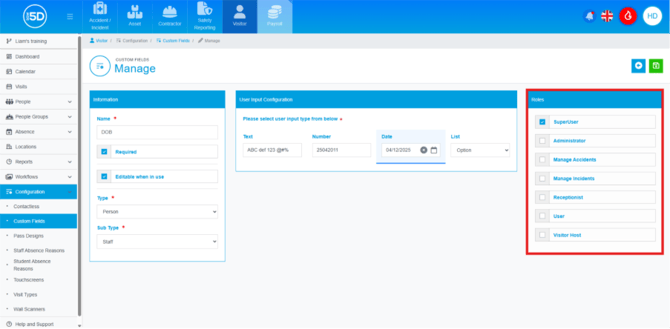
- To the right of ‘User Input Configuration’, there are roles. Tick the roles of those who have permission to view that information.
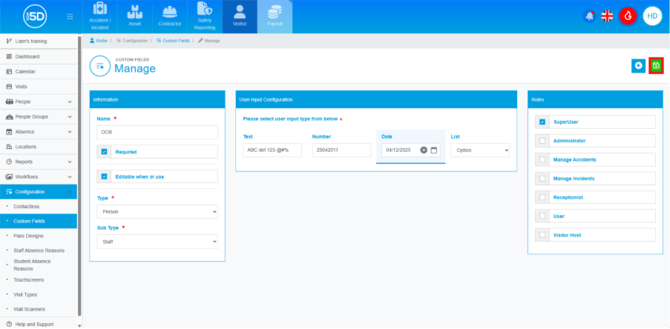
- To save any changes to the newly cloned custom field, click the green Save icon in the top-right corner.
- To create a custom field, click on ‘Configuration’.