
-
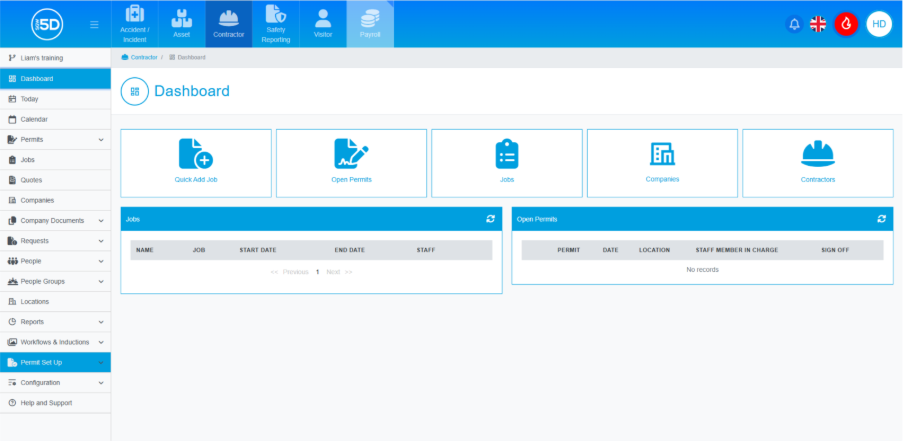
- From anywhere in the Contractor module, use the left-hand navigation panel and click ‘Permit Set up’.
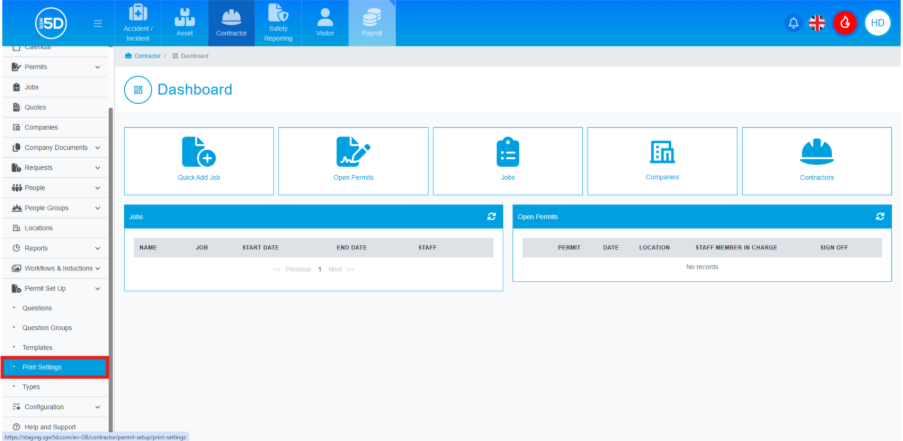
- Then click ‘Print Settings’.
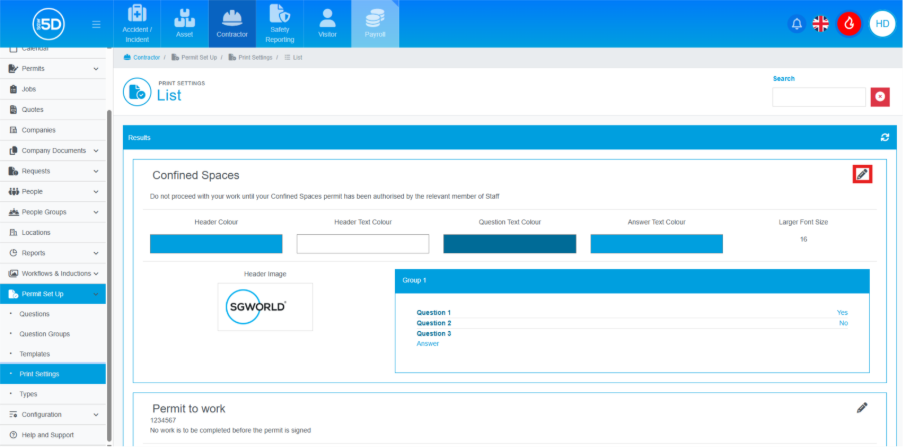
- This will take you to a list of all currently saved permit templates. Here, you can edit the colour and logos of any template for printing. To start editing a template, click the pencil icon in the top right corner.
- An overlay will appear, allowing you to edit how the printed permit will look. Start by looking at the left-hand box labelled ‘Header Images’. You can add a new logo by browsing for the file or by dragging and dropping a file onto the square.
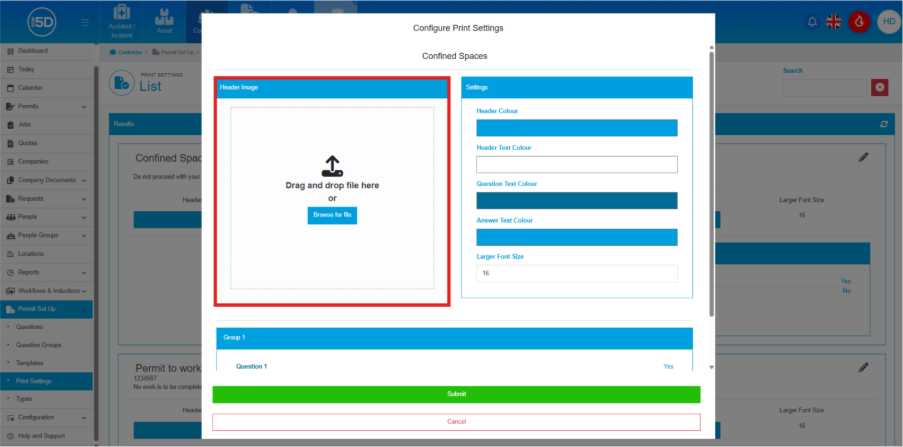
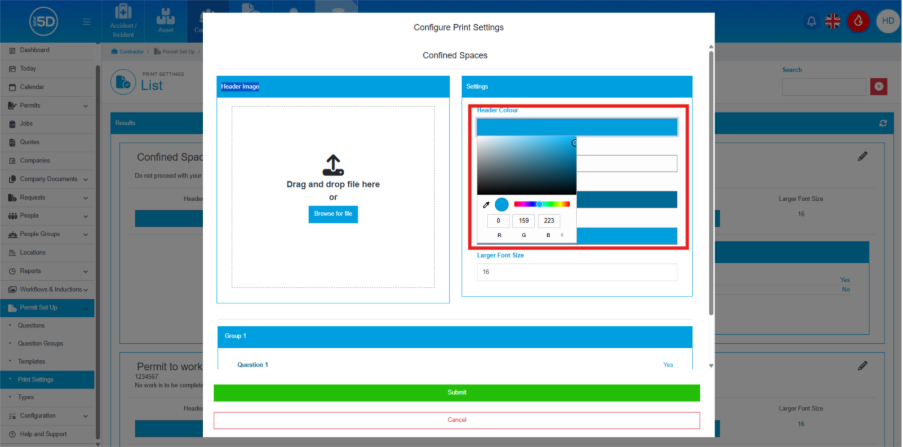
- Move to the right-hand box labelled ‘Settings’. Clicking any of the boxes will allow you to change the colour using the colour picker.
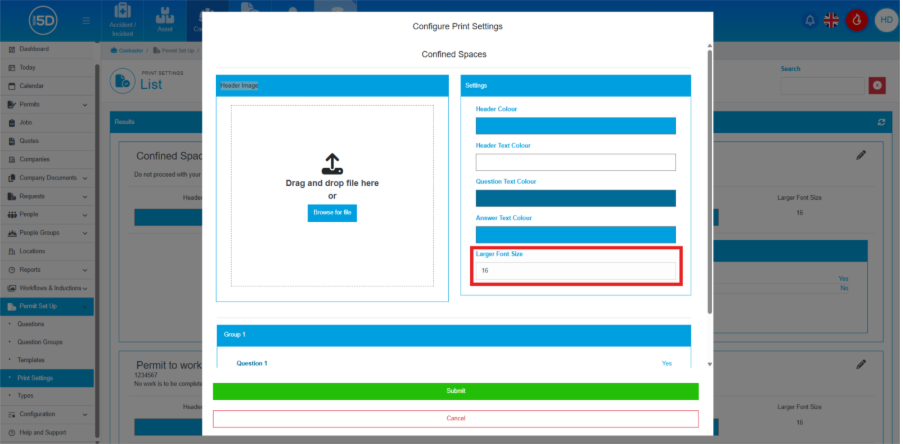
- You can also change the font size of some text. Adjust the number in the field labelled ‘Larger Font Sizes’ to increase or decrease the font size.
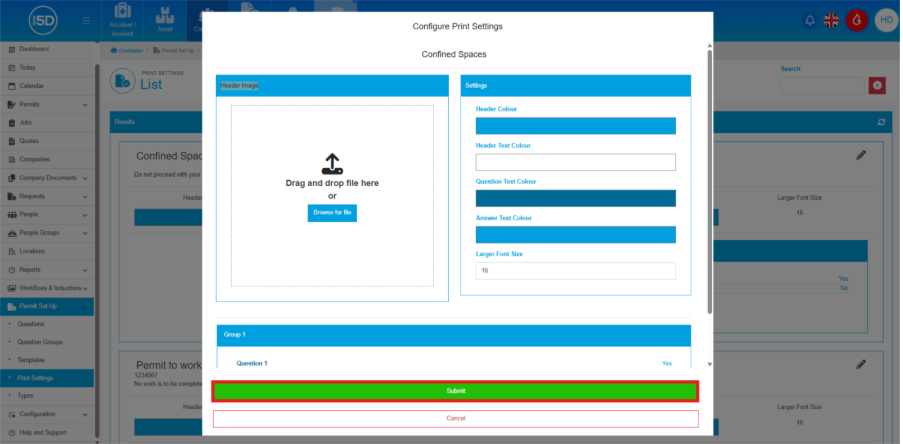
- When you’ve made your changes, click ‘Submit’ to save them.
- From anywhere in the Contractor module, use the left-hand navigation panel and click ‘Permit Set up’.