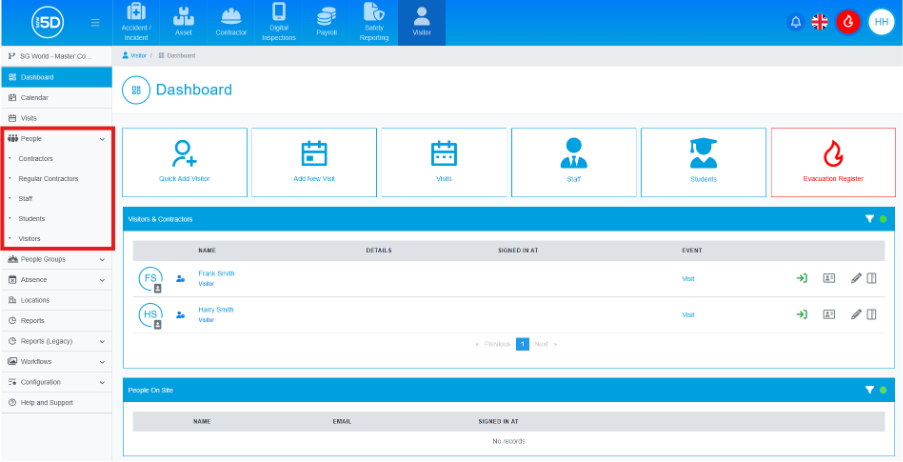
- Starting from the dashboard, use the left-hand navigation panel click People to open a drop-down menu.
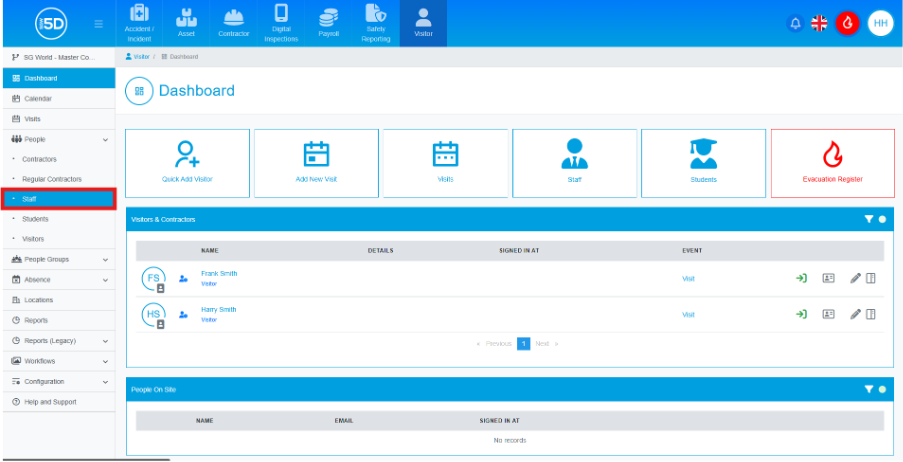
- Click Staff.
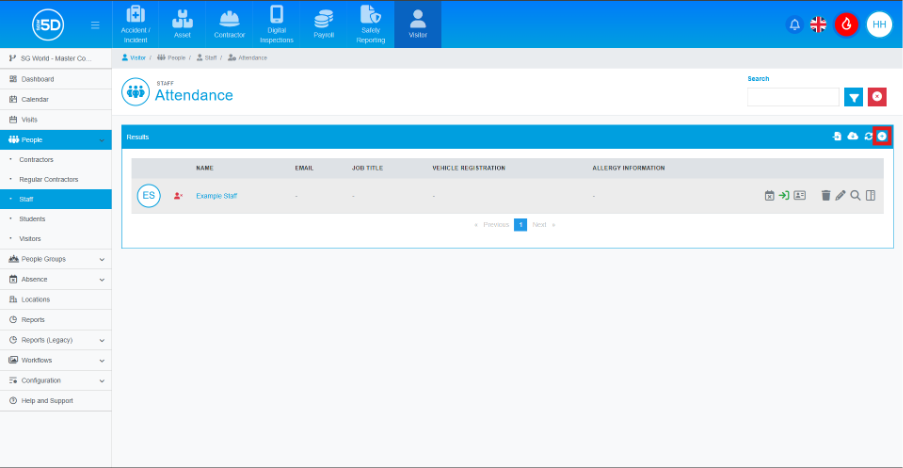
- This will take you to an overview page with some basic details about each staff member. To add a new staff member, click the plus symbol at the top right.
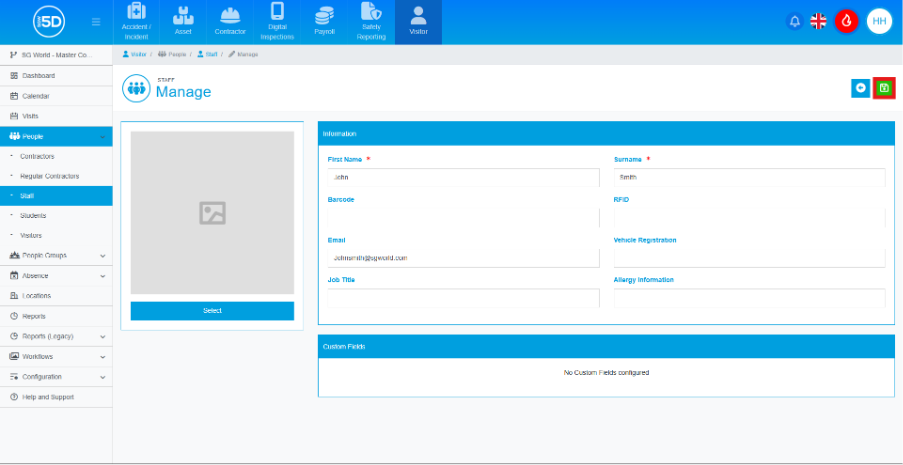
- This will lead you to the staff creation page. When it comes to creating staff, the only required fields are the Frist Name and Surname fields.
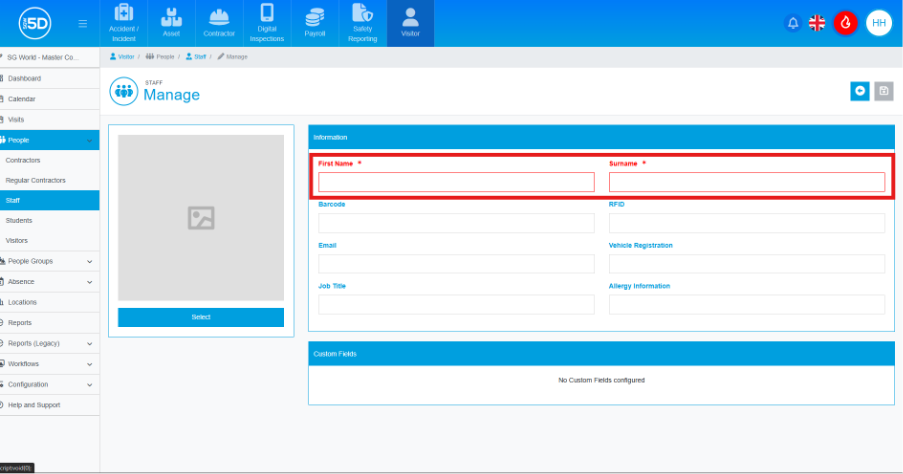
- Leave the Barcode field blank, it will automatically generate the next available bar code for you.
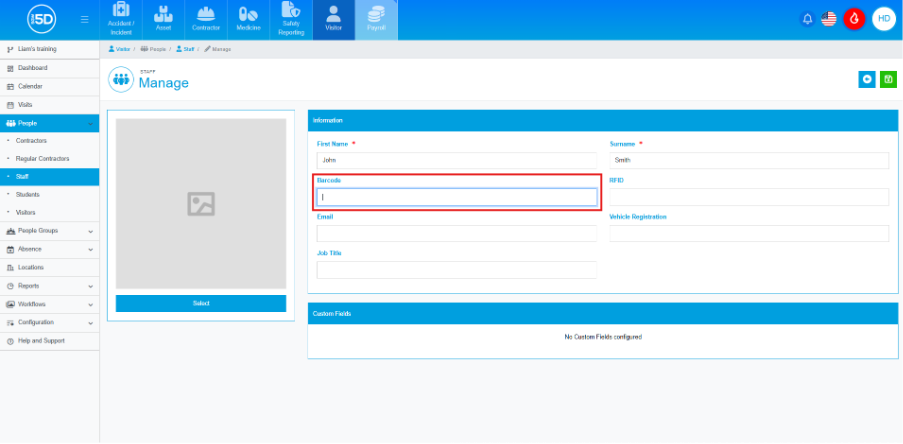
- RFID is used for RFID ID cards; this will be covered in another guide.
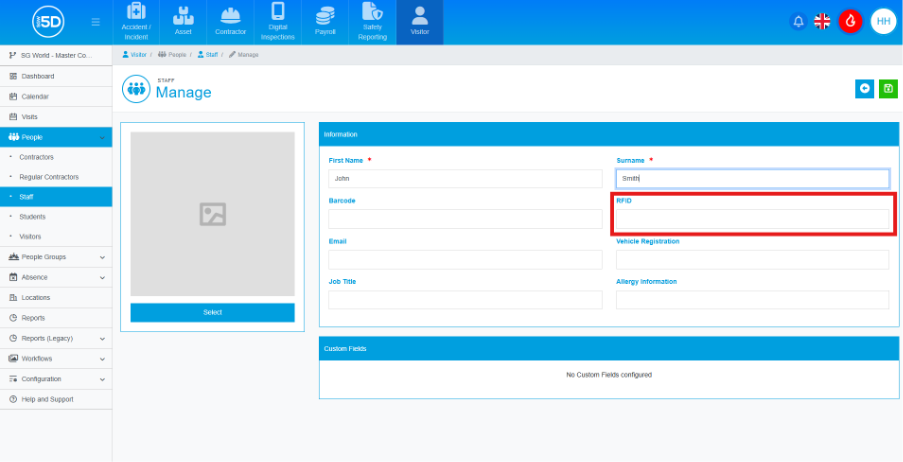
- Email is important for staff members, this will show how they are notified regarding changes within the system, this could be things such as receiving notifications that a visitor has arrived on site or that there has been a change on a job in the contractor module.
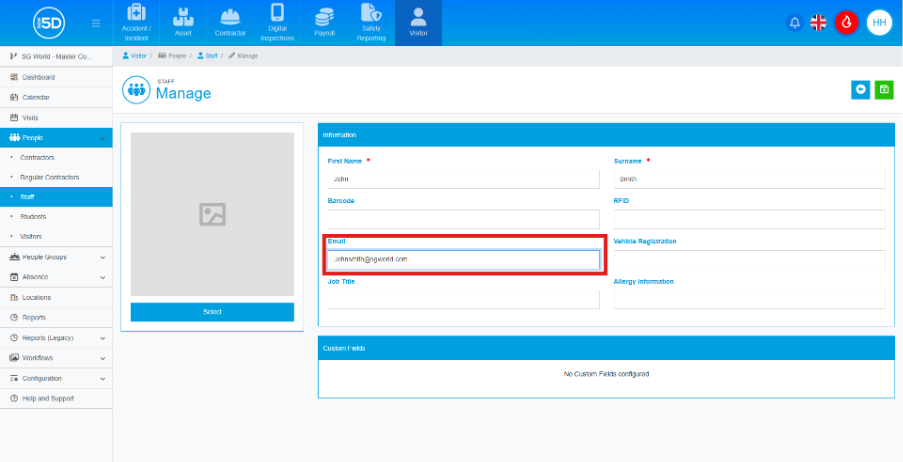
- Vehicle registration and Job Title fields are optional, and both can appear on the ID cards, if they are printed from 5D.
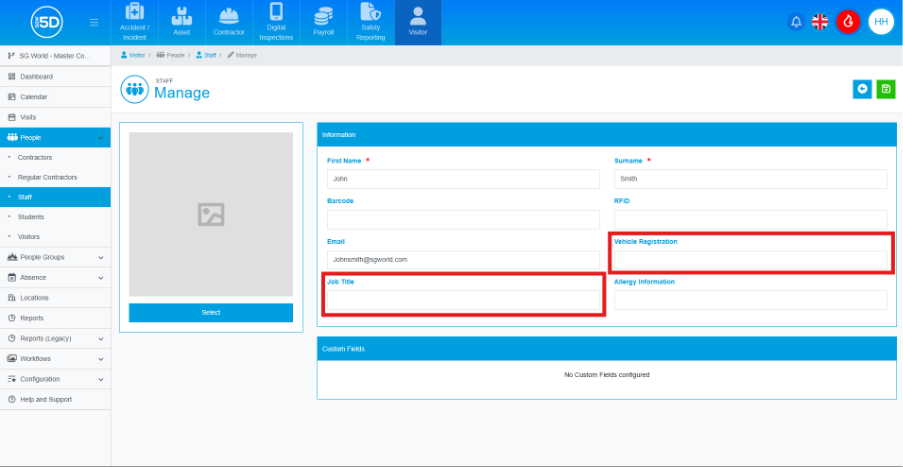
- The Allergy Information field is another optional field, used to collect allergy information for the staff members.
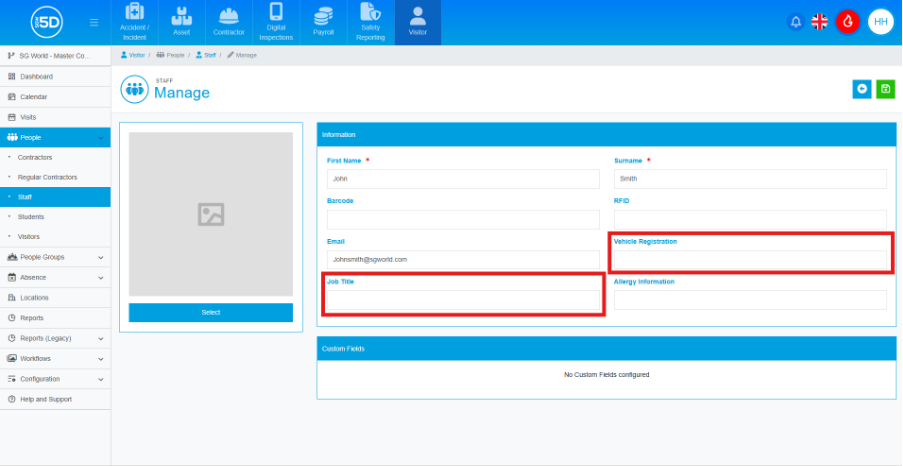
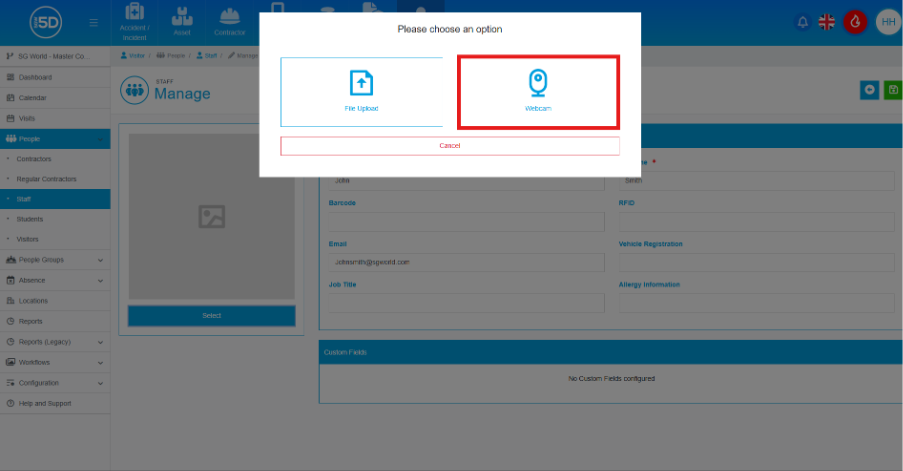
- You can upload a photo of the staff member, by pressing the Select on the left-hand side.
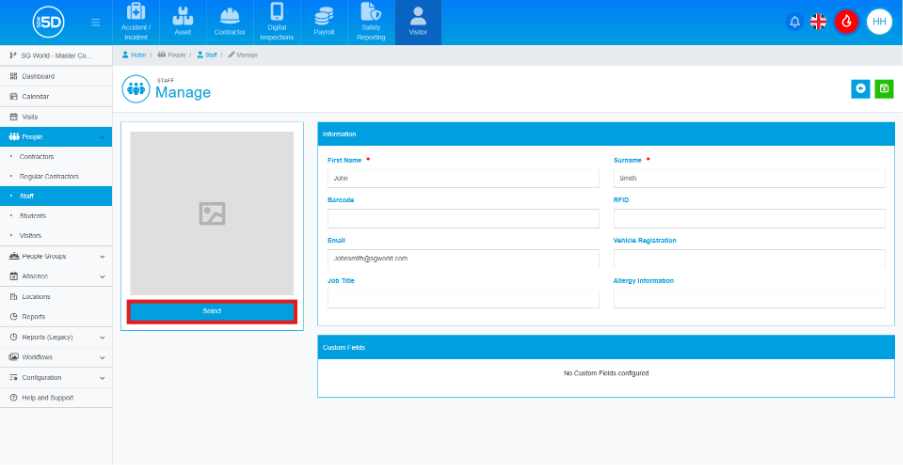
- You have got two options to upload an image of the staff member. If you have got image already saved you will be able to upload it, using the upload button.
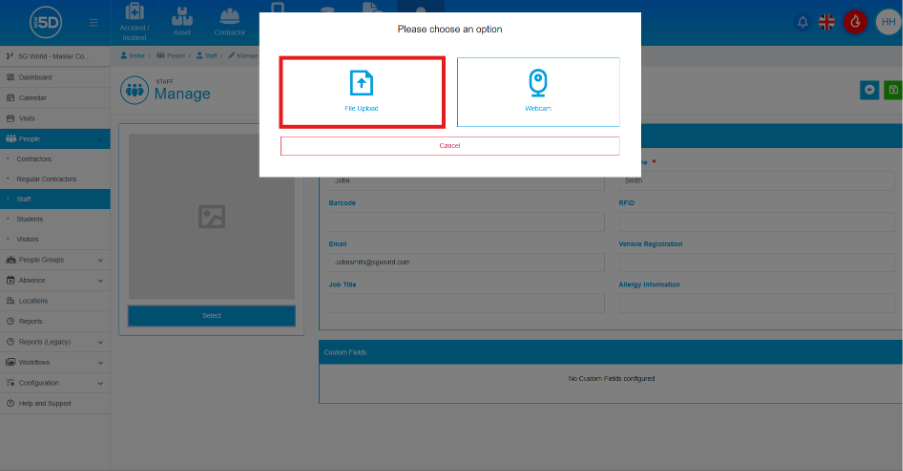
- If you have a webcam attached to the PC, you will be able to teak picture using the webcam.
- When you have the added all the information you need click the green save icon in the top right corner, to save the record.