
-
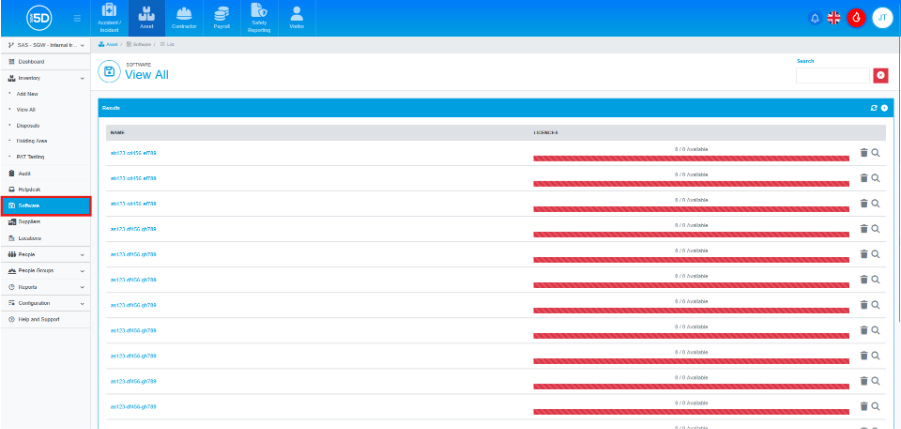
- Using the left-hand navigation panel, go to ‘Software.’
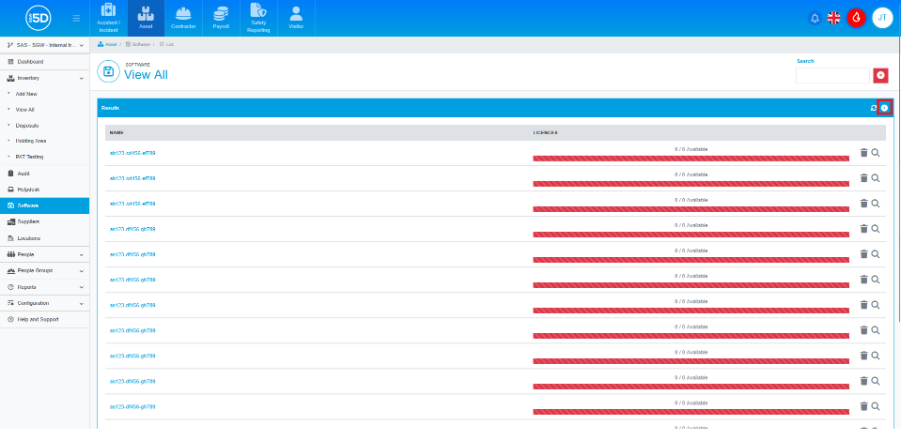
- Click the Plus button.
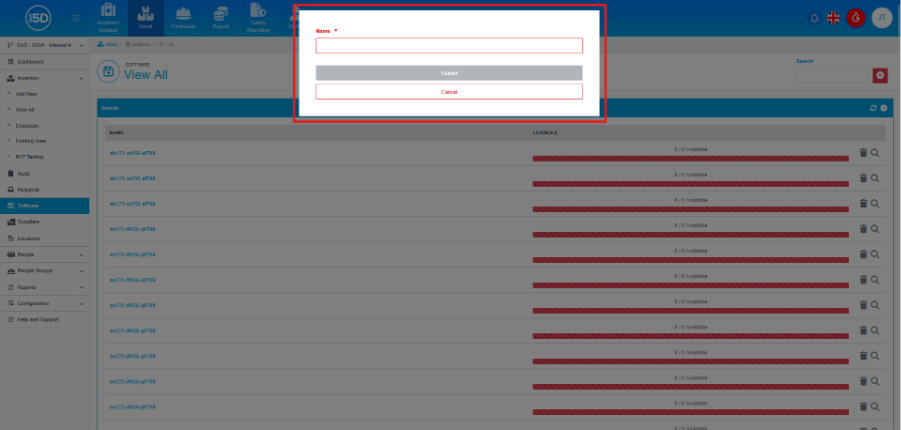
- Enter a name for the record.
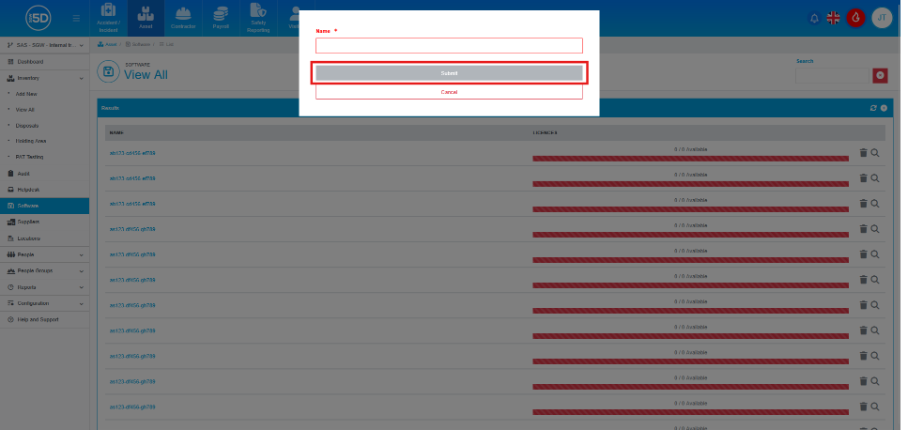
- Click submit.
- Find your new Software record and click the magnifying glass icon to the right of it.
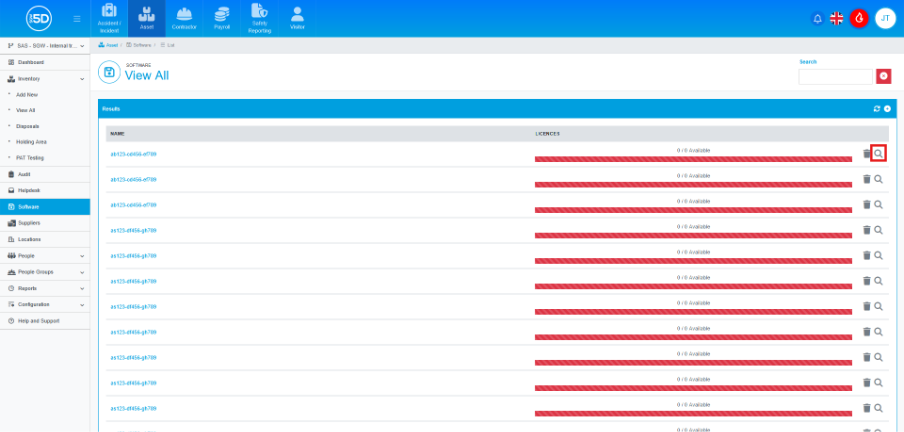
- You can now register licenses by clicking the plus icon to the right.

- There are two ways to add licenses, Single or Multiple. To add a Single License, select Single License as the type and fill in the relevant fields. Name is the only required field, you can optionally enter a serial number and assign the License to a Person or Item record.
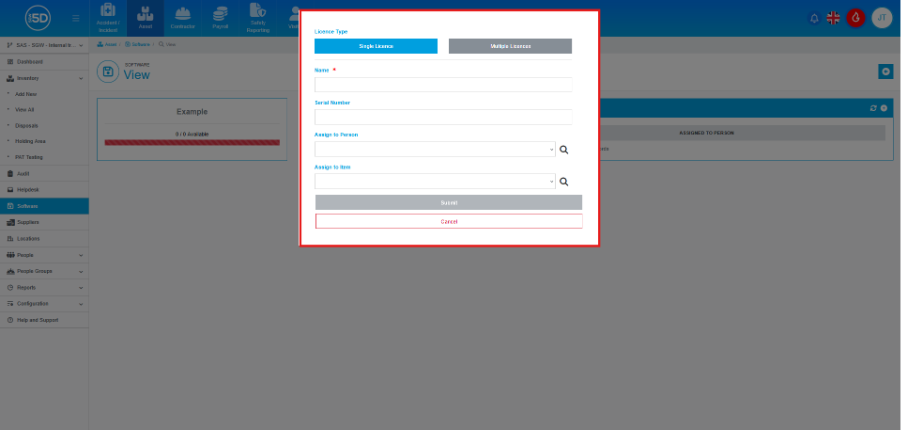
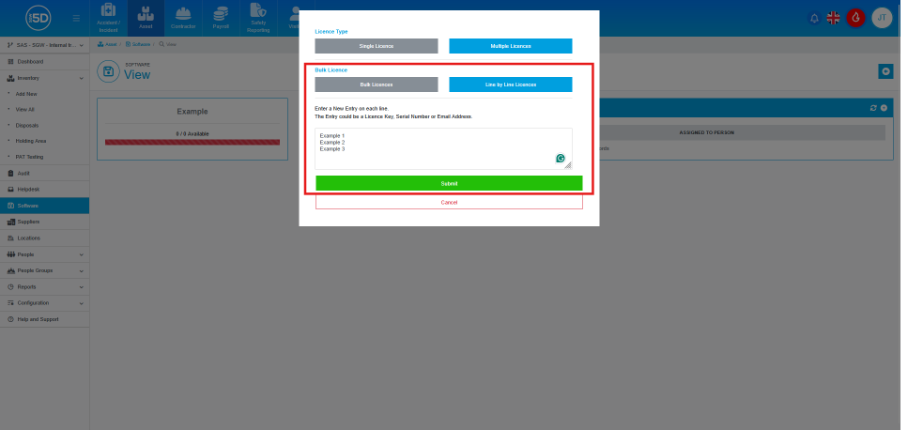
- To add multiple licenses, select Multiple Licenses as the type. You then can either add multiple licenses with same information but selecting ‘Bulk Licenses’ or you can add multiple licenses with differing information by selecting ‘Line by Line Licenses’.
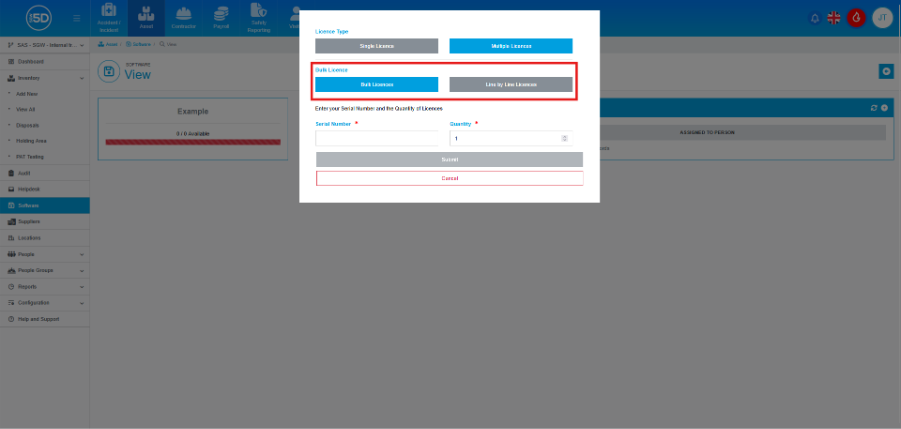
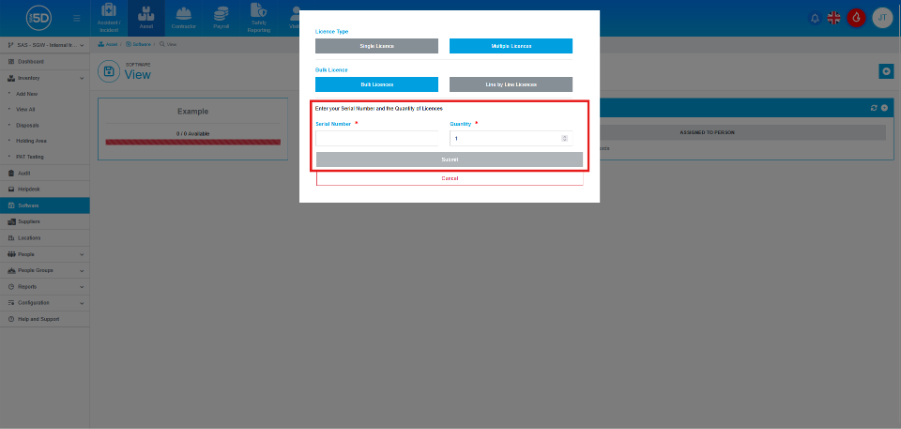
- To add Bulk Licenses, enter the information in to the ‘Serial Number’ field (this will also be the license name) and set a quantity. Click ‘Submit’ to then create the records.
- For Line by Line, enter whatever information you want in the text box, making sure that each new record is on the next line. Click ‘Submit’ to then create the records.
- Using the left-hand navigation panel, go to ‘Software.’