
- How to use the Attendance: Historical report
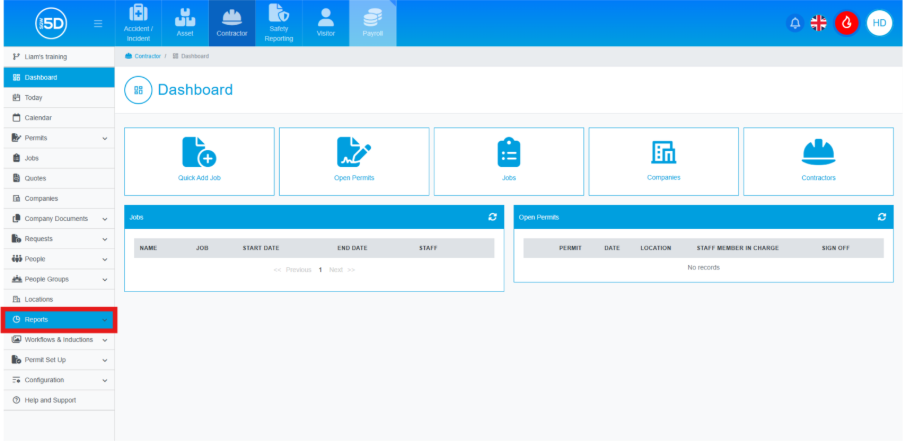
- In the Contractor module, click ‘Reports’ on the left-hand navigation panel.
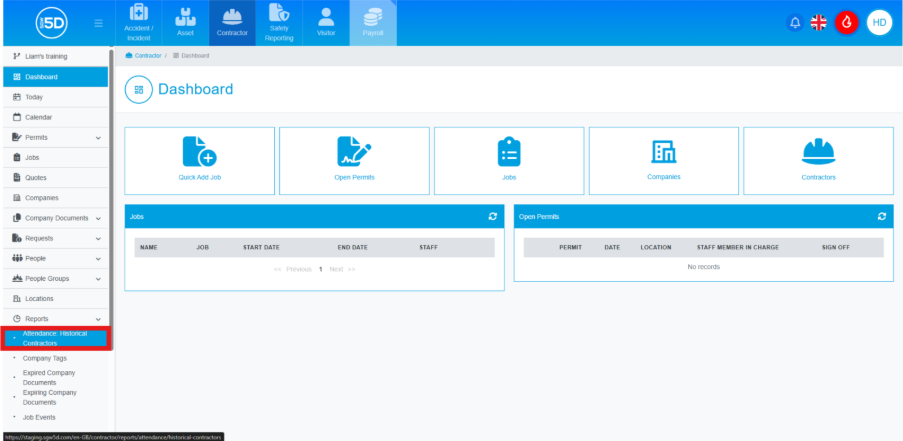
- Then click the ‘Attendance: Historical Contractors’ report.
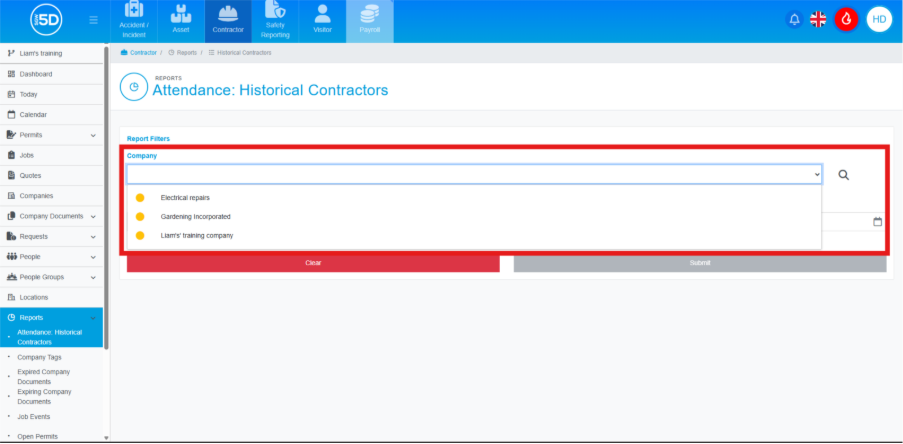
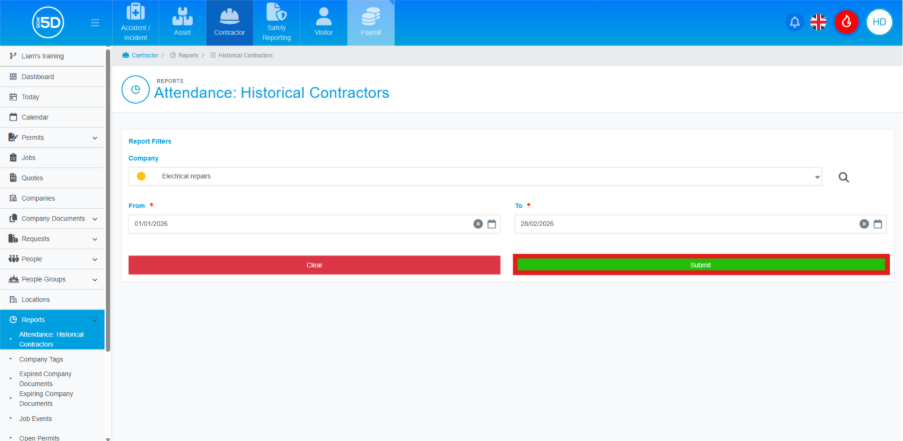
- This will take you to a page where you can start adding filters for the report. You can search for a specific company using the ‘Company’ field.
- The ‘From’ and ‘To’ fields are mandatory and the only ones required to run the report.
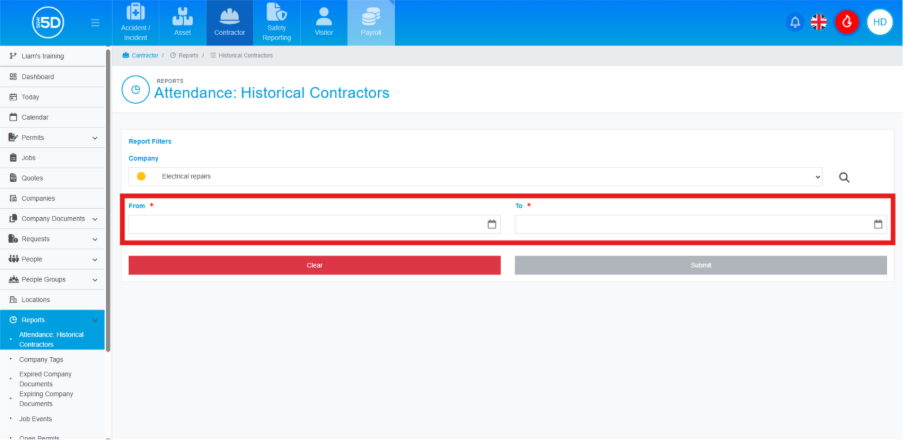
- If the ‘From’ and ‘To’ fields are filled in, you will be able to click the ‘Submit’ button at the bottom of the page.
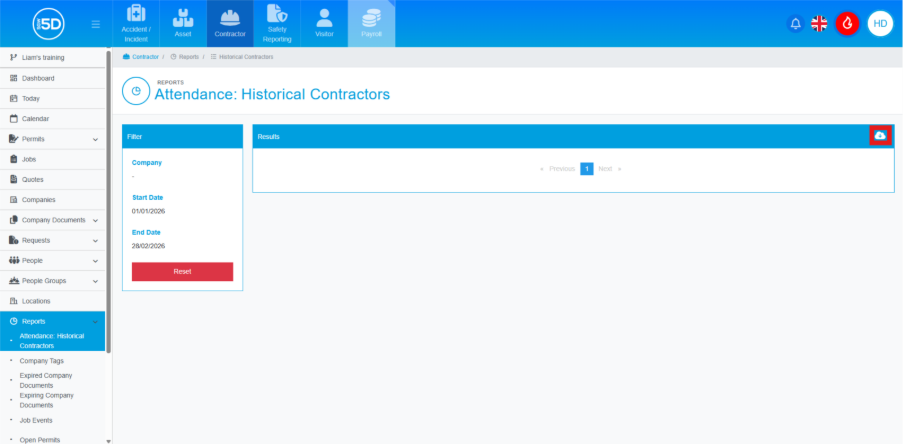
- You will now see the report displayed on the page. You can download the report from the right-hand side of the page using the cloud symbol.
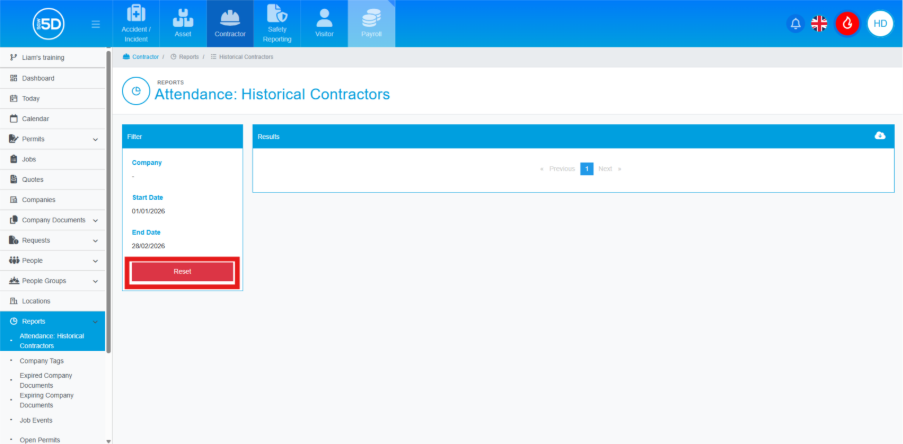
- You can reset the report by clicking the ‘Reset’ button in the filters box.
- In the Contractor module, click ‘Reports’ on the left-hand navigation panel.