---
title: Allergy Information Field
description: System infomration
---
[Skip to content](https://knowledge.sgworld.com/allergy-information-field#main-content)
English
Show submenu for translations
[More support](https://knowledge.sgworld.com/kb-tickets/new?hsLang=en) [Customer portal](https://knowledge.sgworld.com/mytickets?hsLang=en)

Open main navigation
Close main navigation
- English
Show submenu for translations
- [More support](https://knowledge.sgworld.com/kb-tickets/new)
- [Customer portal](https://knowledge.sgworld.com/mytickets)
Find your answers here
- There are no suggestions because the search field is empty.
1. [Knowledge Base](https://knowledge.sgworld.com/?hsLang=en)
2. [SGW5D System Guides](https://knowledge.sgworld.com/sgw5d-system-guides?hsLang=en)
3. [System](https://knowledge.sgworld.com/sgw5d-system-guides?hsLang=en#system)
# Allergy Information Field
## This guide explains how to enable the Allergy Information fields and shows where this information appears..
1. How to access the settings.
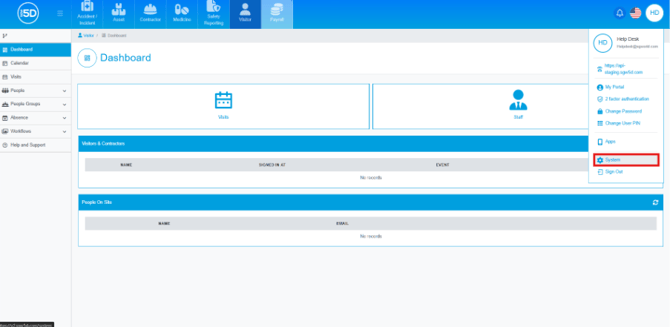
1. Click on your initials in the top right corner. Then click **System**.
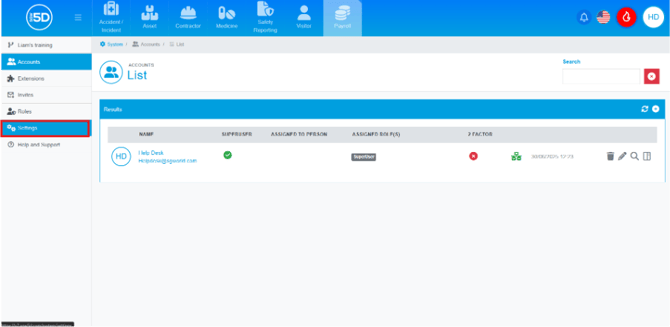
2. Using the left-hand navigation panel and click **Settings**.
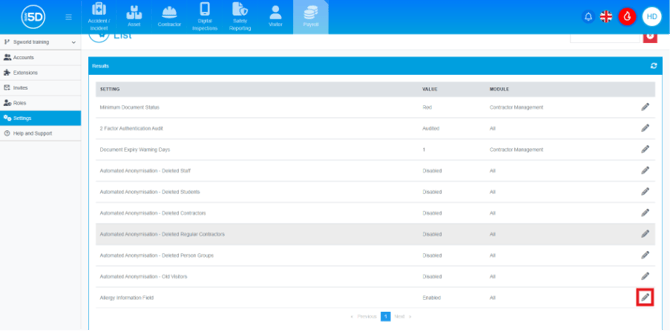
2. How enable Allergy Information Field
1. To enable the feature click on the pencil icon on the row of the setting.
2. Then use the drop-down box to select **Enable** to turn the feature on.
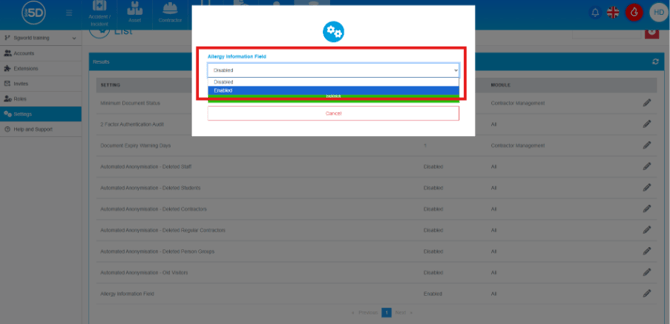
3. Click **Submit** to turn the feature on.
3. What it does
1. This feature changes various aspects of both the visitor and contractor modules once enabled.
2. In the visitor module it changes the following:
1. Prebooking visitors will now have the Allergy Information field when creating new visitors.
2. Quick add visitor will now show an Allergy Information field.
3. When creating a staff member the Allergy Information field will appear.
4. When creating a regular contact the allergy Information field will appear.
5. Visitor Module Dashboard will now show the allergy information under Details for visitors.
6. All list view of records, staff, regular contractors and visitors, will now display this information in their People section.
7. Allergy information will display pass designs for visitors, staff and regular contractors.
3. In the contactor module it changes the following.
1. An Allergy Information Field will now appear on the touchscreen, this will be defaulted to optional.
2. The contractor page will now display this information on the list view for all contractors.
3. Allergy information will now display on passes for contractors
4. Changes to the touchscreen
1. You will be able to change the requirement status of the field on the touchscreen within the visitor section when editing the touchscreen.
1. Hidden – Hides the view on the touchscreen
2. Optional – the field will appear, but the visitor will not need input this information to progress in signing in.
3. Required – Visitors will be forced to fill in this information before they are able to progress further in signing in.
- [Recent Updates](https://knowledge.sgworld.com/recent-updates?hsLang=en#main-content)
- [24/08/2026](https://knowledge.sgworld.com/recent-updates?hsLang=en#24-08-2026)
- [13/07/2026](https://knowledge.sgworld.com/recent-updates?hsLang=en#13-07-2026)
- [30/06/2026](https://knowledge.sgworld.com/recent-updates?hsLang=en#30-06-2026)
- [25/04/2026](https://knowledge.sgworld.com/recent-updates?hsLang=en#25-04-2026)
- [12/03/2026](https://knowledge.sgworld.com/recent-updates?hsLang=en#12-03-2026)
- [05/02/2026](https://knowledge.sgworld.com/recent-updates?hsLang=en#05-02-2026)
- [15/12/2025](https://knowledge.sgworld.com/recent-updates?hsLang=en#15-12-2025)
- [11/12/2025](https://knowledge.sgworld.com/recent-updates?hsLang=en#11-12-2025)
- [10/12/2025](https://knowledge.sgworld.com/recent-updates?hsLang=en#10-12-2025)
- [08/12/2025](https://knowledge.sgworld.com/recent-updates?hsLang=en#08-12-2025)
- [24/11/2025](https://knowledge.sgworld.com/recent-updates?hsLang=en#24-11-2025)
- [SGW5D System Guides](https://knowledge.sgworld.com/sgw5d-system-guides?hsLang=en#main-content)
- [Accounts](https://knowledge.sgworld.com/sgw5d-system-guides?hsLang=en#accounts)
- [System](https://knowledge.sgworld.com/sgw5d-system-guides?hsLang=en#system)
- [Roles](https://knowledge.sgworld.com/sgw5d-system-guides?hsLang=en#roles)
- [SGW5D People Guides](https://knowledge.sgworld.com/sgw5d-people-guides?hsLang=en#main-content)
- [Visitor](https://knowledge.sgworld.com/sgw5d-people-guides?hsLang=en#visitor)
- [Contractor](https://knowledge.sgworld.com/sgw5d-people-guides?hsLang=en#contractor)
- [Regular Contractors](https://knowledge.sgworld.com/sgw5d-people-guides?hsLang=en#regular-contractors)
- [Staff](https://knowledge.sgworld.com/sgw5d-people-guides?hsLang=en#staff)
- [Locations](https://knowledge.sgworld.com/sgw5d-people-guides?hsLang=en#locations)
- [Student](https://knowledge.sgworld.com/sgw5d-people-guides?hsLang=en#student)
- [SGW5D Visitor Guides](https://knowledge.sgworld.com/sgw5d-visitor-guides?hsLang=en#main-content)
- [Absence](https://knowledge.sgworld.com/sgw5d-visitor-guides?hsLang=en#absence)
- [Dashboard](https://knowledge.sgworld.com/sgw5d-visitor-guides?hsLang=en#dashboard)
- [Configuration](https://knowledge.sgworld.com/sgw5d-visitor-guides?hsLang=en#configuration)
- [Reports](https://knowledge.sgworld.com/sgw5d-visitor-guides?hsLang=en#reports)
- [SGW5D Contractor Management Guides](https://knowledge.sgworld.com/sgw5d-contractor-management-guides?hsLang=en#main-content)
- [Job Creation](https://knowledge.sgworld.com/sgw5d-contractor-management-guides?hsLang=en#job-creation)
- [Company Documents](https://knowledge.sgworld.com/sgw5d-contractor-management-guides?hsLang=en#company-documents)
- [Company Types](https://knowledge.sgworld.com/sgw5d-contractor-management-guides?hsLang=en#company-types)
- [Permits](https://knowledge.sgworld.com/sgw5d-contractor-management-guides?hsLang=en#permits)
- [Reports](https://knowledge.sgworld.com/sgw5d-contractor-management-guides?hsLang=en#reports)
- [SGW5D Asset Management Guide](https://knowledge.sgworld.com/sgw5d-asset-management-guide?hsLang=en#main-content)
- [Items](https://knowledge.sgworld.com/sgw5d-asset-management-guide?hsLang=en#items)
- [Audit](https://knowledge.sgworld.com/sgw5d-asset-management-guide?hsLang=en#audit)
- [Helpdesk](https://knowledge.sgworld.com/sgw5d-asset-management-guide?hsLang=en#helpdesk)
- [Configuration](https://knowledge.sgworld.com/sgw5d-asset-management-guide?hsLang=en#configuration)
- [SGW5D Touchscreen Guides](https://knowledge.sgworld.com/sgw5d-touchscreen-guides?hsLang=en#main-content)
- [Create/ Change](https://knowledge.sgworld.com/sgw5d-touchscreen-guides?hsLang=en#create-change)
- [Delete](https://knowledge.sgworld.com/sgw5d-touchscreen-guides?hsLang=en#delete)
- [SGW5D Workflow Guides](https://knowledge.sgworld.com/sgw5d-workflow-guides?hsLang=en#main-content)
- [Stage Creation](https://knowledge.sgworld.com/sgw5d-workflow-guides?hsLang=en#stage-creation)
- [Workflow Creation](https://knowledge.sgworld.com/sgw5d-workflow-guides?hsLang=en#workflow-creation)
- [Induction Creation](https://knowledge.sgworld.com/sgw5d-workflow-guides?hsLang=en#induction-creation)
- [Visit Types](https://knowledge.sgworld.com/sgw5d-workflow-guides?hsLang=en#visit-types)
- [SGW5D People Groups Guides](https://knowledge.sgworld.com/sgw5d-people-groups-guides?hsLang=en#main-content)
- [Evacuation Groups](https://knowledge.sgworld.com/sgw5d-people-groups-guides?hsLang=en#evacuation-groups)
- [Class](https://knowledge.sgworld.com/sgw5d-people-groups-guides?hsLang=en#class)
- [Departments](https://knowledge.sgworld.com/sgw5d-people-groups-guides?hsLang=en#departments)
- [Contact Us](https://knowledge.sgworld.com/contact-us?hsLang=en)
- [App](https://knowledge.sgworld.com/app?hsLang=en#main-content)
- [Contractor](https://knowledge.sgworld.com/app?hsLang=en#contractor)
- [Asset](https://knowledge.sgworld.com/app?hsLang=en#asset)
- [System](https://knowledge.sgworld.com/app?hsLang=en#system)
[](http://sgworld.com)
[mailto:email@email.com](mailto:email@email.com)
Copyright © 2025, SG World
```json
{
"@context" : "https://schema.org",
"@type" : "VideoObject",
"caption" : {
"@type" : "MediaObject",
"contentUrl" : "https://knowledge.sgworld.com/media-transcripts/220277228560/en.vtt",
"inLanguage" : "en",
"name" : "en Captions"
},
"contentUrl" : "https://7964242.fs1.hubspotusercontent-na1.net/hubfs/7964242/video_assets/220277228560/inherited/web_optimized.mp4",
"dateModified" : "2026-08-25T13:00:37.720Z",
"duration" : "PT55S",
"height" : 1080,
"name" : "Allergy Information",
"thumbnailUrl" : "https://7964242.fs1.hubspotusercontent-na1.net/hubfs/7964242/Allergy%20Information.mp4/medium.jpg",
"uploadDate" : "2026-08-25T13:00:29.069Z",
"width" : 1920
}
```